
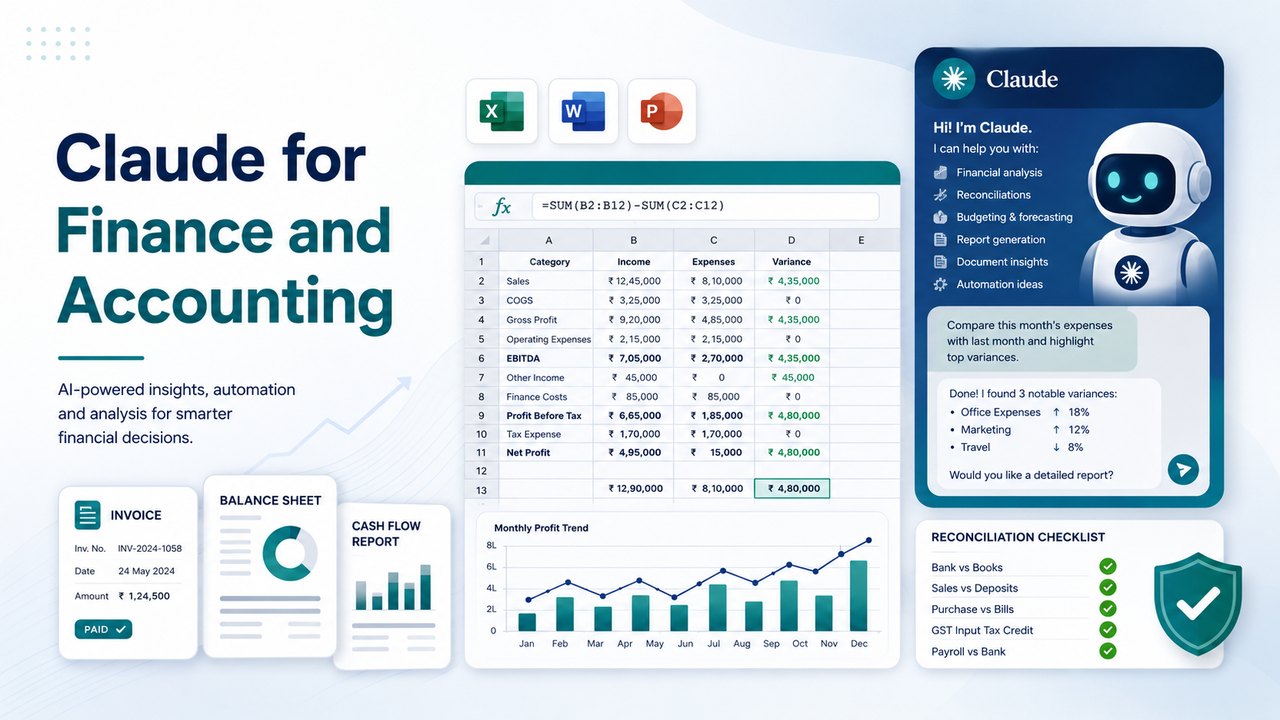
Claude for finance and accounting is a document-analysis and drafting copilot, not an accounting system and not a tax-filing tool. This is the hands-on guide: for each way you can use Claude for finance and accounting, you get what it does, the exact steps to set it up, a real example you can copy, and what to double check. It is a companion to our wider AI in Finance and Accounting guide and our AI prompts for finance guide.
Claude is Anthropic’s AI assistant. You use it at claude.ai in a browser, in the Claude desktop app, and now inside Microsoft Excel, Word and PowerPoint. Below we walk through each one in the order an accountant would actually adopt them.
Looking for Anthropic’s terminal-based agent? This guide covers Claude Chat, Cowork and the Office add-ins. For installation, CLAUDE.md, Skills, MCP and command-line workflows, follow our Claude Code tutorial for finance teams.
Read and extract from invoices, bills and statements

The fastest first win. You upload a document and Claude reads it and pulls out what you need.
What it does for finance.
- Reads PDFs, Excel, CSV, Word and images, and extracts fields into a table
- Reads a PDF in full including tables and stamps when it is under about 100 pages
- Handles several files in one chat, within the published file and chat limits
- Answers questions about a contract, such as payment terms, renewal date and penalties
How to do it, step by step.
- Sign in at claude.ai or open the Claude desktop app.
- Click the attach (plus) icon in the message box and add your invoice, bill or statement.
- Type a precise instruction that names the fields you want, in the order you want them.
- Let Claude return the table, then click any figure back to the source to confirm it.
- Ask Claude to export the table to an Excel file if you want it as a working sheet.
Where to be careful.
- On scanned or photographed documents the result depends on scan quality, which Claude does not guarantee, so check every figure against the original.
- Claude does not know your GST or TDS treatment unless you tell it, so spell out the rule.
- Treat the extraction as a first pass for data entry, not as a posted entry.
Analyse spreadsheets and ledgers
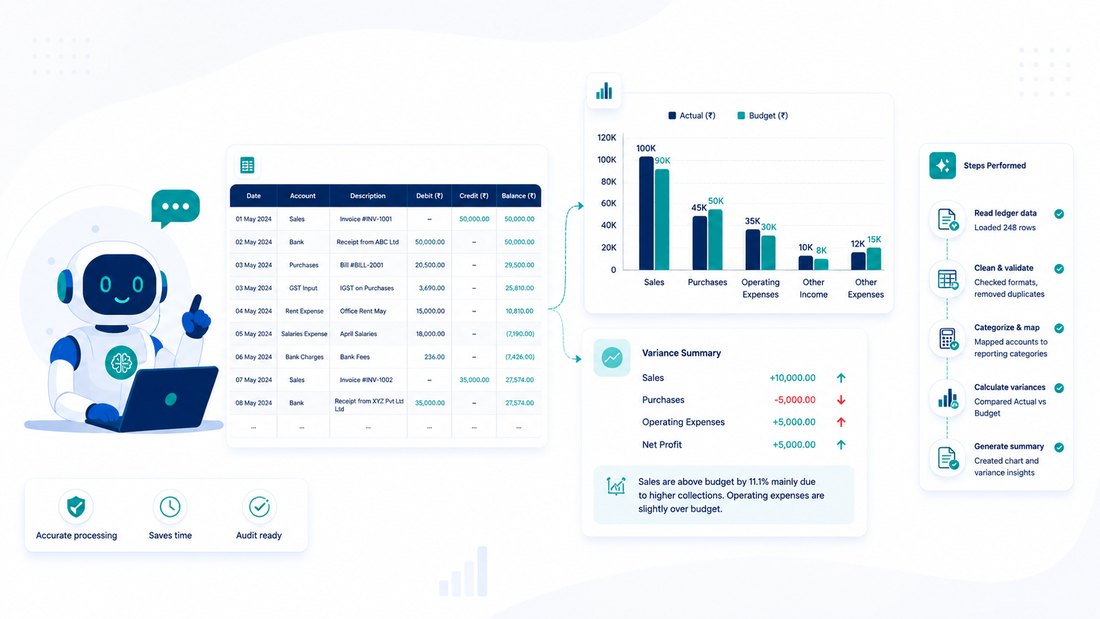
When you give Claude a spreadsheet, it writes and runs its own code to compute the answer and shows you the steps, so you can see how a number was reached.
What it does for finance.
- Computes totals, pivots, variances and ratios from an uploaded .xlsx or .csv
- Reconciles two lists and reports matched, unmatched and mismatched rows
- Builds charts and a short written explanation of the movement
- Shows the Python it ran, so the working is visible rather than a black box
How to do it, step by step.
- In Settings, under Capabilities, make sure code execution and file creation is on.
- Upload your ledger or trial balance export into the chat.
- Ask for the specific analysis you want, and ask Claude to show its steps.
- Read the table and the explanation, then ask follow ups in plain English to refine it.
- Ask for a downloadable Excel or PDF if you need a finished file.
Where to be careful.
- The output is a computed draft, not a live formula chain an auditor can click through. For working papers keep your own formula-driven file and verify totals.
- Always reconcile a Claude total back to a control figure you already trust before relying on it.
Set up a Project as a reusable workspace
Projects let you load reference material once and reuse it across every chat, so you stop re-explaining your setup.
What it does for finance.
- Holds a persistent knowledge base: chart of accounts, accounting policies, recurring templates, prior workpapers
- Reuses that context in every chat inside the project
- On paid plans uses retrieval, so it can draw on more reference material
How to do it, step by step.
- In the sidebar, create a new Project and name it for the client or the task, for example Monthly Close ABC.
- Add to the project knowledge: your chart of accounts, a policy note, and any template you reuse.
- Start a chat inside the project and give your instruction; Claude already has the context.
- Keep one project per client or recurring job so the context stays clean.
Where to be careful.
- Do not load confidential client identities or sensitive figures unless your plan and your engagement terms allow it, see the privacy section below.
- Coding suggestions are a first pass; confirm the mapping before posting.
Claude Cowork: run a multi-step month-end task
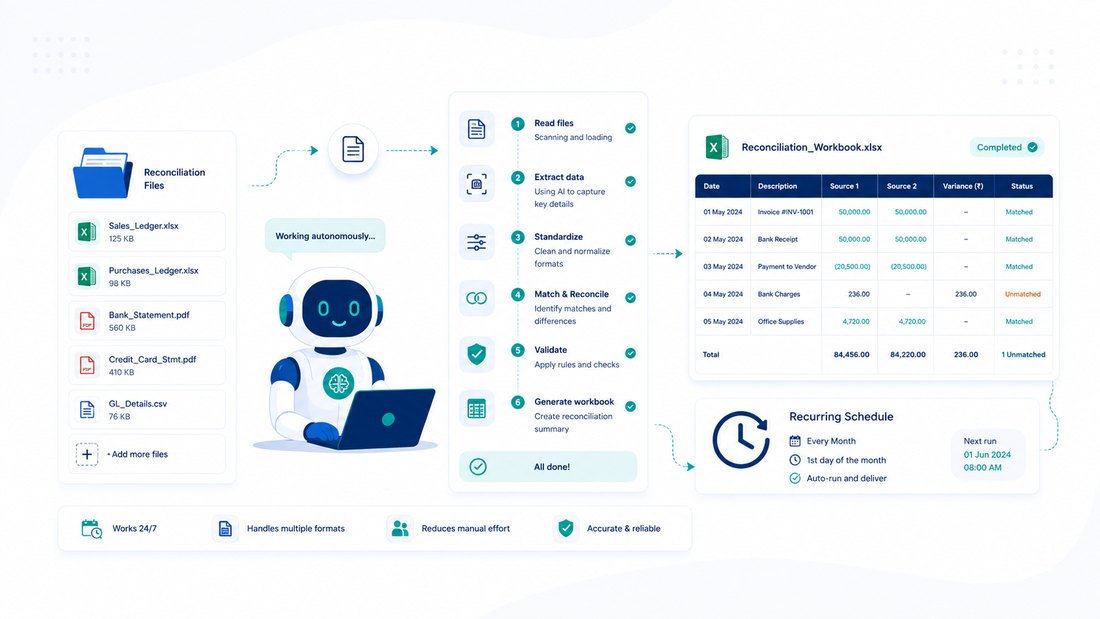
Claude Cowork is Claude’s agentic mode in the desktop app. You describe an outcome and it works across your local files and connected apps to hand back a finished deliverable.
What it does for finance.
- Reads and writes your local Excel and CSV files directly, no manual upload and download
- Builds spreadsheets with working formulas, reports and presentations
- Runs batch operations across many files, such as processing a folder of statements
- Connects to Google Drive, Gmail and Slack with your own permissions
- Runs scheduled recurring tasks, such as a weekly metrics pull
- Follows reusable Skills that package a procedure like your close steps
How to do it, step by step.
- Open the Claude desktop app on Windows or Mac and sign in with a paid plan.
- Click the Cowork tab to switch into agentic mode.
- Put the files for the task into one folder and point Cowork at it.
- Describe the outcome and keep the default that Claude asks before each step.
- Review Claude’s proposed plan, then let it run, approving steps as it goes.
- Leave the app open while it works, and schedule the task if it repeats monthly.
Where to be careful.
- Closing the app ends the session, so keep it open while Cowork runs.
- Grant access to a specific folder, not your whole drive, and keep approvals on for accounting records.
- There is no confirmed prebuilt connector to accounting systems such as QuickBooks, Xero, Tally or Zoho Books; those still move by file. The desktop-control preview that drives other apps is limited to Pro and Max.
Claude for Excel: build, audit and fix models in the sheet
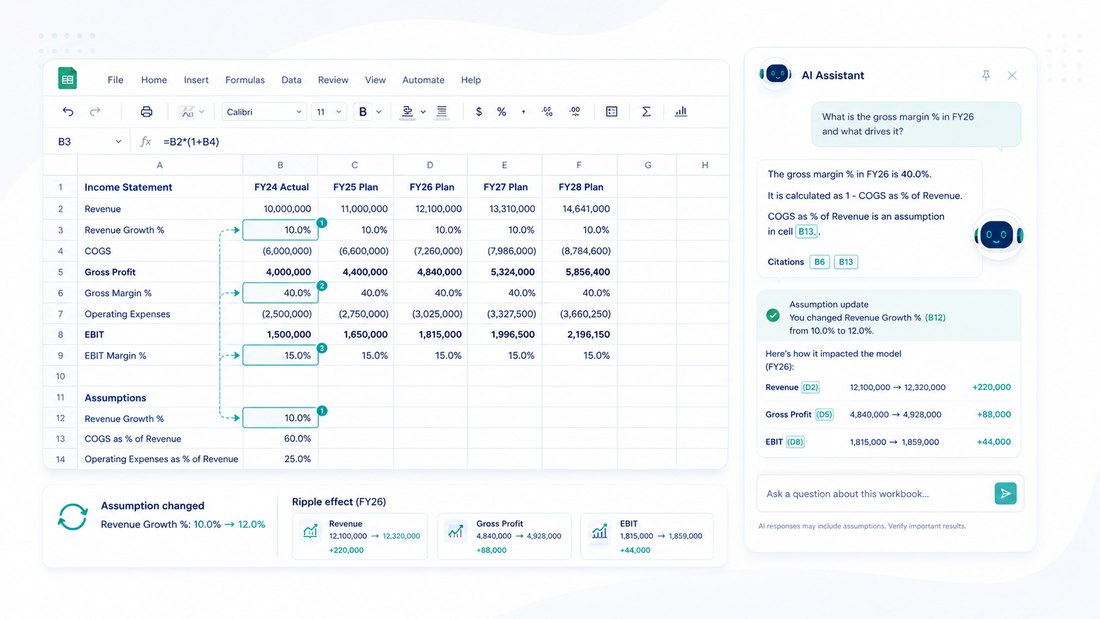
Claude for Excel runs Claude as a sidebar inside Excel. It reads the open workbook and edits it with your confirmation.
What it does for finance.
- Answers questions about the workbook with cell-level citations you click to jump to the cell
- Changes an assumption while keeping all formula dependencies intact, so the model does not break
- Finds and explains errors like #REF!, #VALUE! and circular references
- Builds a model from scratch or fills a template using the sheet’s own formula conventions
- Traces formula chains across multiple tabs, and applies pivots, charts and conditional formatting
How to do it, step by step.
- In Excel, install the add-in from the Microsoft marketplace by searching for Claude by Anthropic for Excel, then click Get it now.
- Open a workbook (a .xlsx or .xlsm file), launch the Claude sidebar and sign in with a paid Claude account.
- Ask your question or give your instruction in the sidebar.
- Review the edits, which appear as highlighted cells, and confirm before anything changes.
- If your firm uses it widely, ask IT to deploy it across the organisation from the Microsoft 365 admin centre.
Where to be careful.
- It supports .xlsx and .xlsm only, and does not support macros or VBA.
- Nothing changes until you confirm, so read the highlighted edits before accepting.
- For audit-critical numbers, verify the result yourself; treat Claude as a fast reviewer, not the final word.
Claude for Word and PowerPoint: memos, board notes and MIS decks
The same sidebar idea extends to Word and PowerPoint, and context carries across the Office apps in one conversation.
What it does for finance.
- Word: drafts and edits memos, policies, board notes and engagement letters, applying changes as tracked changes you accept or reject
- Word: reads and replies to comment threads and matches your document’s existing styles
- PowerPoint: builds board and MIS or variance decks inside your existing template
- PowerPoint: turns bullet points into native editable charts and diagrams, and edits single slides
- Cross-app: turns an Excel model into a Word memo or a PowerPoint deck in one conversation
How to do it, step by step.
- Install Claude for Word and Claude for PowerPoint from the Microsoft marketplace and sign in with a paid plan.
- Open the document or deck, launch the Claude sidebar and describe what you want.
- In Word, review the tracked changes and accept or reject each one.
- In PowerPoint, check that new slides used your template, and refine specific slides as needed.
- To move between apps, keep the same conversation and ask Claude to carry the figures across.
Where to be careful.
- Anthropic does not recommend the add-ins for final client deliverables without review, so they speed the draft, not the sign-off.
- Claude for Outlook is in beta; in beta it cannot send mail on its own and leaves replies as unsent drafts.
- Untrusted documents and emails carry a prompt-injection risk, so review what you open them on.
Claude for Microsoft 365: one conversation across your apps
The Excel, Word and PowerPoint add-ins together make up Claude for Microsoft 365. The differentiator for finance is shared context: Claude can carry numbers and reasoning from an email to a model to a memo to a deck in a single conversation. Each add-in reads and writes only the file you have open, and your chat history is stored locally in the browser rather than synced.
Plans and what each tier unlocks
The pricing page lists five tiers in US dollars; local-currency pricing applies where supported and we have not seen confirmed local figures, so check the live page for your region. Free covers the model family, Projects, Artifacts, web search, uploads and code execution, with usage limits. Pro adds more usage and the Microsoft 365 add-ins. Max adds several times more usage for heavy users. Team adds shared administration, single sign-on and a commercial data posture where your data is not used for training by default. Enterprise adds custom retention, spend controls and stronger compliance. Anthropic publishes relative usage multipliers, not fixed message counts, so think in terms of headroom.
Data privacy and client confidentiality
The part that matters most with client books. On the commercial plans, Team and Enterprise, and on the API, Anthropic states it does not use your inputs or outputs to train its models by default, and Enterprise can set custom retention with zero data retention for qualified accounts. On the personal Pro and Max plans, whether your chats are used to improve the models depends on a setting you control; if it is on, data may be retained de-identified for up to five years, and if you turn it off it is not used for training. The safe posture for client data is a commercial plan, or turning that setting off on a personal plan. See Anthropic on training and retention. None of this replaces checking your own engagement terms and your local data protection laws before sharing confidential client information.
Where Claude falls short and what to double check
- It is not accounting or tax-filing software and does not know your specific GST or TDS treatment unless you tell it.
- Its chat outputs are computed values and drafts, not a live audit trail, so keep your own formula-driven working file.
- Quality on scanned or handwritten documents depends on the scan and is not guaranteed.
- It can be confidently wrong on judgement, materiality and unusual situations, the calls only a person should make.
- Untrusted files can carry hidden instructions, so review what you feed it.
Used as a fast junior whose work you always check, Claude saves real time. Used as an unchecked oracle, it is a risk.
Where ReconScribe fits in
We are a small team of finance and accounting professionals who write practical guides and build free tools for finance and accounting professionals and the businesses they serve. Start with our AI in Finance and Accounting guide, our AI prompts for finance guide, and our free calculators.
Claude for finance and accounting FAQ
Is Claude an accounting or tax-filing software?
No. Claude for finance and accounting is a document-analysis and drafting assistant. It reads invoices, ledgers and statements, analyses spreadsheets and drafts reports, but it is not accounting software and does not file tax returns. It does not know your specific GST or TDS treatment unless you tell it.
How do I get Claude to read a batch of invoices?
Open a chat, click the attach icon, add the invoices, and ask Claude to extract the fields you want into one table, one row per invoice. Name the fields and the order. Then click each figure back to the source to confirm it, and export to Excel if you need a working sheet.
What is Claude for Excel and how do I install it?
It is an add-in that runs Claude in a sidebar inside Excel. Install it from the Microsoft marketplace by searching for Claude by Anthropic for Excel, open a .xlsx or .xlsm file, launch the sidebar and sign in with a paid Claude plan. It answers with cell-level citations, changes assumptions without breaking formulas, and debugs errors, with every edit shown as a highlighted cell you confirm.
What is Claude Cowork and when should I use it?
Cowork is Claude’s agentic mode in the desktop app. Use it for multi-step jobs across several files, such as a monthly reconciliation, where you want a finished workbook rather than a single answer. Point it at a folder, describe the outcome, keep approvals on, and leave the app open while it works.
Is my client data safe with Claude?
It depends on the plan. On Team and Enterprise, Anthropic does not use your inputs or outputs to train its models by default. On personal Pro and Max, whether your chats are used to improve the models depends on a setting you control. For confidential client data, use a commercial plan or turn that setting off, and check your own engagement terms first.
Can Claude build a board deck or an MIS report?
Yes. Claude can create finished Excel, Word, PowerPoint and PDF files, and the Claude for PowerPoint add-in builds board and MIS decks inside your existing template with native charts. Carry an Excel model straight into a deck in one conversation. Review anything before it becomes a final client deliverable.
Does Claude connect to Tally or Zoho Books?
There is no confirmed prebuilt connector to accounting systems such as QuickBooks, Xero, Tally or Zoho Books. Claude connects to general tools like Google Drive, Gmail and Microsoft 365, so data from accounting systems usually moves through an export or file.
Can I trust Claude’s numbers for a tax return or financial statement?
Treat them as a draft, never the final source. Claude’s chat outputs are computed values and drafts, not a live audit trail. For anything that feeds a return or a statement, keep your own formula-driven working file and independently verify every figure.
Which Claude plan do I need for finance work?
Free is enough to try the chat assistant. Pro adds more usage and the Microsoft 365 add-ins. For a team handling client books, Team or Enterprise add shared administration and a commercial data posture where your data is not used for training by default. Pricing is shown in US dollars; check the official page for your region.
Do I need to be technical to use Claude for finance and accounting?
No. You use plain English. The most useful habit is to be specific, give Claude the source file, ask it to show its steps, and always check its output, just as you would review the work of a capable junior.