
INDIA EDITION · STEP-BY-STEP SETUP
A good payroll setup should leave you able to explain an employee’s salary, not just tick off a checklist. Where does the work location matter? How does an allowance get into the salary structure? And why is the amount in the offer letter different from the amount paid into the bank?
In this Zoho Payroll setup guide for India, we work through those connections step by step. We set up the company, add four work locations, create an allowance and build the first employee’s salary. Follow along below or watch the same steps in our 22-minute video.
Follow along with the interactive setup checklist ↓
Set up Zoho Payroll with us
Before you start: collect the inputs once
Keep the approved records beside you while you work. It makes the setup much easier than stopping at every field to ask what should go there.
| Have ready | Where we will use it |
|---|---|
| Legal name, business address, company PAN, TAN and deductor details | Organisation Profile and Tax Details |
| Working week, salary calculation policy, payday and first payroll month | Pay Schedule |
| Actual work locations and applicable establishment registrations | Work Locations and Statutory Components |
| Approved offer, earnings, employer-cost treatment and payroll rules | Salary Components and employee Salary Details |
| Employee joining date, identity, membership history and verified payment details | The four-step Add Employee form |
| Earlier payroll registers and previous-employment information, where relevant | Prior Payroll and the employee’s tax projection |
We use demo data throughout this guide: a Delhi head office, branches in Mumbai, Bengaluru and Gurugram, and an employee, Priya Nair, joining Bengaluru Branch in September. We use an annual CTC of ₹20 lakh to explain the salary breakdown. The setup will vary from organisation to organisation, depending on work locations, salary structures and applicable requirements.
Choosing a plan? Check the pricing and feature notes below before following a trial-only option. Zoho currently lists custom salary components and salary templates in Standard and above.
1. Review the organisation profile
Settings → Organisation → Profile · Video: 00:44
Open the profile even if the getting-started checklist already shows this item as complete. Some details may have been filled when the account was created.
- Check the registered business name, business location and industry.
- Review the date format so later employee dates are easy to read.
- Complete the business address. The note below this field explains that it becomes the primary work-location address.
- Add the organisation logo if you want it on supported documents such as payslips.
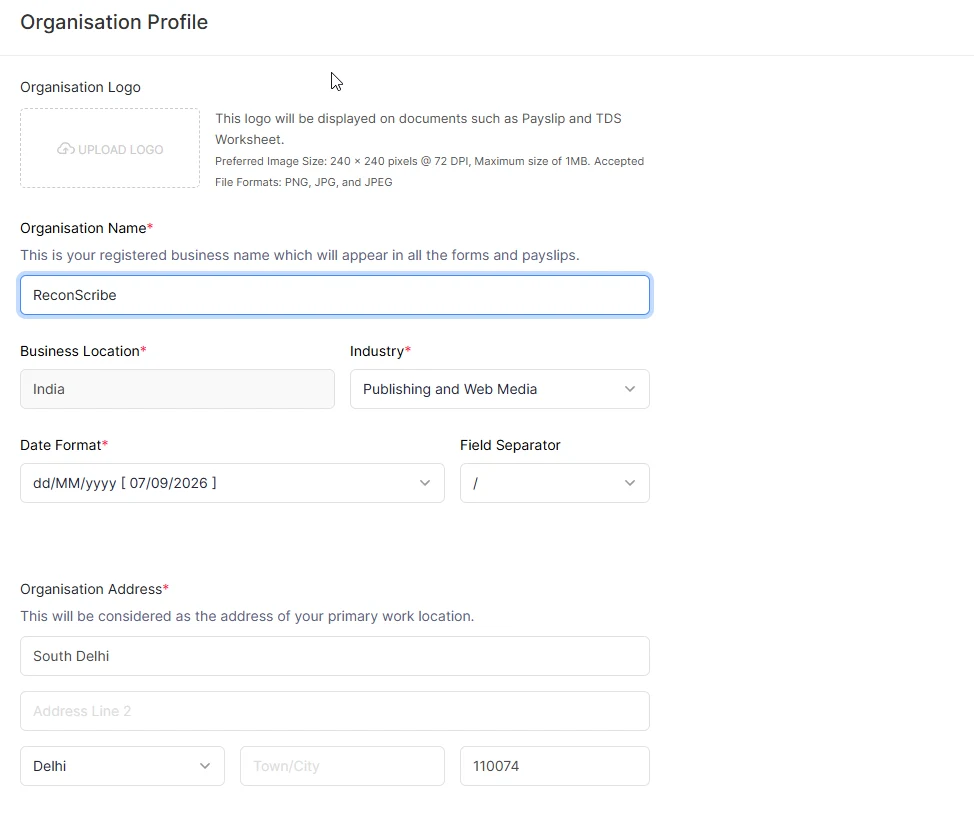
When we open Work Locations later, Head Office is already there. We do not need to create the same office again. Zoho’s organisation setup guidance confirms this connection between the organisation address and the primary location.
Checkpoint: the profile matches the business records, and you know which address is being used for Head Office.
2. Enter the company tax and deductor details
Settings → Taxes → Tax Details · Video: 01:32
This screen is about the employer’s tax identity. The employee’s PAN comes later, in their personal details.
- PAN and TAN: enter each identifier in its own field from the organisation’s records.
- TDS Circle / AO Code: the form separates the area code, AO type, range and number. Use your registration information rather than constructing a code from the demo.
- Tax Payment Frequency: review the displayed value. Ours is set to monthly.
- Tax Deductor Details: identify the authorised person responsible for deduction. The demo uses Non-Employee, which exposes the name, father’s name and designation fields.
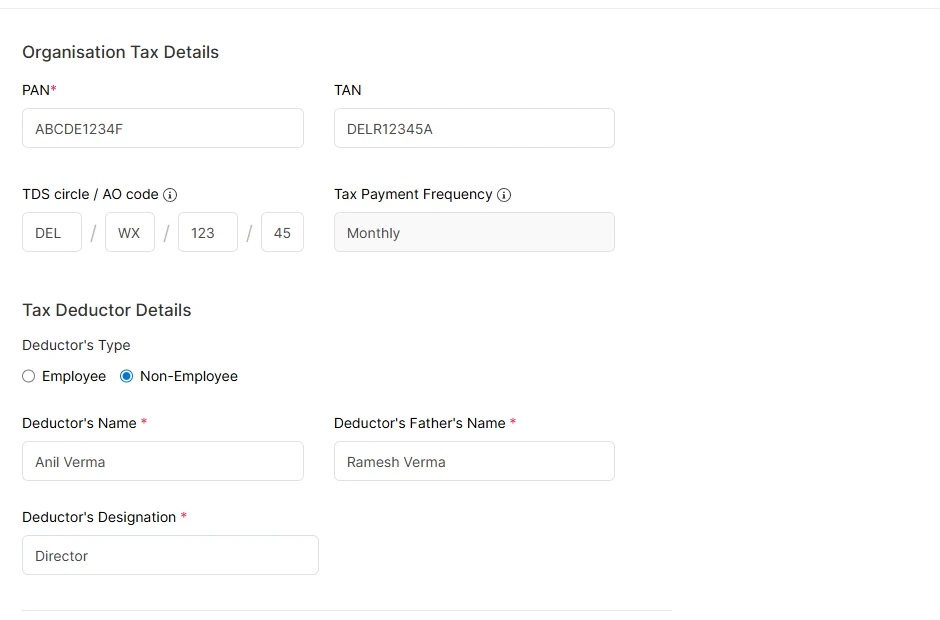
Review the completed form before saving. A placeholder that fits the field format is still only a placeholder; for a live organisation, the record should agree with its actual registration.
3. Set the working week, calculation method and payday
Settings → Pay Schedule · Video: 02:28
There are four separate decisions here. Working days describe the business week; the calculation method tells Zoho how to calculate salary; the payday says when employees should be paid; and the first period says when payroll starts in this account.
| Setting | Our demo | Your decision |
|---|---|---|
| Work Week | Monday to Friday | Select the days your business actually works. |
| Salary Calculation Method | Actual days in a month | Use your approved actual-day or fixed-day basis; the fixed option needs a number. |
| Pay Date | Last day of every month | Choose month-end or a specified day and read the holiday/non-working-day note. |
| First Payroll Setup | September 2026 | Choose the first period and payment date you intend to process in Zoho. |
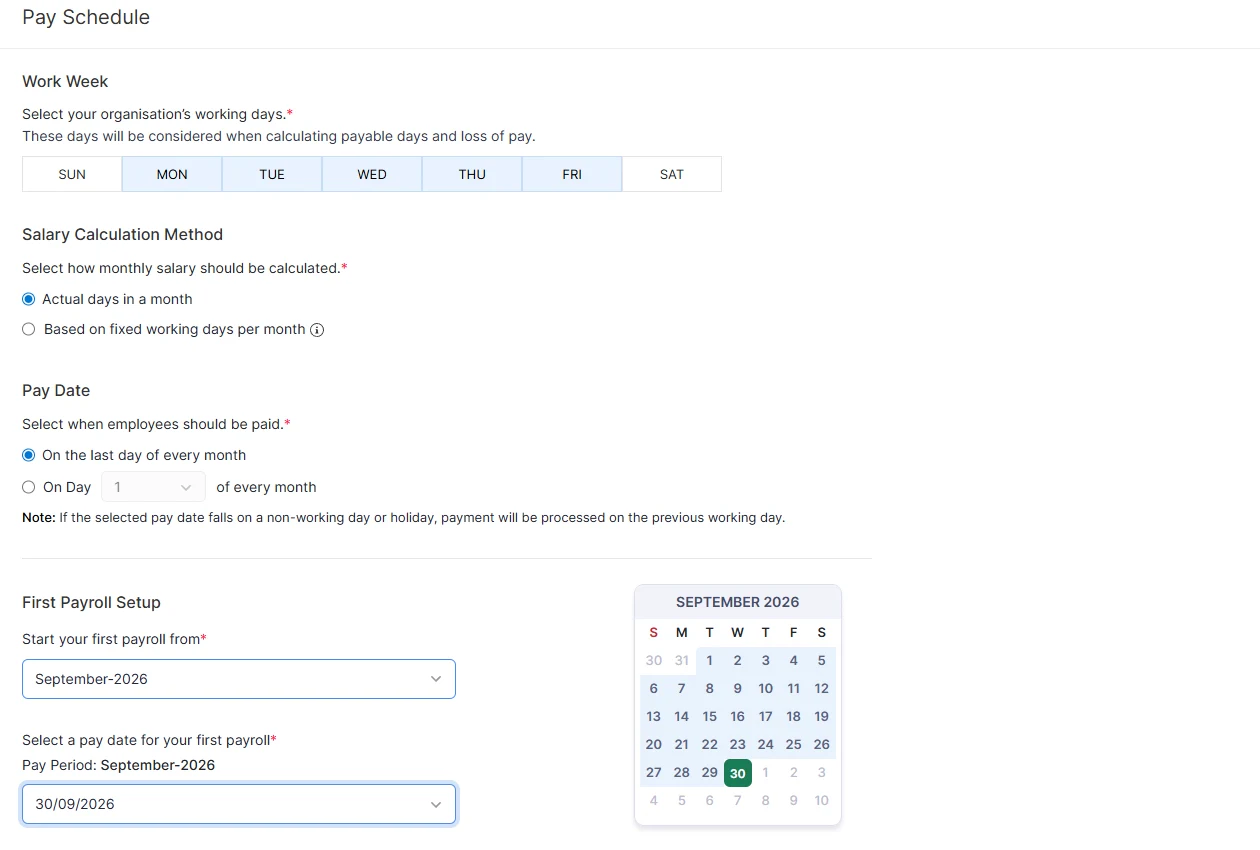
The completed screen brings all four decisions together, so we can review the working week, method, payday and first period before saving.
A useful test is to work through one full-month employee, one mid-month joiner and one loss-of-pay example using your chosen policy. This shows whether the calculated days agree with what the payroll team expects.
Review this before the first pay run. Zoho treats a payday change separately from a full schedule change; its pay-schedule help explains the conditions for editing an existing schedule. Starting Zoho in September also does not remove earlier payroll from the same financial year. We cover that in Prior Payroll.
4. Add the locations where employees work
Settings → Work Locations · Video: 04:00
Location is more than a label on the employee record. It connects the employee to location-based payroll settings, particularly Professional Tax and Labour Welfare Fund.
- Review the existing Head Office.
- Choose Add Work Location or New Work Location, depending on your interface.
- Enter a recognisable name, address, state, city and PIN code.
- Save, then repeat for the other locations you actually need.
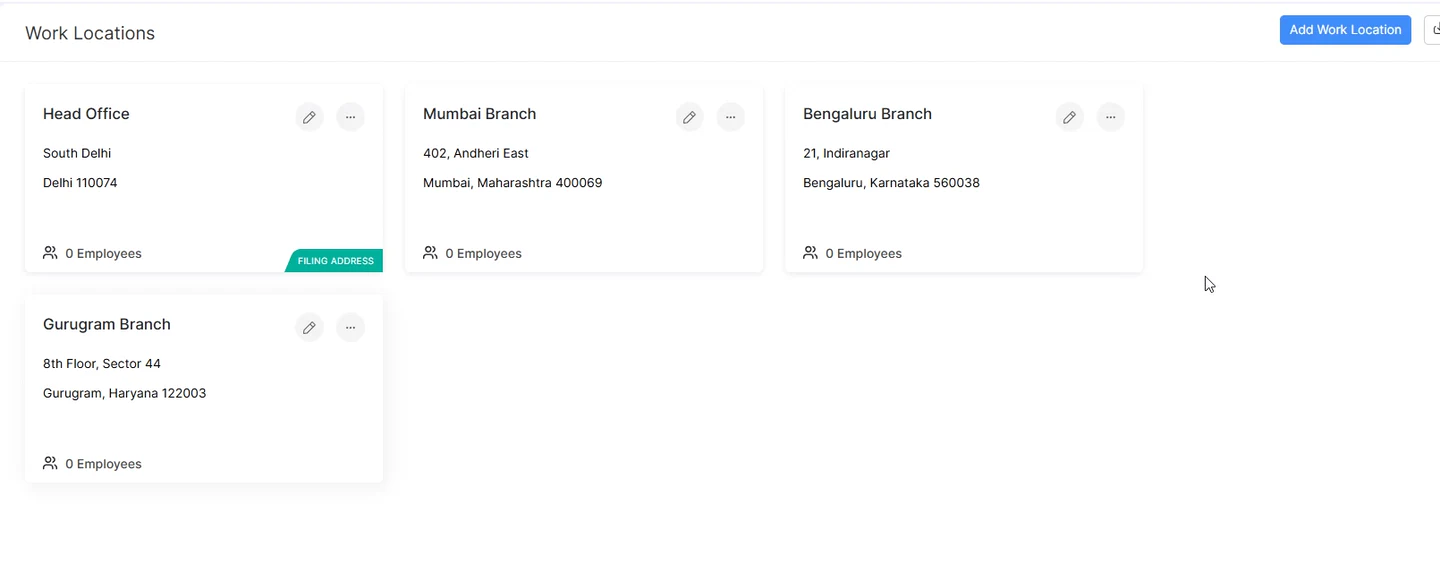
In our account, four locations let us compare different state screens. Later, selecting Bengaluru Branch on Priya’s record connects her to the location we prepared here. A department such as Finance does not replace that work-location selection.
For permanent work-from-home arrangements, Zoho’s work-location guidance asks for the home address as a separate location. Confirm the appropriate mapping for your actual working arrangement.
5. Connect the applicable statutory settings
Settings → Setup & Configurations → Statutory Components
We review the organisation settings here, then return to employee eligibility when adding Priya. Configuring a scheme for the business and applying it to a particular employee are separate parts of setup.
Professional Tax: start with the work location
Video: 05:08. For our Delhi and Haryana locations, Zoho displays a not-applicable message. Mumbai and Bengaluru have their own registration and slab controls.
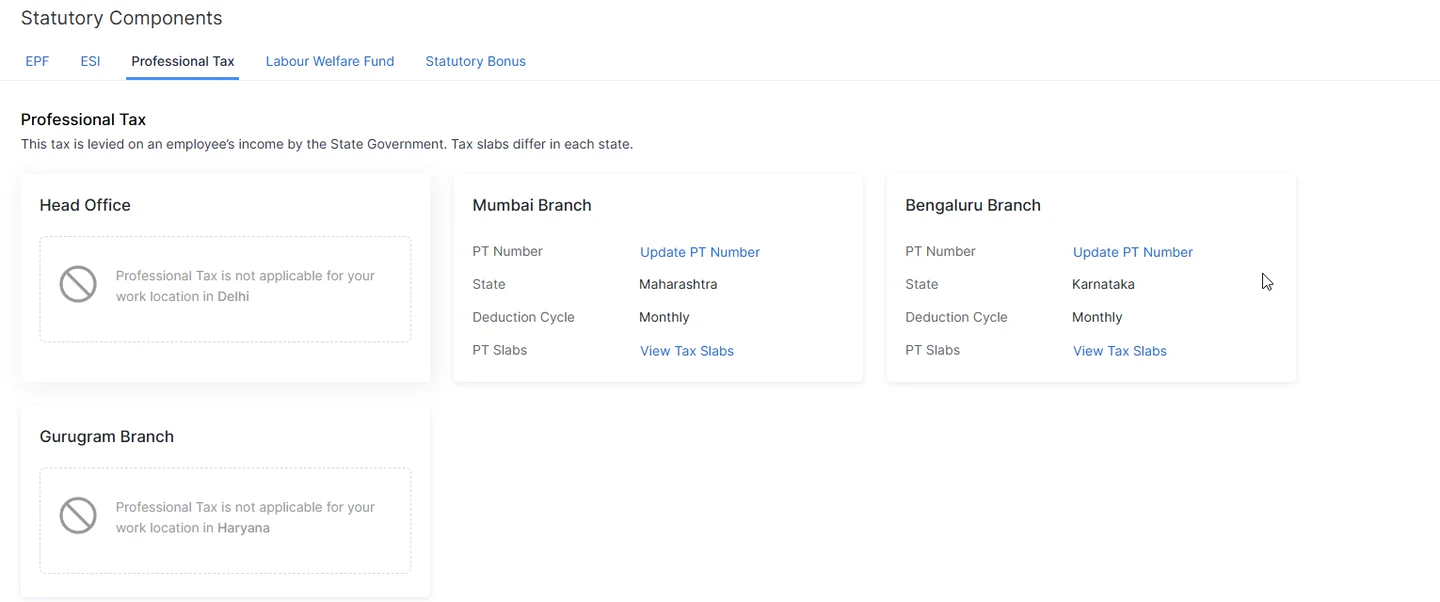
For each relevant location, review the PT registration number, deduction cycle and View Tax Slabs link. The screen is a useful way to see the difference between locations. Confirm the applicable state schedule and employee category for the period you are processing.
Labour Welfare Fund: review both sides and the cycle
The LWF tab separates employee contribution, employer contribution, deduction cycle and enabled status. Our demo enables Karnataka before assigning the employee to Bengaluru Branch.
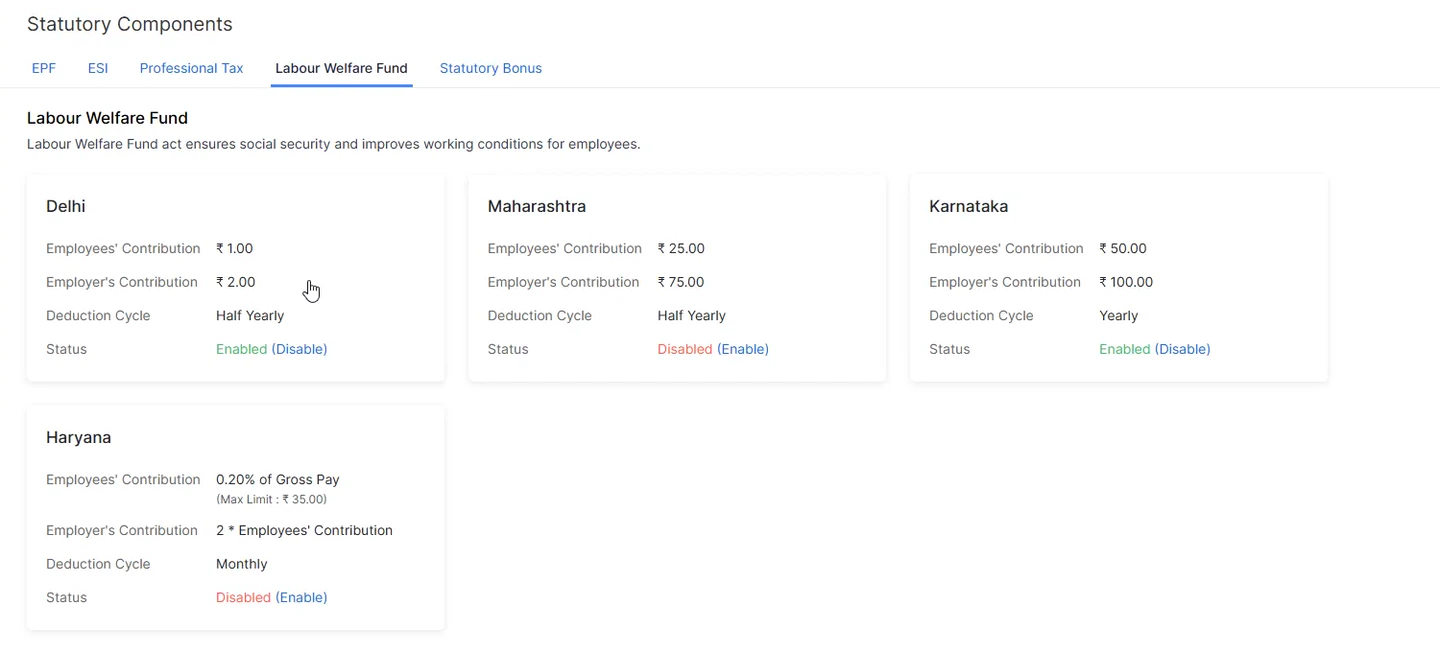
For your organisation, use the contribution amounts in the effective state notification and check establishment coverage and employee eligibility. Our LWF guide and calculator helps you examine state-specific rules.
EPF: use the preview to understand the choices
Video: 06:51. Enter the establishment registration number, then review the employee and employer contribution choices independently.
In Zoho’s worked preview, a sample PF wage of ₹20,000 produces an employer amount of ₹2,400 when calculated at 12% of the actual wage. On this pre-September screen, changing the employer basis to the displayed ₹15,000 limit changes that preview to ₹1,800; at the ₹25,000 limit that applies from 17 September 2026, both choices give ₹2,400. The example makes the dropdown’s effect visible; it does not decide which treatment is appropriate for your organisation.
From 17 September 2026 the EPF wage ceiling is ₹25,000, so check which limit your Zoho screen shows before the September pay run. Our EPF limit ₹25,000 guide explains the September working.
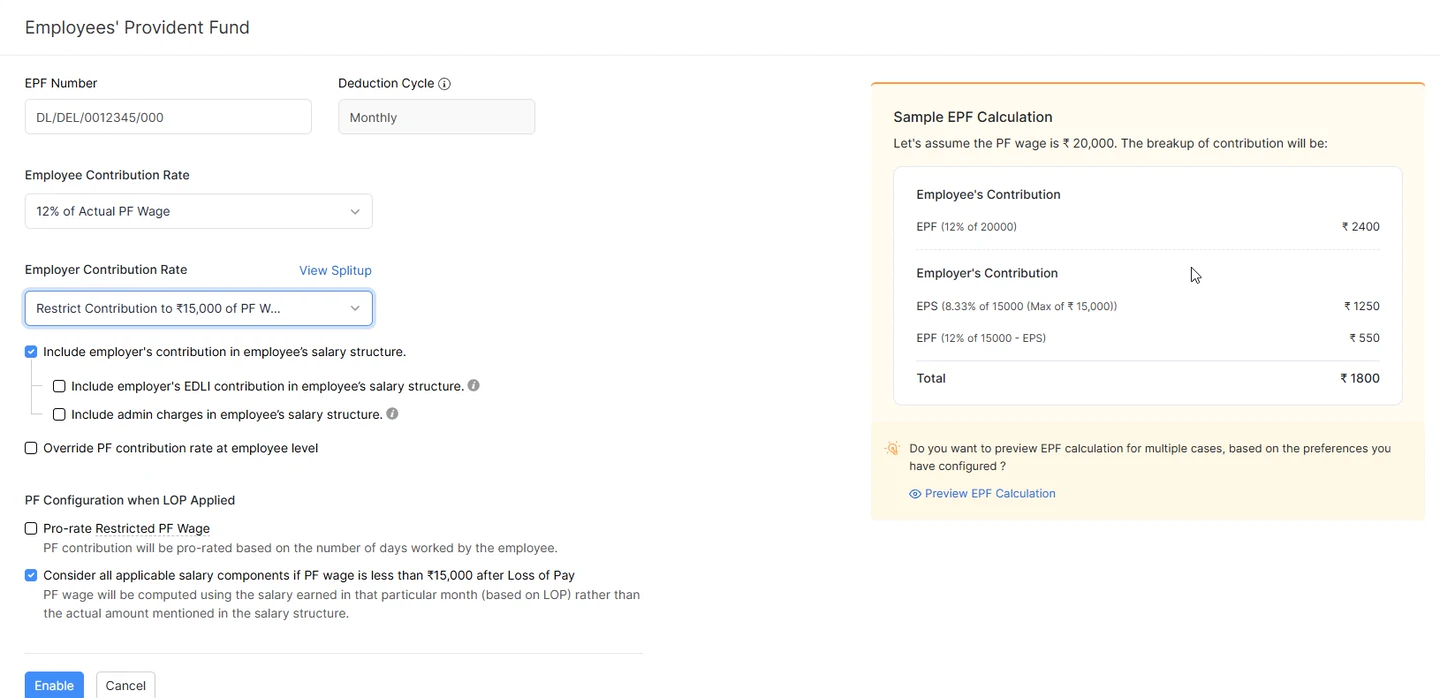
Next, decide whether the employer contribution is included within the agreed CTC. The demo keeps it inside the package. EDLI, administration charges, employee-level overrides and loss-of-pay preferences have separate controls, so review those individually too.
When adding a person, check their UAN, prior PF membership and pension-scheme eligibility. Salary alone does not tell the whole membership story. Use the EPFO membership FAQs alongside Zoho’s configuration help.
ESI: review the contribution-period note
Enter the registration details and check the employee and employer settings. Here, the contributions are 0.75% and 3.25% respectively. Read the note explaining what happens when an insured employee’s wages increase during a contribution period.
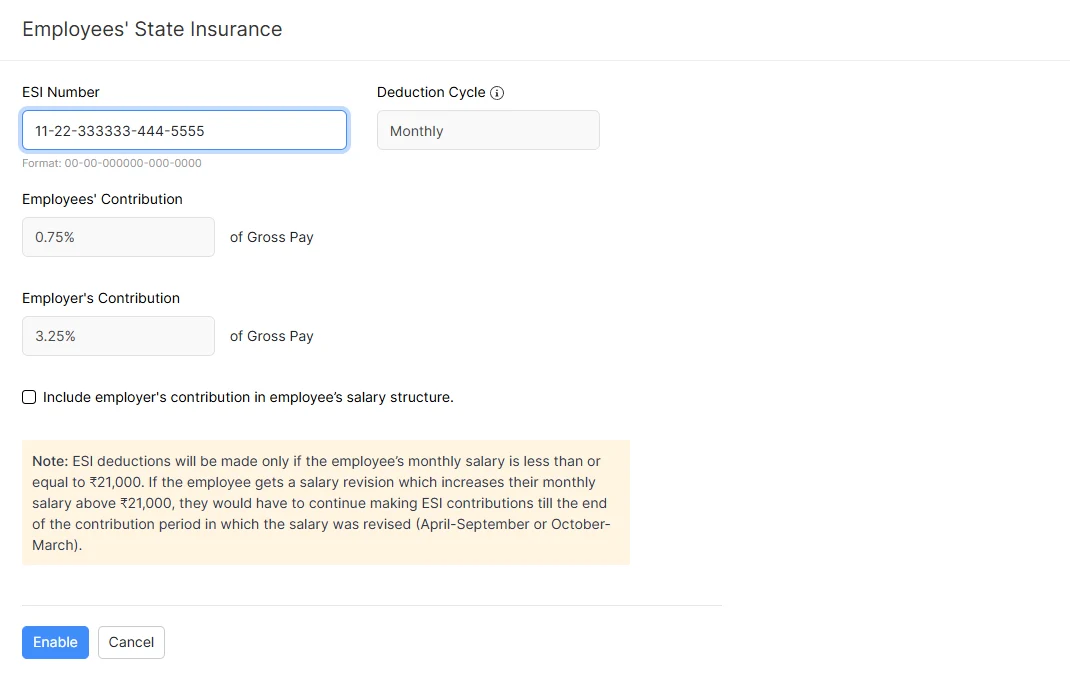
A new joiner above a coverage threshold and an existing insured employee receiving a salary increase can need different treatment. Check the applicable wage basis, coverage and history before changing employee eligibility. The continuation principle is set out in ESIC’s published Act; ESIC’s citizen charter also summarises contribution rates and relevant exceptions.
Statutory Bonus: add the relevant wage category
Video: 09:18. In the demo we enable the feature, review monthly/yearly payment options, and enter a percentage. Add Minimum Wage then lets us specify a state employment category, monthly amount and effective date.
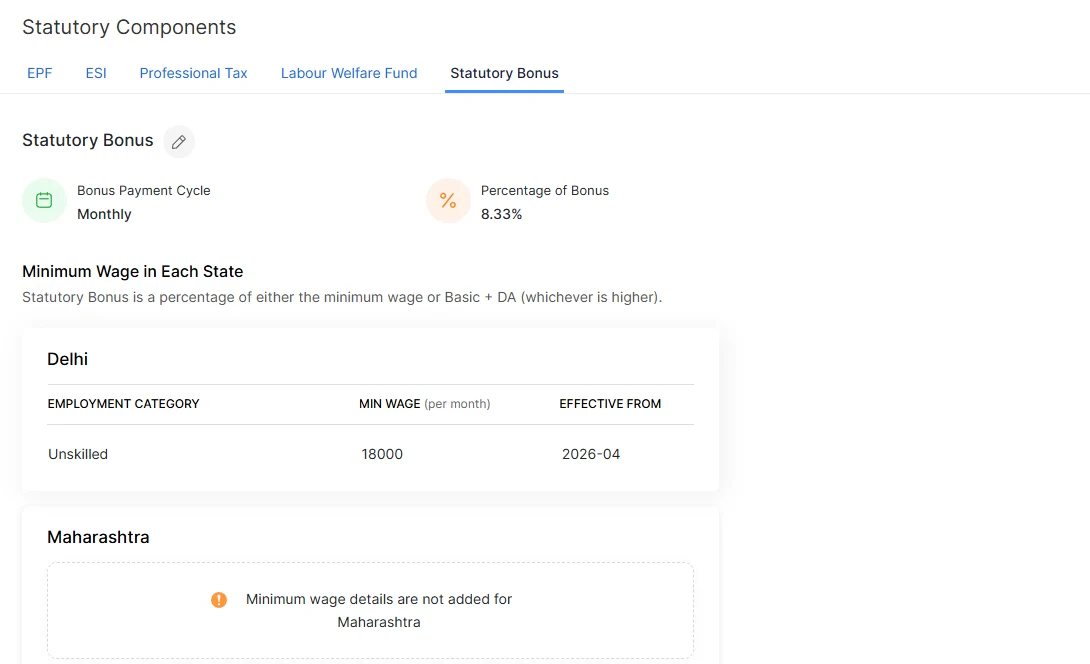
We enter ₹18,000 as demo data to show how this field works. For your organisation, use the notified wage for the relevant category and effective period, then review employee eligibility. Statutory bonus and discretionary performance bonus are separate components. Our statutory bonus calculator works out the eligible amount for each employee.
6. Create a salary component we can use on an employee
Settings → Salary Components → Add Component → Earning · Video: 10:32
This is one of the most useful connections in the walkthrough: the organisation defines the earning; the employee’s salary structure uses it. Saving an allowance in the settings does not, by itself, add it to everyone’s salary.
Start by checking the existing Earnings, Deductions, Benefits and Reimbursements tabs. If the component already exists, review it before creating another with a similar name.
We create one earning from start to finish:
| Field | What we enter in the demo |
|---|---|
| Earning Type | City Compensatory Allowance |
| Earning Name | City Compensatory Allowance |
| Name in Payslip | CCA |
| Calculation Type | Percentage of Basic |
| Percentage | 10% |
| Status | Mark as Active, then Save |
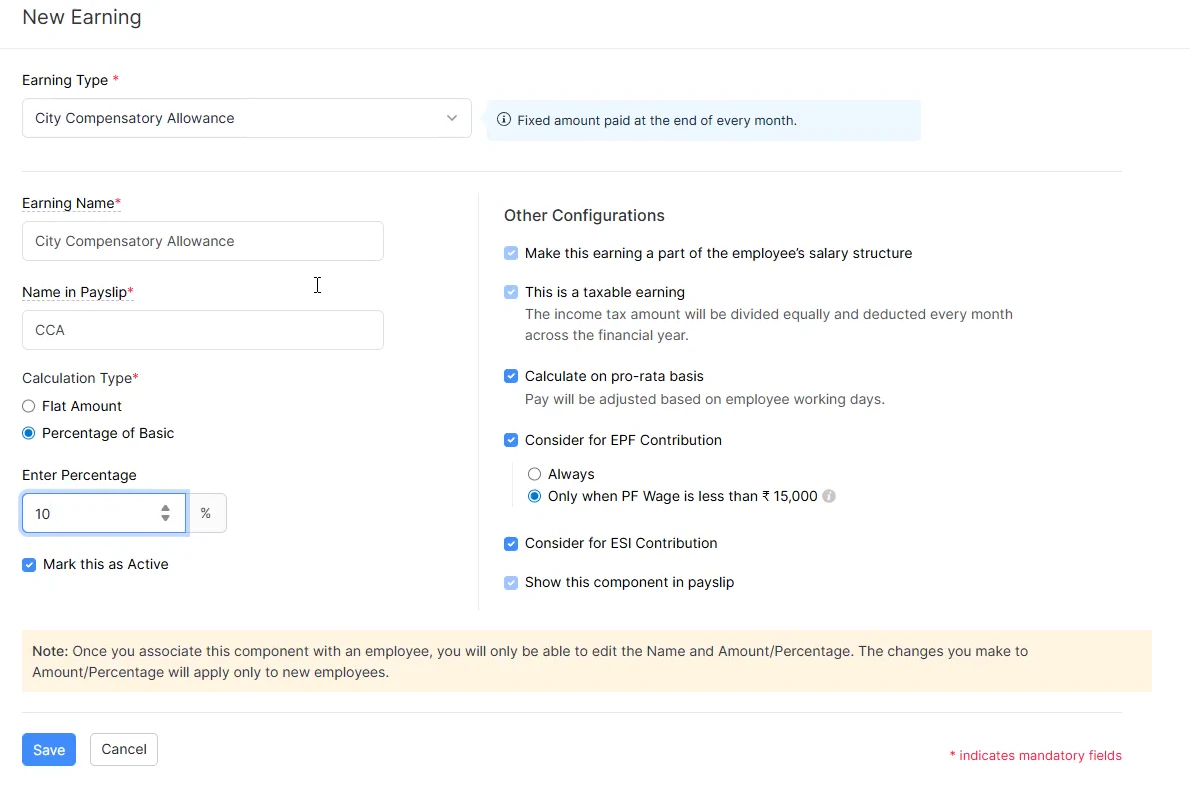
The internal name helps the payroll team identify the earning. The payslip name is what the employee sees. Choosing a percentage of Basic means the allowance follows that calculation basis instead of being a separately entered flat rupee amount.
Review salary-structure inclusion, tax treatment, proration, payslip display and the applicable contribution or Wages settings before saving. Earning types offer different fields, so a dropdown shown for one allowance may not appear for another.
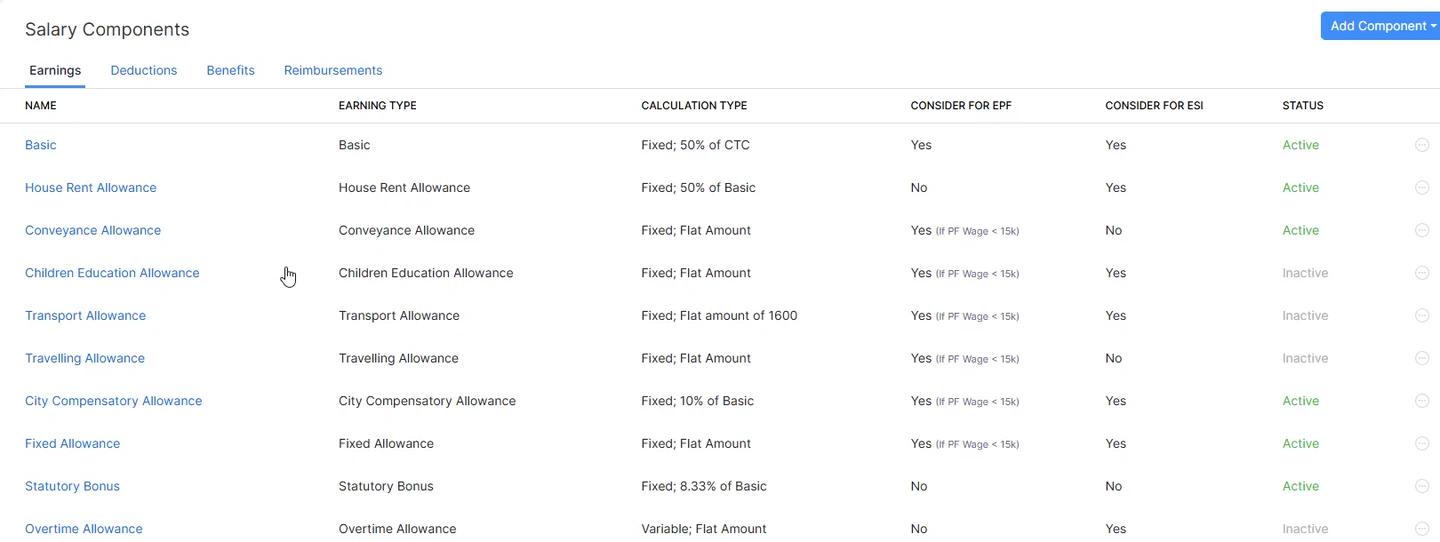
Once CCA appears as active in the earnings list, it is available for the employee’s salary. If you use several repeatable packages, Salary Templates can group a structure for reuse. In this walkthrough we build one directly on the employee so the individual components are easy to follow.
7. Add the employee and review their eligibility
Employees → Add Employee · Video: 13:45
The form has four steps: Basic Details, Salary Details, Personal Details and Payment Information. Before starting, prepare the department and designation labels you want to use in reports.
- Enter the employee name, ID, joining date and work email.
- Select the correct Work Location. We use Bengaluru Branch, created earlier.
- Choose the designation and department. Priya is in Finance.
- Decide when portal access should be enabled. We leave it off while completing the employee’s details.
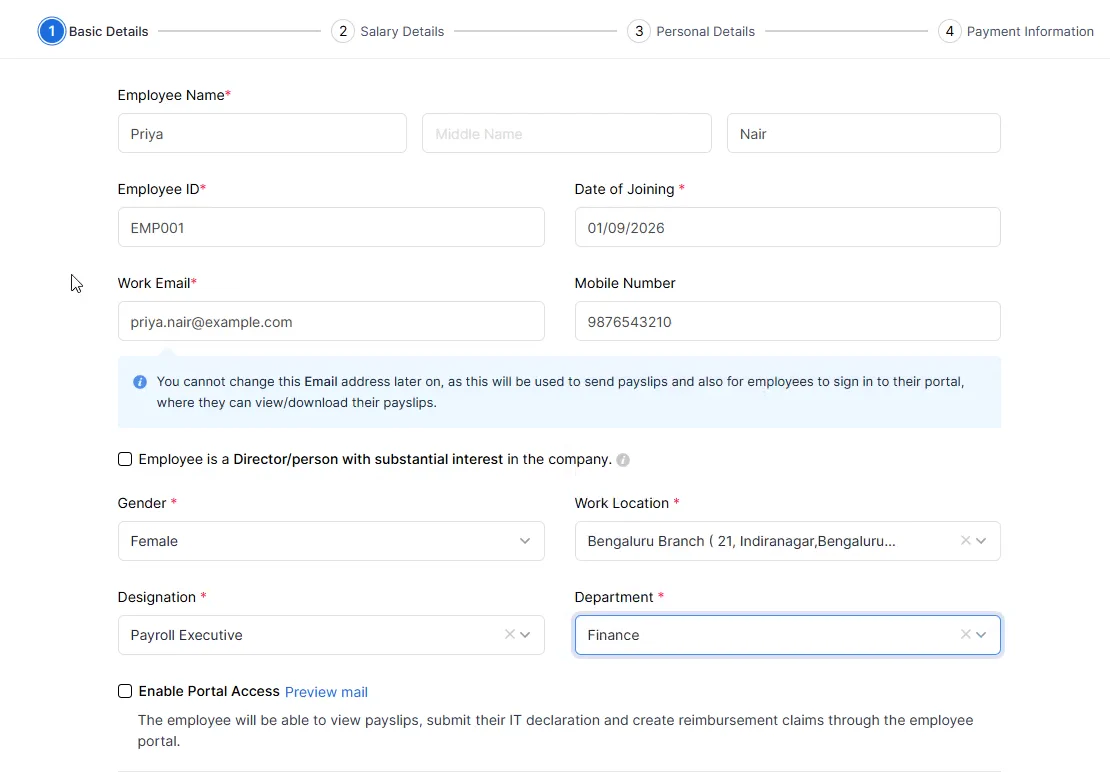
On Salary Details, review Statutory Components for this person. The demo has Professional Tax selected for the location. EPF brings up membership identifiers and a separate pension-scheme choice; ESI, LWF and bonus also need the employee’s actual eligibility information.
Use the joining date, location and membership history from verified records. Those inputs are more useful than applying one set of demo switches to every new starter. Zoho’s employee guide explains the four-step flow.
Already using Zoho People? Read the integration note below before choosing your employee-entry workflow. When employee sync is enabled, People becomes the place to add employees.
8. Build the salary structure and explain the CTC
Employee → Salary Details · Video: 15:49
We enter an annual CTC of ₹20,00,000, add HRA at 50% of Basic for this example, and then add the CCA we created at 10% of Basic. Fixed Allowance adjusts as the other earnings are added. Employer EPF appears in the benefits portion because we chose to include it within the package.
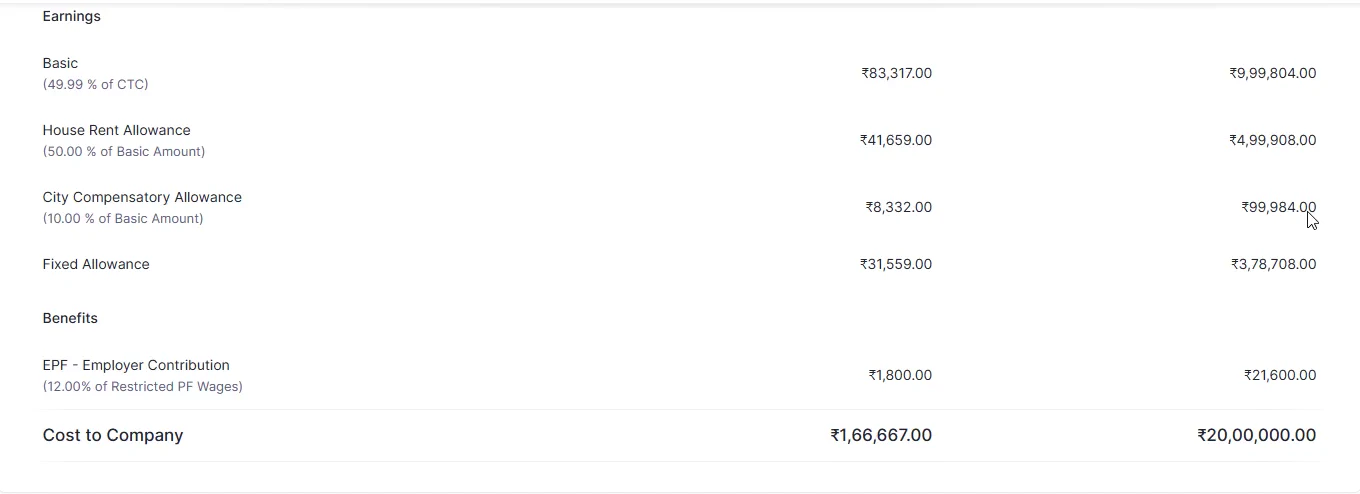
Read the screen as three different ideas:
| Amount | What it means here |
|---|---|
| CTC | The agreed package, including the employer costs configured within it. Our demo’s annual CTC is ₹20 lakh. |
| Gross earnings | The employee’s earnings before employee deductions: Basic, HRA, CCA and Fixed Allowance in this example. |
| Take-home pay | The payout after applicable employee deductions and tax, with any relevant payroll adjustments. |
The displayed monthly earnings add to ₹1,64,867. Add the ₹1,800 employer EPF included in this package (12% of the earlier ₹15,000 ceiling; a capped contribution is ₹3,000 at the ₹25,000 ceiling from 17 September 2026) and the screen shows monthly CTC of ₹1,66,667. That ₹1,800 is an employer cost, not extra money going to the employee’s bank.
The screen rounds individual component amounts. Its displayed annual component lines total ₹4 more than the headline ₹20 lakh CTC. Treat this as a screen-reading example, and reconcile the actual payroll register and rounding in your live pay run.
The example percentages are salary-design choices, not a universal rule that Basic must equal 50% of CTC or HRA must be paid at 50% of Basic. HRA’s payroll amount and its tax exemption are also separate questions. Review the applicable wage definition and employee circumstances; our Wages and CTC guide and HRA exemption calculator explore those distinctions.
Checkpoint: CCA exists in the organisation list, is assigned to the employee, and appears in their salary breakdown with the intended calculation.
9. Finish personal details and choose a payment method
Add Employee → Personal Details → Payment Information · Video: 18:03
Complete the employee’s personal records, including the required date of birth, PAN and residential address. The residential address is separate from the Work Location selected earlier.
On Payment Information, read the method labels carefully:
- Direct Deposit: uses a configured payment integration.
- Bank Transfer: a manual process using bank advice and your bank’s website.
- Cheque or Cash: alternative payment methods you can select.
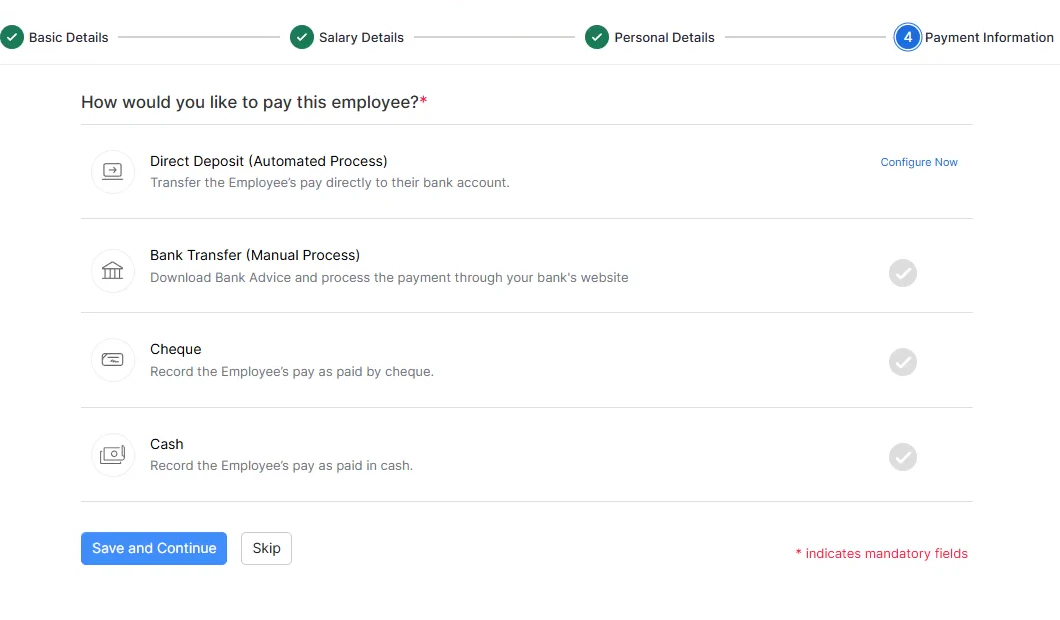
We choose manual Bank Transfer for the example. Selecting a method and saving an employee does not send money. In a live setup, verify the account number, account holder and IFSC through your normal process; a branch lookup alone does not verify ownership.
Save the employee and re-open the record to confirm the intended details are present. You now have one person whose company settings, location and salary structure are connected.
10. Review the inputs behind the tax projection
Employee → Declaration area → Compare Tax Details · Video: 19:09
Zoho’s comparison is useful because we can see how the two regimes respond to the information entered. First review the joining date, earnings for the relevant period, previous-employment income and TDS, other income, and the employee’s declarations.
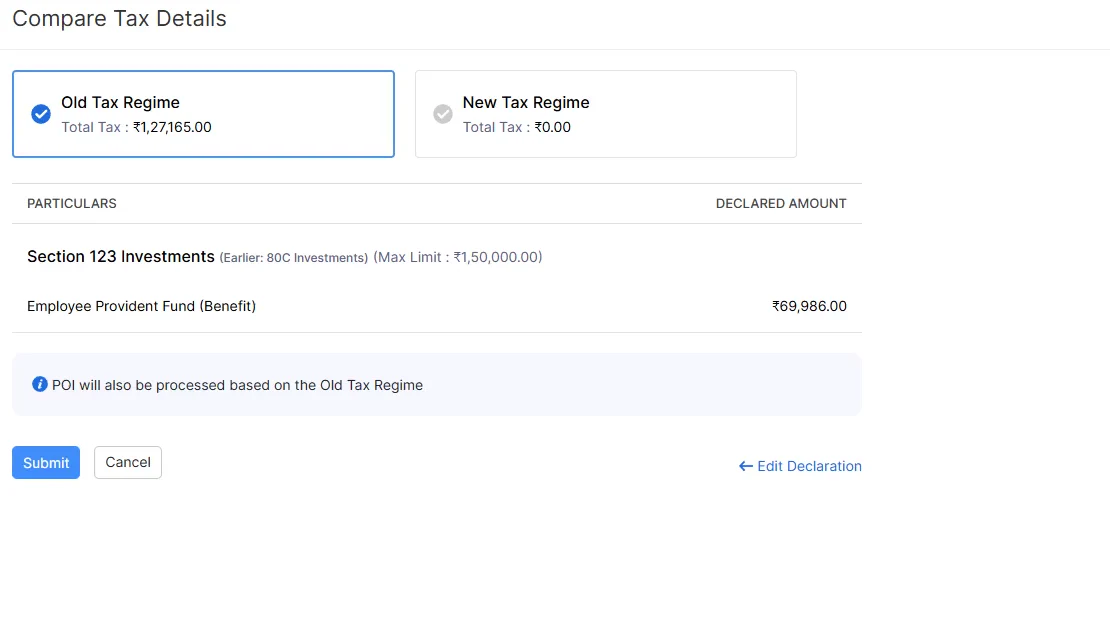
With the information entered so far, Zoho estimates ₹1,27,165 under the old regime and zero under the new regime. This estimate reflects Priya’s September joining date and the absence of previous-employment income. The projection will change with the employee’s earnings and tax inputs; annual CTC alone does not determine the tax payable.
The useful lesson is how to inspect the estimate and its inputs. Complete the employee’s information, compare the resulting projections, and record their regime declaration through your organisation’s process. For a separate illustration, use our old vs new tax regime calculator.
11. Bring in prior payroll if the business is moving mid-year
Home / Getting Started → Configure Prior Payroll · Video: 20:45
There are two different histories to consider:
- This employer’s earlier payroll: salaries already paid by your organisation during the year before moving to Zoho.
- An employee’s previous employment: earnings and tax from another employer that may affect the person’s tax projection.
For a migration, Zoho’s prior-payroll flow covers employee information, monthly pay information and a summary. Use its sample import format, map employee IDs and component fields, inspect skipped or unmapped data, and reconcile employee-wise and overall totals before submitting. Include people already paid during the year even if they have since left. See Zoho’s prior-payroll import guide.
Our new-organisation demonstration has no earlier pay runs to import. A live migration should have a clear cut-off month and a reconciled handover from the old payroll records.
12. Review the finished setup before the first pay run
The final demo dashboard shows one active employee and the message that the first payroll is ready to start. The cost chart is empty because no pay run has been completed.
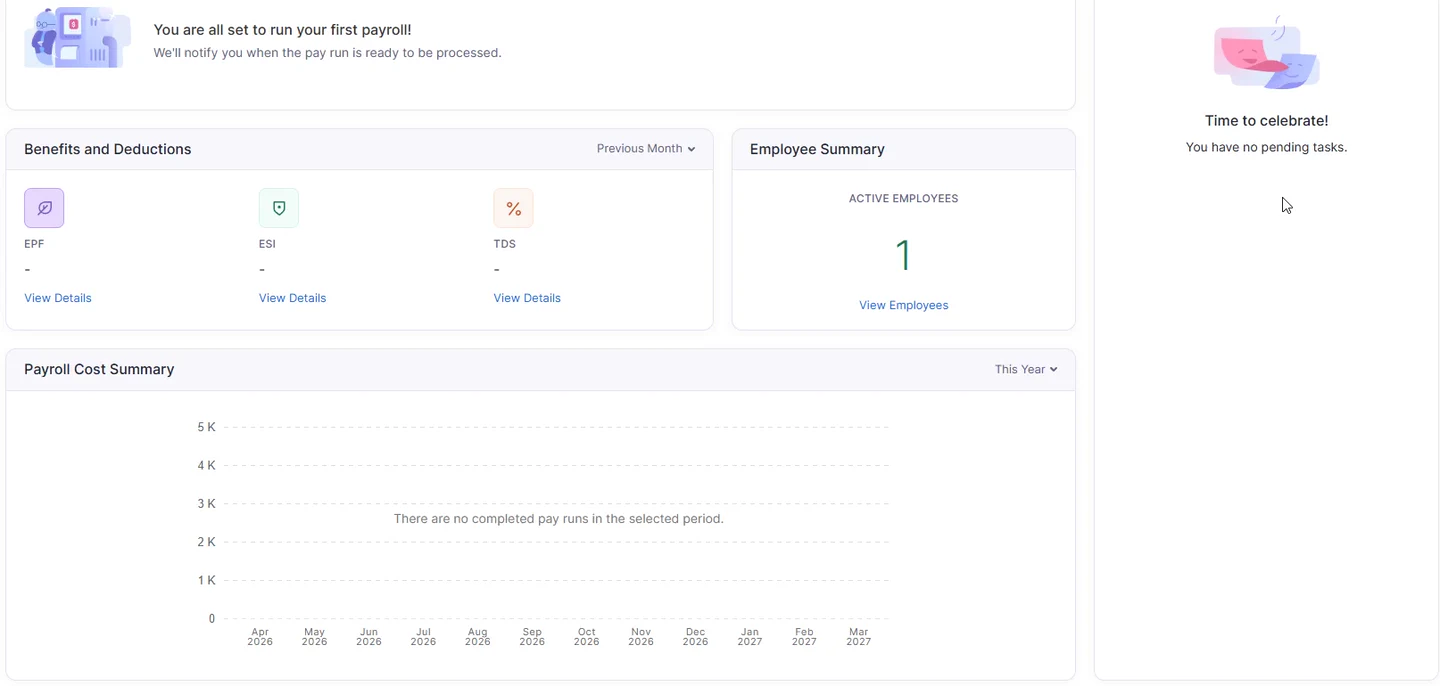
At this point, we have completed the setup demonstration. The next operational step is to review a pay run through your usual approval process, then handle payments and filings separately.
For a simple gross-to-net example, use ₹50,000 gross earnings, ₹3,000 employee PF (12% of the ₹25,000 ceiling from 17 September 2026), ₹200 PT and ₹2,500 salary TDS, with no other deductions or adjustments:
₹50,000 − ₹3,000 − ₹200 − ₹2,500 = ₹44,300 take-home
These are assumed example amounts, not prescribed deductions for every employee. Match the result to the payslip, bank-payment total and accounting entry. Employer PF is a separate employer cost; do not subtract it a second time from an employee gross-to-net calculation.
Your interactive Zoho Payroll setup checklist
Tick each item after you have reviewed it. For a scheme that does not apply, tick the item once you have confirmed that decision. You can return to this page and continue in the same browser.
0 of 20 review items ticked
Enable JavaScript to save checkbox progress in this browser. Your ticks are not submitted to ReconScribe.
Hurray! Your Zoho Payroll setup checklist is complete! 🎉
All 20 review items are ticked. You’re ready to hand the setup over for your first-payroll review.
Clear all saved ticks for this checklist in this browser?
The checkboxes work without JavaScript, but progress will not be saved between visits.
After the core setup: portal access and Zoho integrations
These are useful next steps, rather than actions completed in our 22-minute setup video. Choose the ones that fit your team’s workflow.
Employee portal and declarations
Agree when to invite employees, who reviews their submissions and when declarations or reimbursement claims close. Then enable access for the intended employees. Test the workflow with an authorised record so the team knows where to find payslips, declarations and supporting documents.
We keep portal access off during setup. Once the employee’s details are ready, send the invitation at the agreed stage of onboarding.
Zoho Books payroll integration: connect payroll to the accounts
With the Zoho Books payroll integration, Zoho Payroll records your pay run entries in the Books organisation, so salaries and deductions reach the ledger without manual journals. Open Settings → Integrations → Zoho Apps and connect the appropriate Books organisation. Review the bank account, expense/liability mappings and whether payments should be recorded individually or as a group. Zoho also offers accrual posting at period-end or cash-basis posting on payday.
Before relying on the integration, reconcile one pay run to the entries created in Books and check their status. Make sure salary costs and employee deductions land in the intended ledgers. Zoho notes that later configuration changes affect future pay runs. See the Books integration instructions.
Zoho Books payroll integration checklist: use one approved pay run to check the connection before making it your regular workflow.
- In Zoho Payroll, open Settings, Integrations, Zoho Apps and connect the correct Zoho Books organisation.
- Choose the posting basis and review the mapped salary expense, employee deduction and liability accounts.
- Approve the pay run and confirm that its journal appears in the intended Books organisation with the expected date and accounts.
- Reconcile the payroll summary to the journal, then match actual salary payments to bank transactions separately.
Zoho People: decide where employee records are maintained
The documented integration is a one-way flow from People to Payroll for employee, location and loss-of-pay information. Once employee sync is enabled, new employees are added in People. Align the pay period and attendance cut-off, check field mappings and review sync results before approving payroll.
Zoho’s guide also describes restrictions involving Payroll’s built-in Leave and Attendance module. Check those before connecting or changing a live integration. Read the People integration requirements.
Zoho Expense: route approved reimbursements into payroll
The Expense integration offers a Reimburse via Payroll status for approved reports. Reports chosen for that route can be included for payment with payroll. Check the employee mapping, report amounts and payment workflow before the first batch. Approval of a claim does not itself determine its tax treatment. See Zoho’s Expense integration guide.
New: paying contractors
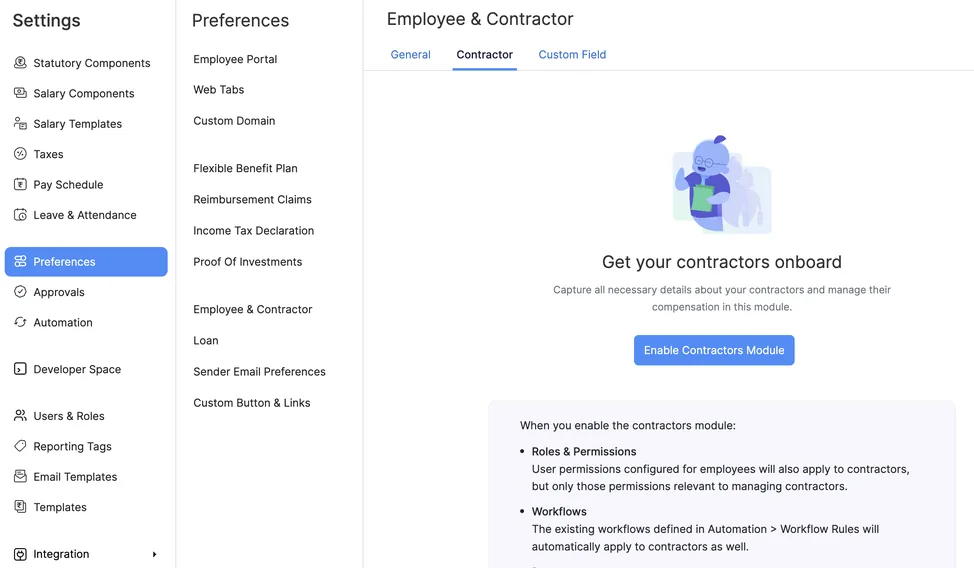
Zoho Payroll has added a Contractors module, separate from the employee side covered above. It closes a gap most companies know well: the employees are handled, and then there are the contractors paid separately every month, outside the system, with the TDS worked out by hand.
A contractor is someone hired for a particular job for a fixed period, not employed by you. Inside the software they work differently from an employee in three ways that matter:
- They are paid one fixed Pay Rate each month instead of a salary structure assembled from earnings and deductions.
- Tax is handled by choosing a TDS setting on the record, rather than by running a full income-tax projection. Zoho’s own labels read Section 393, formerly 194J.
- They have their own exit and final settlement flow, and cannot simply be deleted once a pay run has included them.
2026 tax forms: select the correct period
The setup screen and the filing period are different things. For earlier periods such as FY 2025-26, Form 16 and Form 24Q remain relevant. For Tax Year 2026-27, the corresponding salary certificate and salary-TDS statement use Form 130 and Form 138.
The Income Tax Department’s transition FAQs explain the period distinction. Zoho’s current product FAQ confirms the Form 130 transition. Select the right tax year and check the available export, validation, signing and filing steps in the live account. Generating a form is not the same as filing it or paying the liability.
For the certificate change specifically, use our Form 16 to Form 130 guide.
Zoho Payroll India pricing and feature checks
These are the advertised monthly equivalents on annual billing. GST is extra.
| Plan | Base price / month | Employees included | Additional employee / month |
|---|---|---|---|
| Free | ₹0 | Up to 10 | Upgrade beyond the limit |
| Standard | ₹1,000 | 25 | ₹40 |
| Professional | ₹3,000 | 50 | ₹60 |
| Premium | ₹4,000 | 50 | ₹80 |
Standard currently lists custom salary components, salary templates, statutory bonus and Form 130/138 features. Professional adds capabilities such as approval workflows and advanced components; Premium includes built-in leave and attendance. A trial can show features outside the plan you later select.
Confirm billing frequency, employee count, legal entities, required integrations and features on the official India pricing page. For example, 40 employees on the displayed Standard annual-billing rates would be ₹1,000 + (15 × ₹40) = ₹1,600 per month before GST.
Zoho Payroll setup FAQs
How is a contractor different from an employee in Zoho Payroll?
A contractor is paid one fixed Pay Rate each month rather than a salary structure assembled from earnings and deductions, and the tax is handled by picking a TDS rate instead of running a full income-tax projection. They sit in their own Contractors module, which has to be switched on before it appears in the sidebar, and they have their own exit and final settlement flow. Whether somebody is genuinely a contractor rather than an employee is a question about the working arrangement itself, not a setting in the software.
What is the right order for Zoho Payroll setup?
Start with company and tax details, then the pay schedule and work locations. Review applicable statutory settings, define salary components, add the employee and build their salary structure. Complete personal, payment and tax inputs, then reconcile prior payroll and review the first pay run.
Why can’t we find the same EPF and ESI flags as in the screenshots?
Our example uses separate contribution flags on earnings. Current Zoho documentation describes Included in Wages and a Wages treatment setting instead. Use the current fields for your version; the article explains the difference beside the salary-component screenshots.
Does creating an allowance add it to every employee?
No. Creating an earning makes it available in the organisation. It must then be assigned through the employee’s salary structure or the relevant salary template. Our CCA example shows both screens.
Can we follow this guide on the Free plan?
You can follow the core setup concepts, but available controls depend on the plan. For example, the current pricing page places custom salary components, salary templates and statutory bonus in Standard and above. Check the features you need before a trial ends.
Do we need Zoho People to add employees?
No. This walkthrough adds an employee directly in Payroll. If you enable the People employee-sync integration, Zoho’s documented workflow uses People to add employees and sends the selected information to Payroll.
Does saving Bank Transfer send the salary payment?
No. Bank Transfer is a manual workflow. Saving the employee’s method does not pay them. An integrated payout also requires its own configuration and authorised payment steps.
Do the zero-tax demo results apply to every ₹20 lakh package?
No. The comparison uses a September joiner with no previous-employment income entered. It is an illustration of that record, not a general tax-free salary limit. Complete the relevant earnings, previous income, tax and declaration inputs before using a projection.
Will the setup checklist save our progress?
Yes, when browser storage is available. It saves only your checkbox choices in the browser you are using, not to a ReconScribe account. It does not sync across devices. Reset progress or clearing browser storage removes those saved ticks.
Need help with your organisation’s setup?
If you would like ReconScribe to help with the configuration, tell us your employee count, work states, current payroll system and intended start month. That gives us a useful starting point for discussing the setup and migration work.
Want Zoho Payroll set up for you?
Our finance and accounting team sets up Zoho Payroll end to end for Indian companies: salary structures, EPF, ESI, PT and LWF registration mapping, TDS configuration, employee import and the first supervised pay run. Tell us about your team and we will reply with a plan and a quote within one working day.
Don't have time to set up Zoho Payroll yourself? Or maybe you need a real expert and don't want to take chances?
Our compliance and accounting experts can handle your complete payroll setup, location-specific statutory mapping (EPF, ESI, Professional Tax, LWF), Zoho Books integration, and employee portal configurations. Fill out the quick form below for a setup consultation.
Prefer email? Write to contact@reconscribe.com. Please do not send employee PAN, bank details or other sensitive payroll records in an initial enquiry.
Explore Zoho through our referral link. Referral link: any wallet-credit eligibility and terms are set by Zoho.
Scope and sources: Official product and statutory sources are linked beside the relevant sections. Product features and requirements can change, so check them as part of your normal payroll review. The checklist tracks your progress; it is not a compliance certification.