
Most small companies in India have payroll under control and a blind spot right beside it. The employees are handled. Then there are the contractors paid separately every month, outside the system: a bank transfer, the TDS worked out in a spreadsheet, and nobody spots what was missed until the return is due.
Closing that gap is what Zoho Payroll contractors are for, and it is something people have been asking Zoho for in its own community for a long time. Those people now get paid, deducted and recorded in the same pay run as everybody else, instead of being handled on the side.
They sit in their own module, separate from the employee side, and it works differently enough to be worth its own walkthrough. One fixed pay rate instead of a salary structure, a TDS setting instead of a tax projection, and an exit flow of its own.
This page follows the module end to end: switching it on, adding somebody, getting the tax right, importing a batch, the bulk actions, and everything that happens when a contract ends. It is a companion to our Zoho Payroll setup guide, which covers the employee side and the rest of the organisation setup.
What Zoho means by a contractor
Zoho’s definition is a person or organisation hired to do a particular job or project for a specified amount of time, not employed by you, working to a contract that fixes the scope, duration and payment terms. Their worked example is a freelance consultant brought in for three months who uses her own tools, sets her own hours, and is paid at the end of each month.
The practical difference inside the software is smaller than you might expect and larger where it counts:
| Employee | Contractor | |
|---|---|---|
| What drives the pay | A salary structure built from earnings and deductions | A single monthly Pay Rate |
| How tax is handled | A full income-tax projection across the year | One TDS setting on the record |
| Where they live | The Employees module | Their own Contractors module |
| Ending it | The employee exit and full and final settlement | A contractor exit with its own final settlement screen |
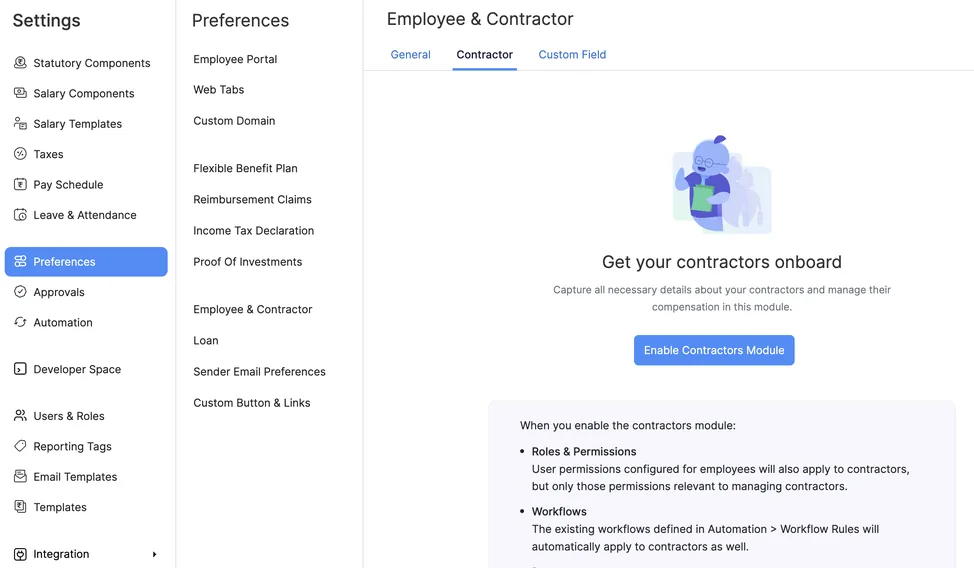
1. Turn the module on
Settings → Preferences → Employee and Contractors → Contractors tab
Nothing appears until you enable it, which is the single most common reason people conclude the feature is missing from their account.
- Click Enable Contractors. The Contractors item then appears in the left sidebar.
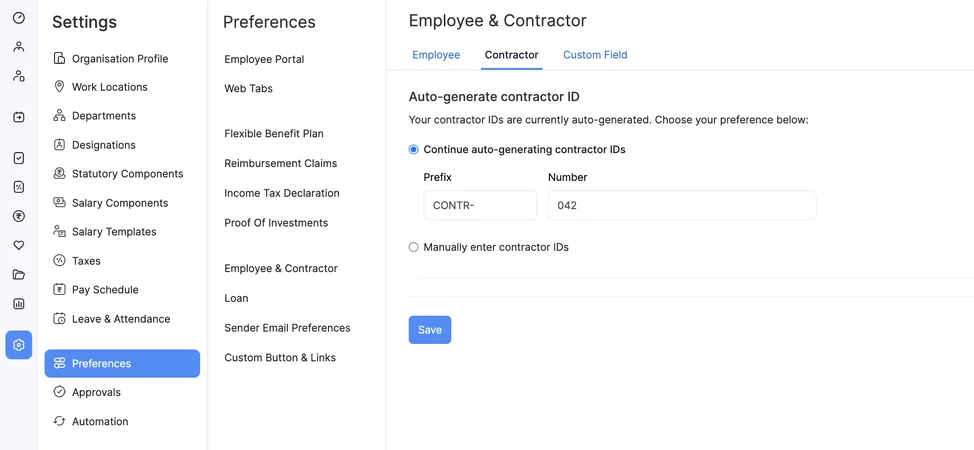
- On the same tab, decide how IDs are produced. Enter a prefix and a starting number to generate them automatically, then Save. Skip it if you would rather type an ID for each person.
2. Add a contractor
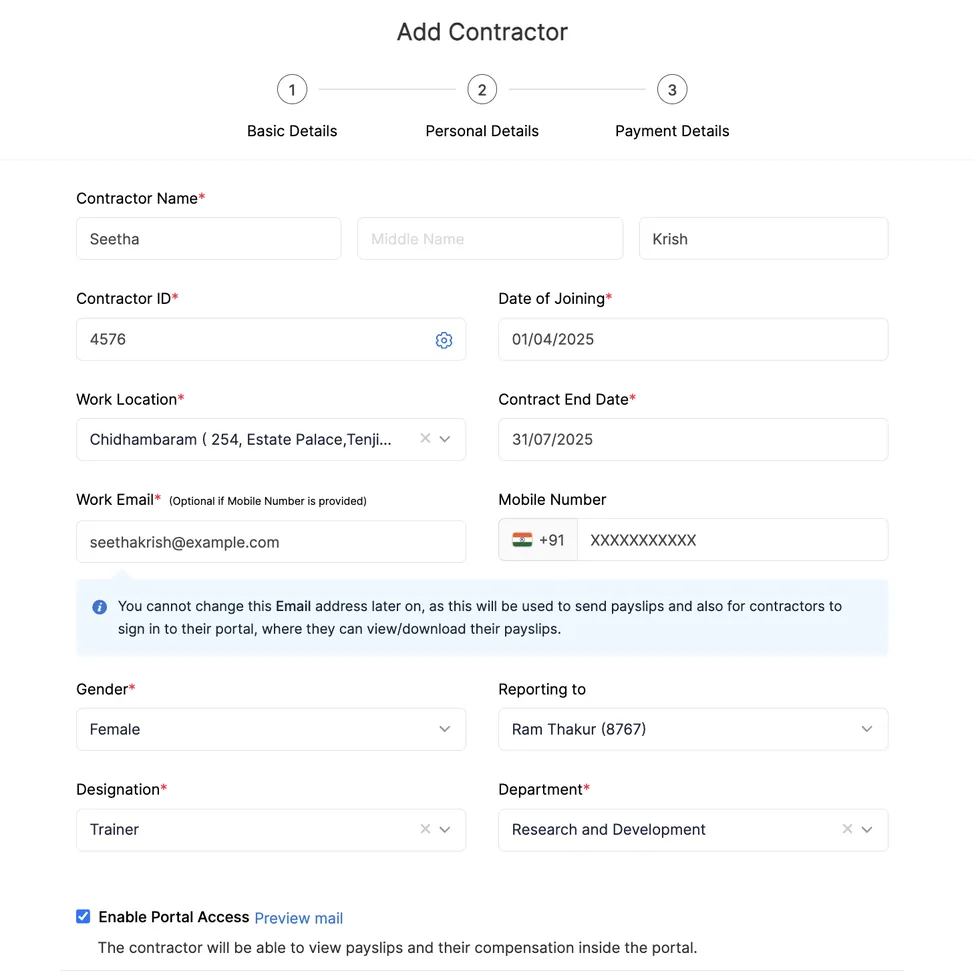
Contractors → Add Contractor
Shorter than the employee form, because there is no structure to design.
| Field | What it is for |
|---|---|
| Contractor ID | Typed, or generated from the prefix you just set. |
| Date of Joining | The day they officially start. |
| Contract End Date | When the contract ends. Zoho’s wording is that they no longer work after this date, so it is the engagement’s expiry rather than a notice period. |
| Work Location | Where they work. On the employee side this drives Professional Tax and the establishment registrations, so keep it truthful here too. |
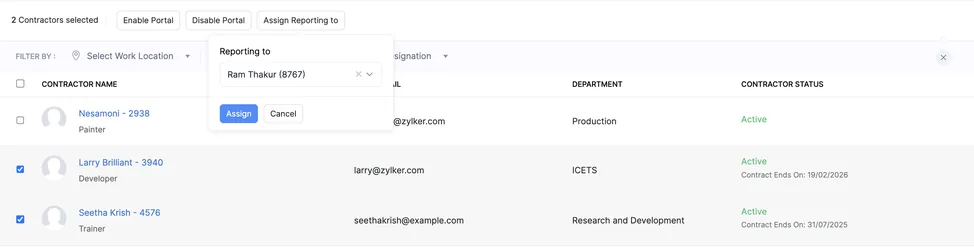
| Reporting To | Who oversees the work. This is what the bulk Assign Reporting to action sets later. |
| Designation and Department | Picked from the same lists you use for employees. |
| Enable Portal Access | Lets them sign in to see their own details and payment history. |
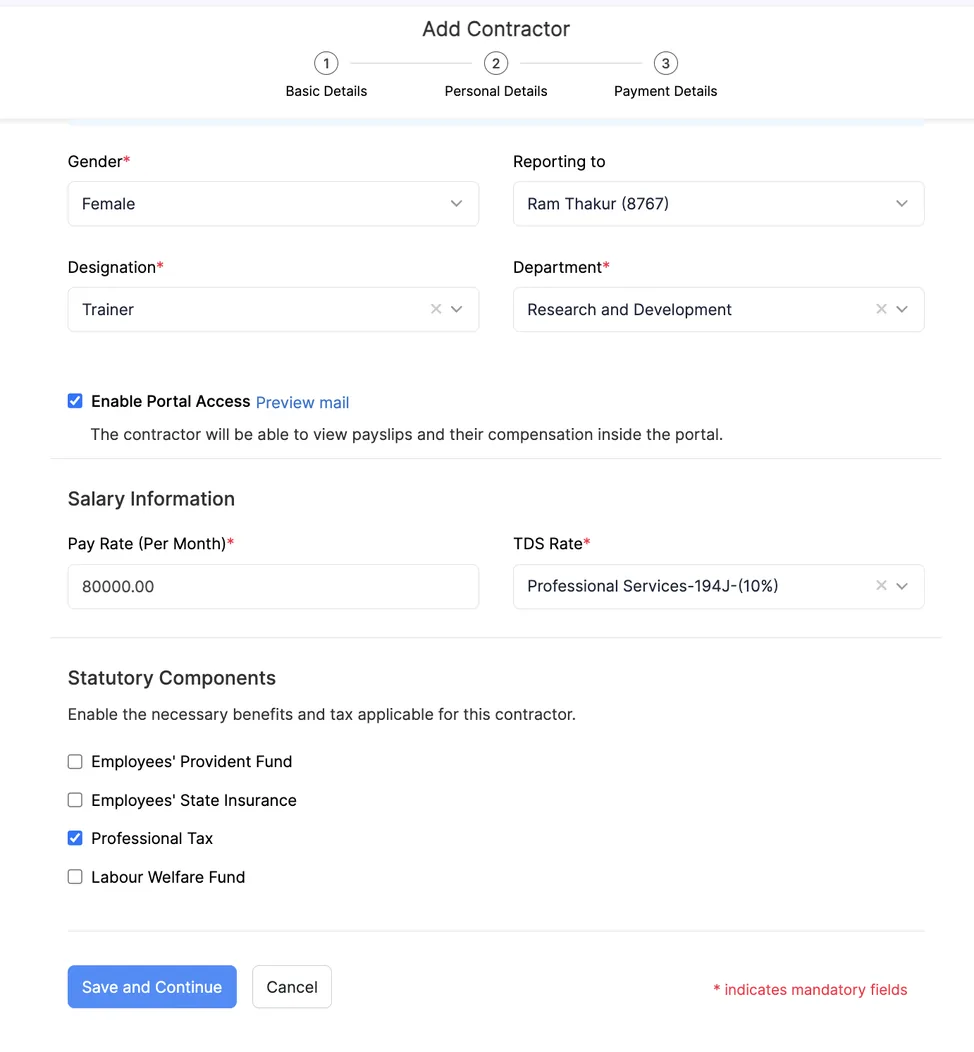
| Pay Rate | The fixed monthly amount. This one figure replaces the whole earnings and deductions structure. |
| TDS | Which of three tax settings applies. The section below covers it. |
| Enable Statutory Components | Opens the benefits that apply to this contractor. Worth noticing the option exists at all. |
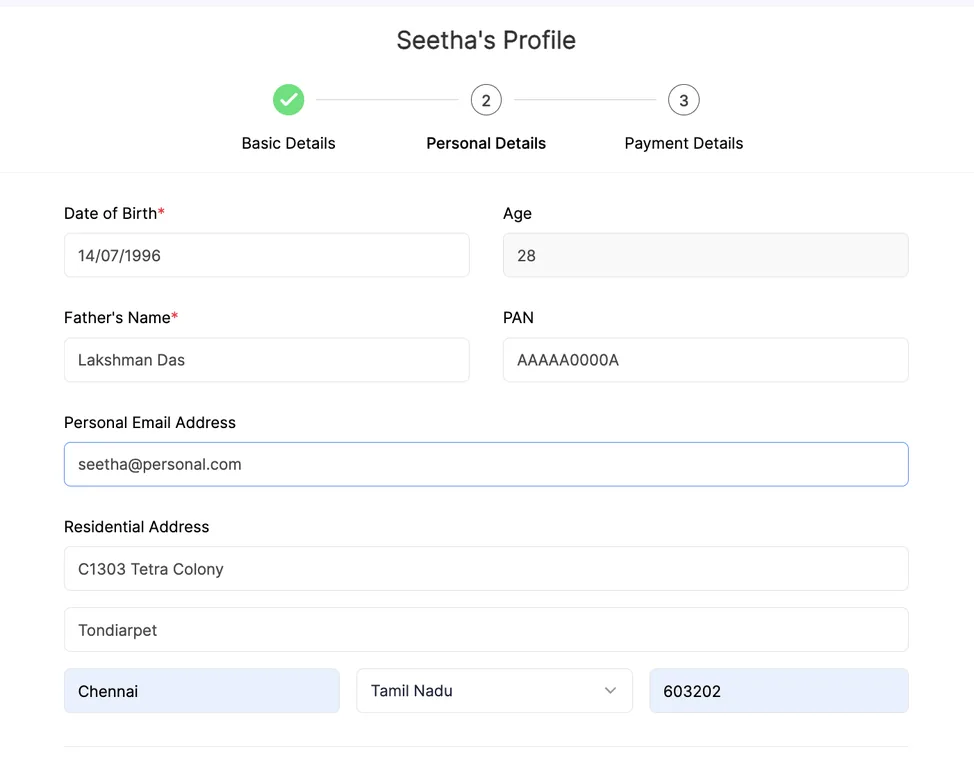
Then the personal details: date of birth, father’s name, age, residential address, PAN and personal email. The PAN is the one to get right, since it carries the deduction through to reporting.
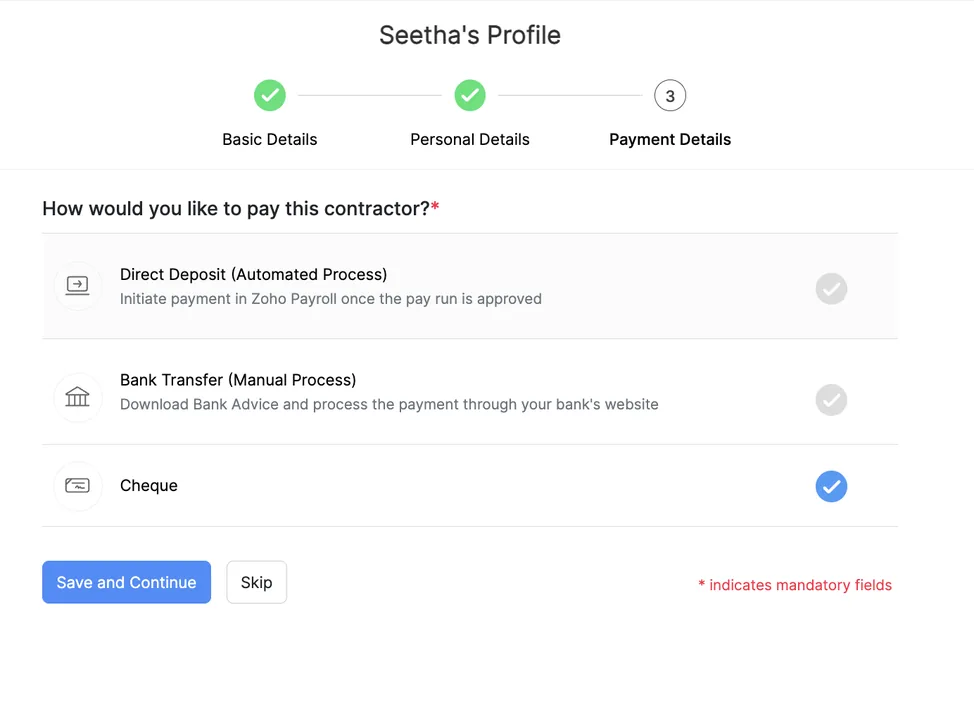
Finally the payment method. Direct Deposit sends money straight to their account, and needs a supported bank already configured for your organisation. Bank Transfer means you move it yourself, with the holder name, bank, account number, IFSC and account type stored so the advice is right. Cheque means you send it and record it here.
Which banks are available for direct deposit changes over time, and what the contractor screens offer can differ from the employee side. Check what your own organisation actually has set up before promising a contractor a direct transfer. Bank Transfer is the fallback that always works.
3. Choose the TDS rate deliberately
TDS is tax deducted at source. You hold back a percentage of what you owe and deposit it against their PAN, and they claim credit for it when they file. Three settings are available.
| Setting | When Zoho says to use it | Rate |
|---|---|---|
| No TDS | Where what you pay stays within Rs 50,000 across the year. | Nil |
| Technical Services, shown as Section 393 (formerly 194J) | Managerial, consultancy and technical services. | 2% |
| Professional Services, shown as Section 393 (formerly 194J) | Medical, architectural, advertising, legal, engineering and other notified professions. | 10% |
Which of the three applies is a question about the work, not the software, and Zoho’s list is a starting point rather than a ruling. Settle it before the first payment. Changing it afterwards means correcting a return, not just a field.
4. Bringing in several at once
Two routes, and the Zoho People one has prerequisites that quietly produce an empty sync if they are missing.
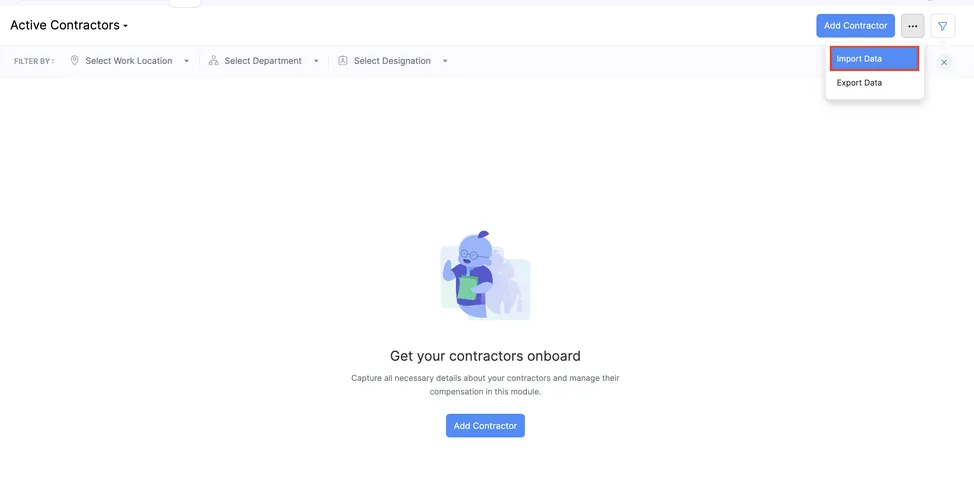
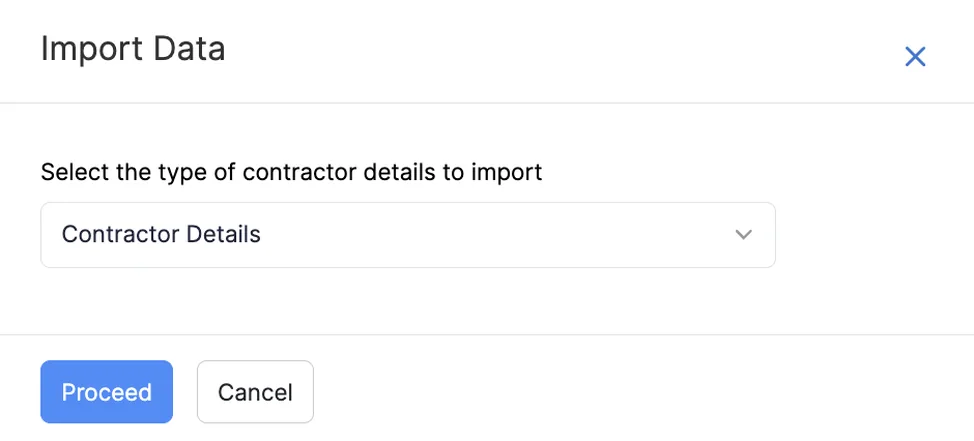
Import a file. Contractors → the More icon → Import Data → Contractor Details → Proceed, then upload and map your columns.
Sync from Zoho People. Every contractor profile there must already carry a Date of Exit, plus custom fields for Payment Mode, Bank Holder Name, Bank Name, Account Number, IFSC Code and Account Type. Then in Zoho Payroll go to Settings → Zoho apps, choose which employment type to fetch, tick Classify some types as contractors, select that type again, and save.
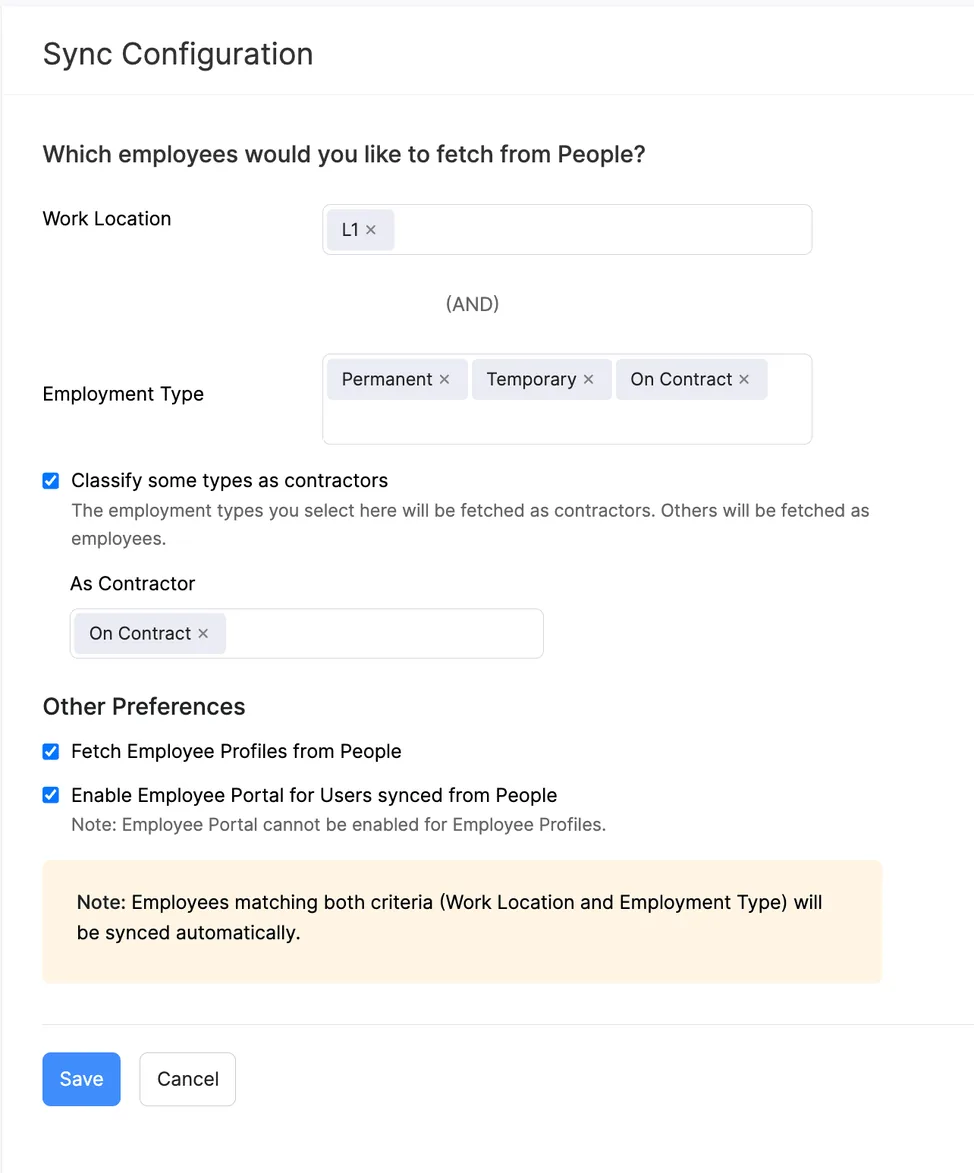

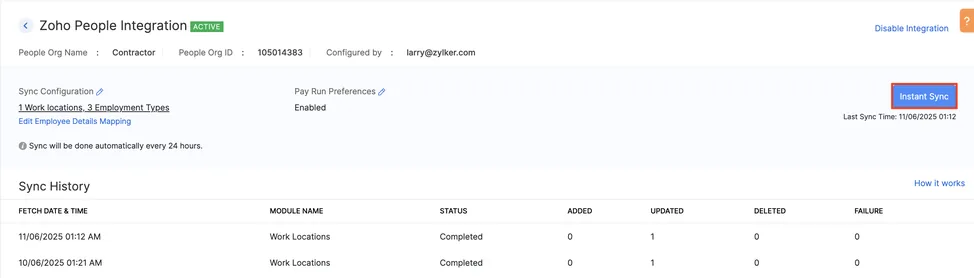
The sync runs every 24 hours by itself. Instant Sync on the Contractors page pulls immediately.
5. What the record looks like
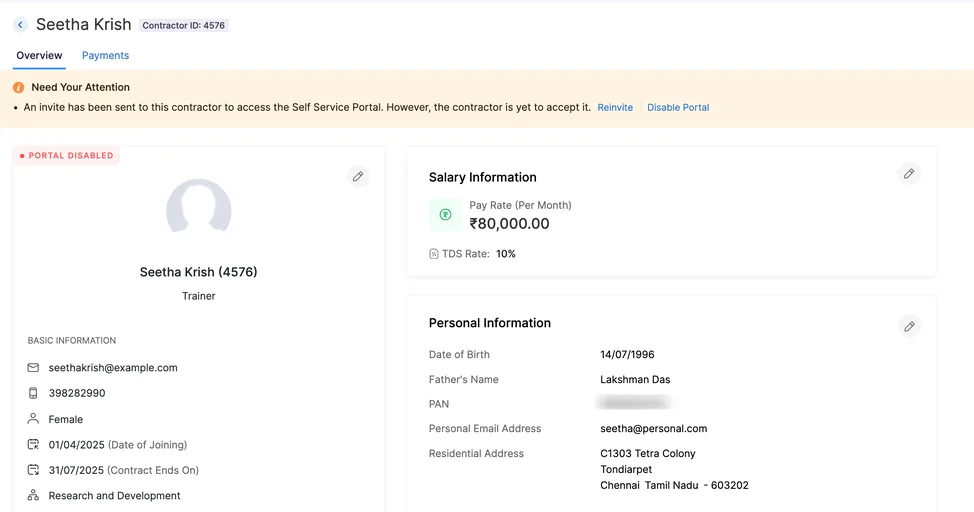
Once somebody is in, their record carries the salary information and a Payments tab with the history, which you can filter by year.
6. Editing, revising and changing the TDS rate
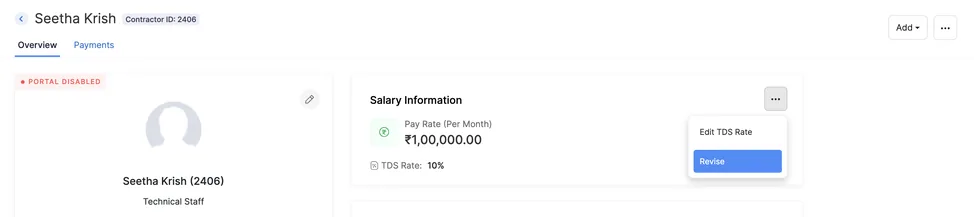
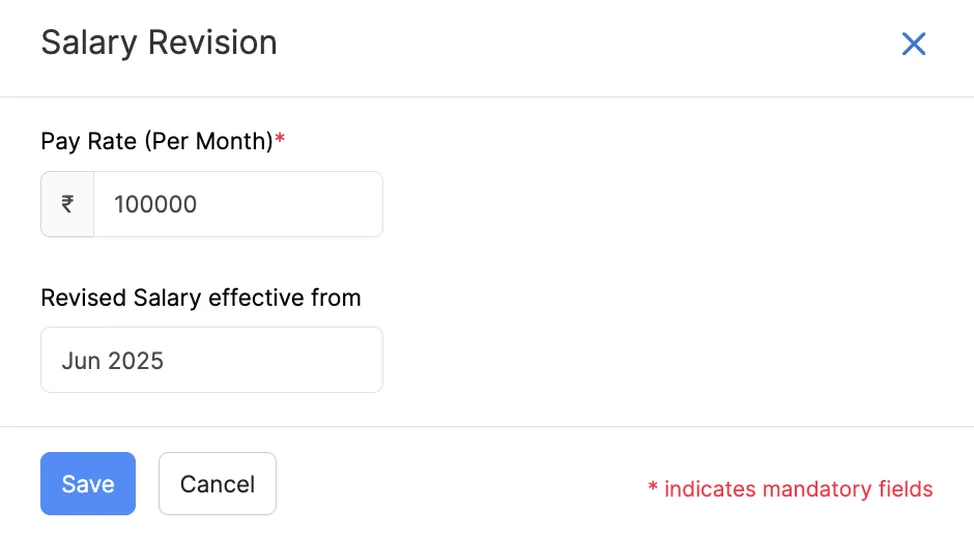
The rule worth remembering is that a pay run freezes some fields. Before the contractor has been in one, the pay rate is edited in place. Afterwards it moves behind the More menu.
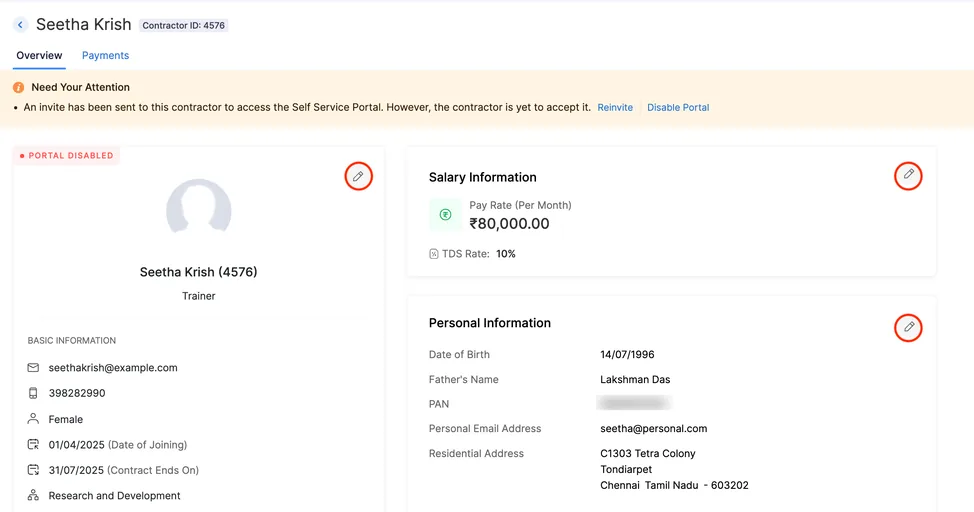
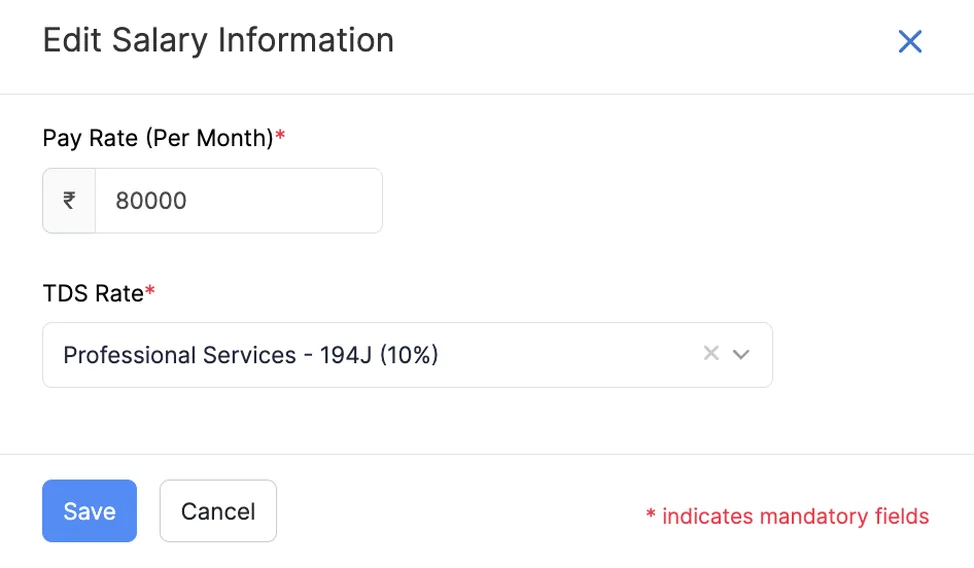
After a pay run, the tax setting changes through More → Edit TDS Rate.
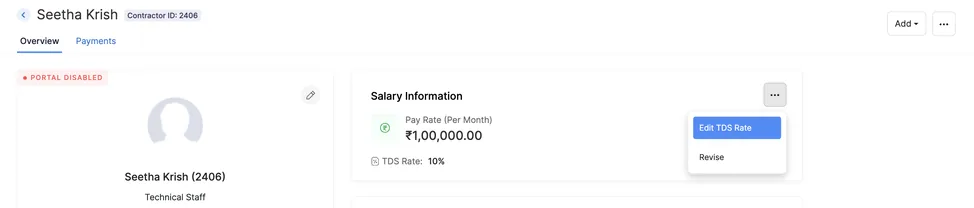
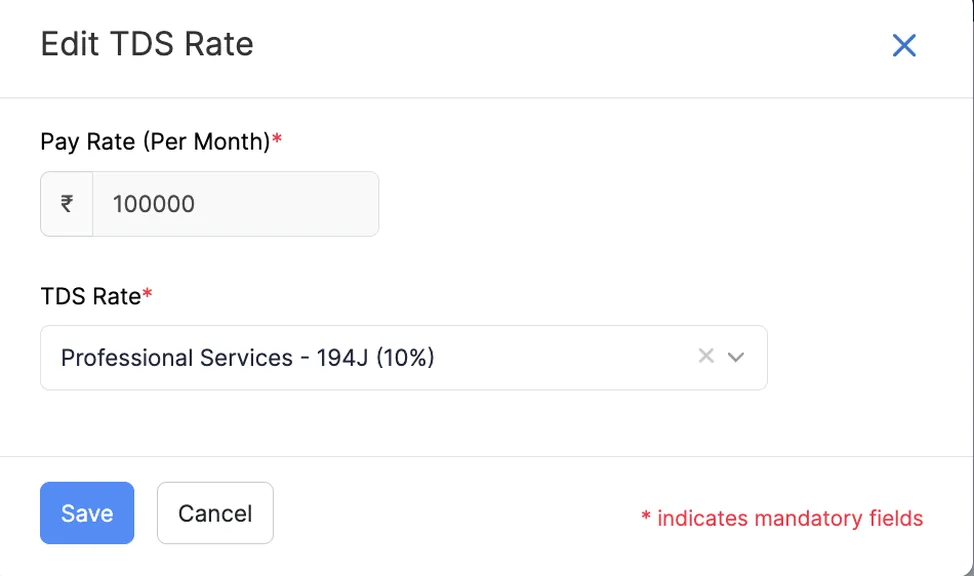
And the amount changes through More → Revise, which takes the new monthly pay rate and the date it takes effect, so the history stays intact rather than being overwritten.
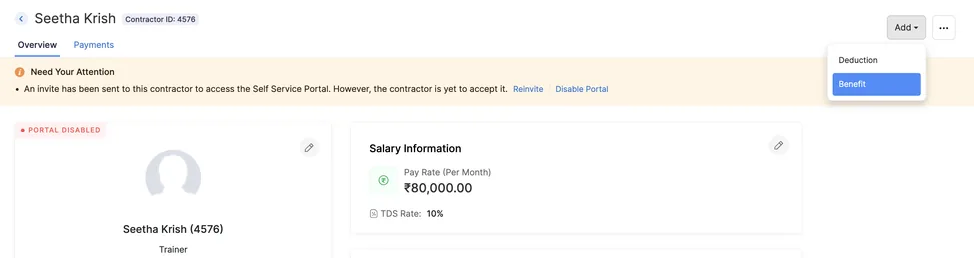
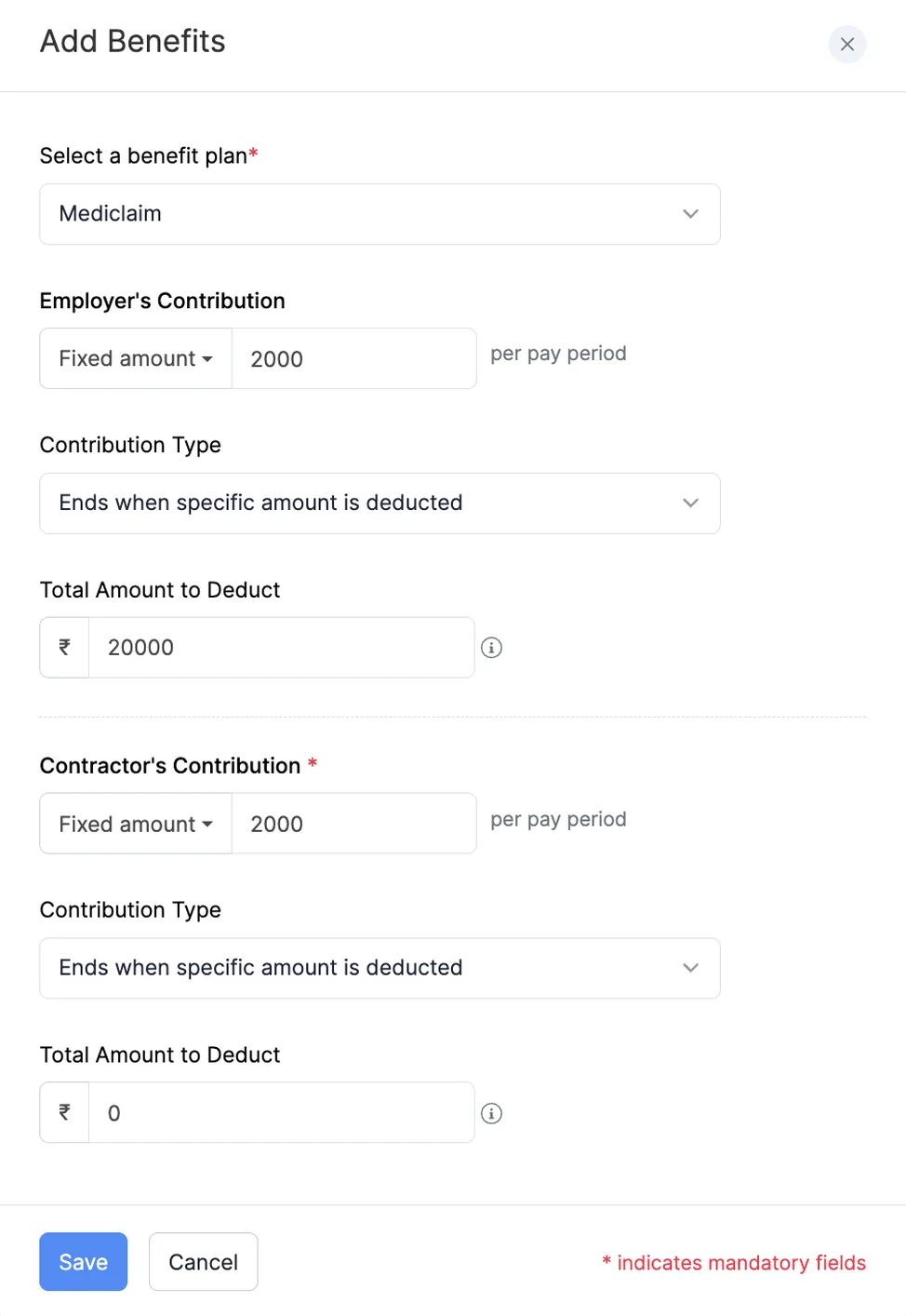
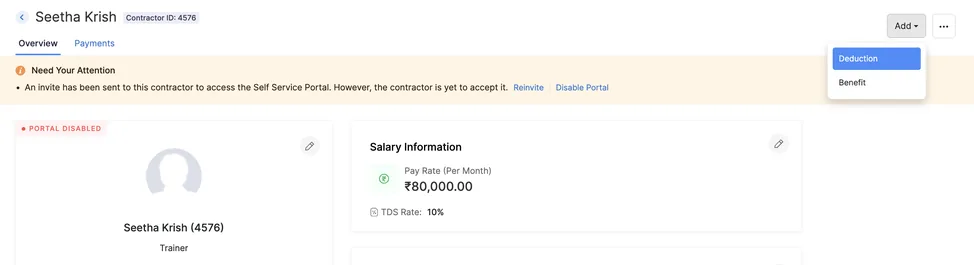
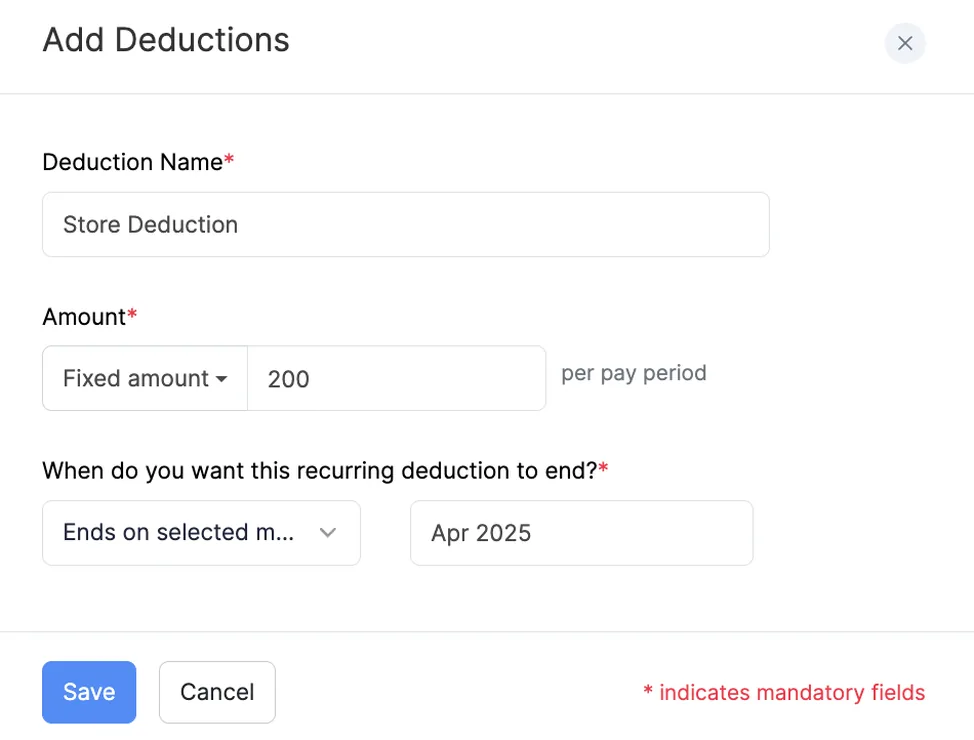
7. Benefits and deductions
A benefit comes out before income tax, so it reduces taxable pay. A deduction comes out after tax, so it does not. Either can be a flat amount or a percentage of basic and DA, and either can stop at a month, stop once a total is recovered, or run on indefinitely.
8. Bulk actions and portal access
Select several contractors and act on all of them at once. Assign Reporting to sets the manager.
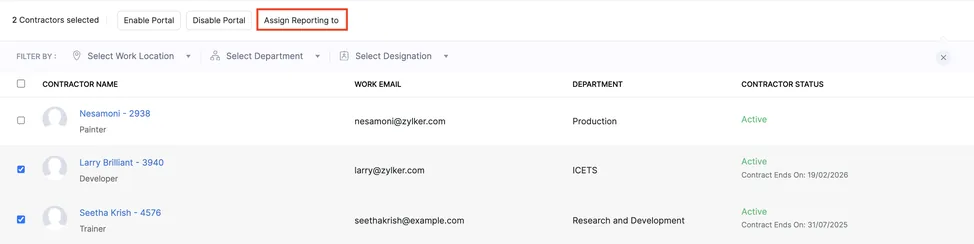
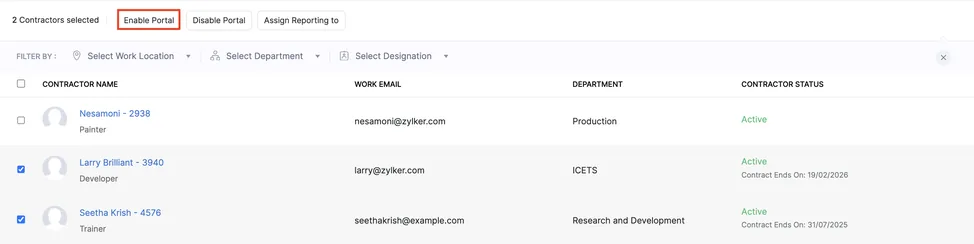
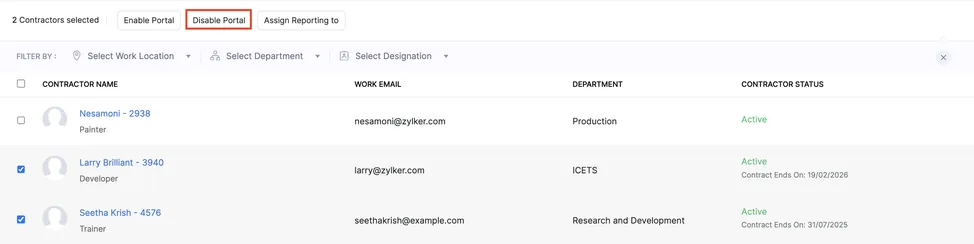
Portal access can be granted or revoked the same way. The portal shows a contractor their own details and payment history, nothing else.
9. Exporting contractor data
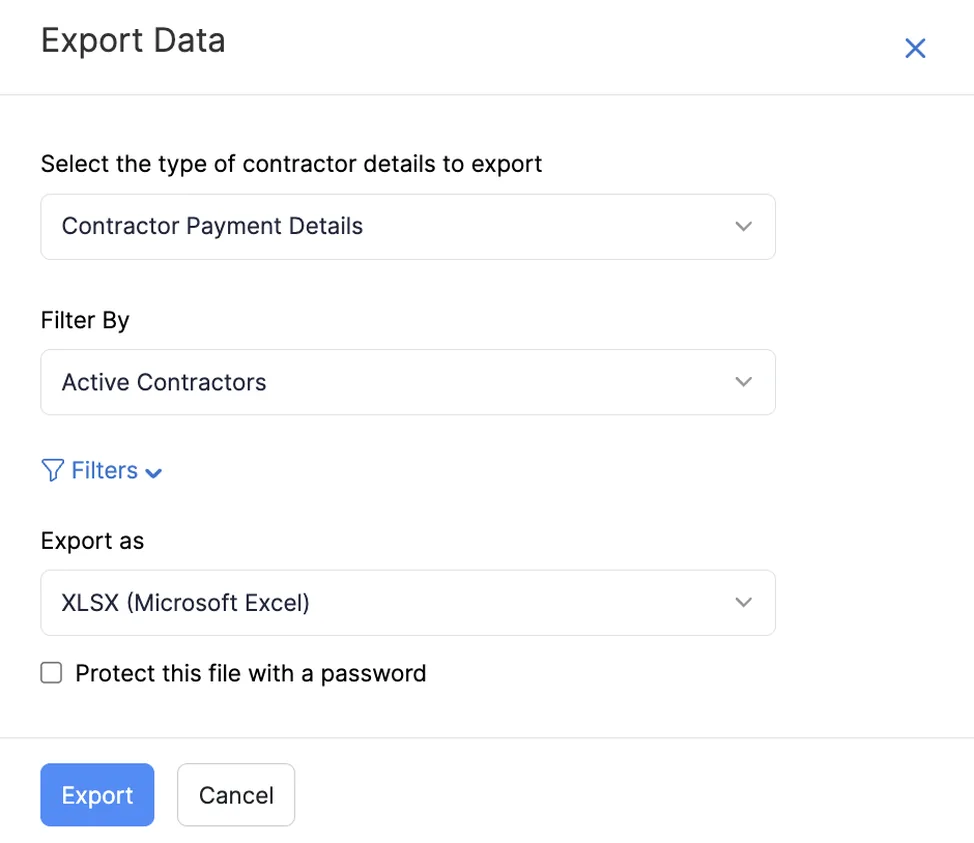
Contractors → More icon → Export Data
Choose which detail types to include, filter by status, pick a format, and put a password on the file if it is leaving the building.

10. Deleting a contractor
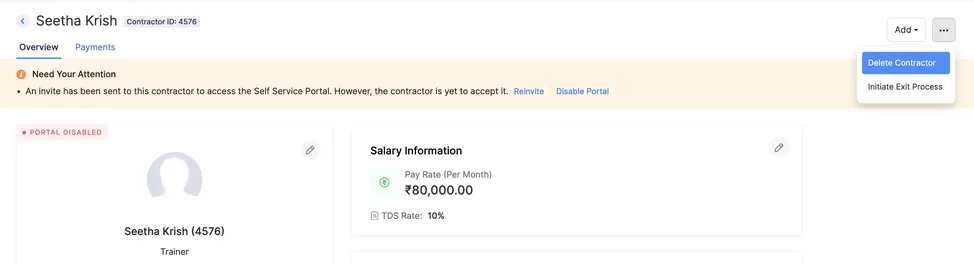
Only possible while they have never been in a pay run, current or completed. After that the record stays and you use the exit process instead, which is correct: deleting somebody who has been paid would take the payment history with them.
11. Ending one engagement
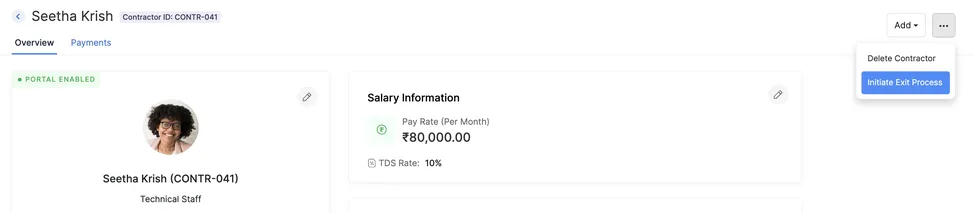
Contractors → select the contractor → More → Initiate Exit Process
- Enter the Last Working Day, the Reason for Exit, a Personal Email so the settlement payslip reaches them after their work address stops, and any internal Notes.
- Choose settle on a given date or pay as per pay schedule, then Proceed.
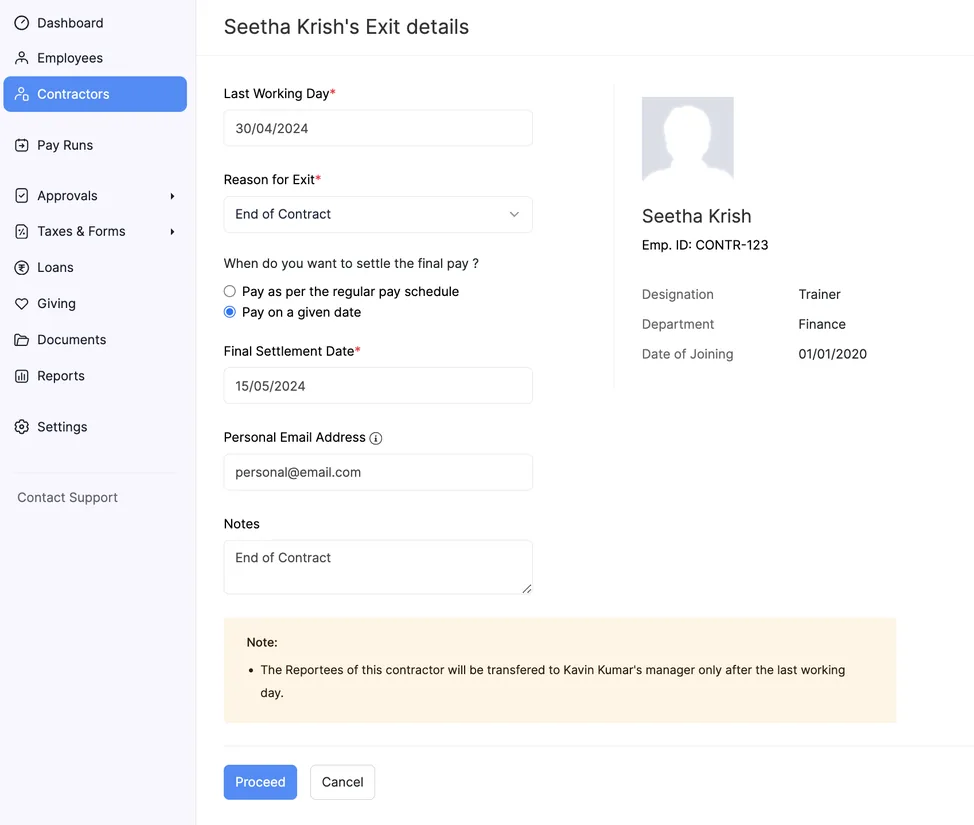
A given date takes you straight to the final settlement screen. Enter the organisation’s payable days, the contractor’s payable days and any loss-of-pay days.
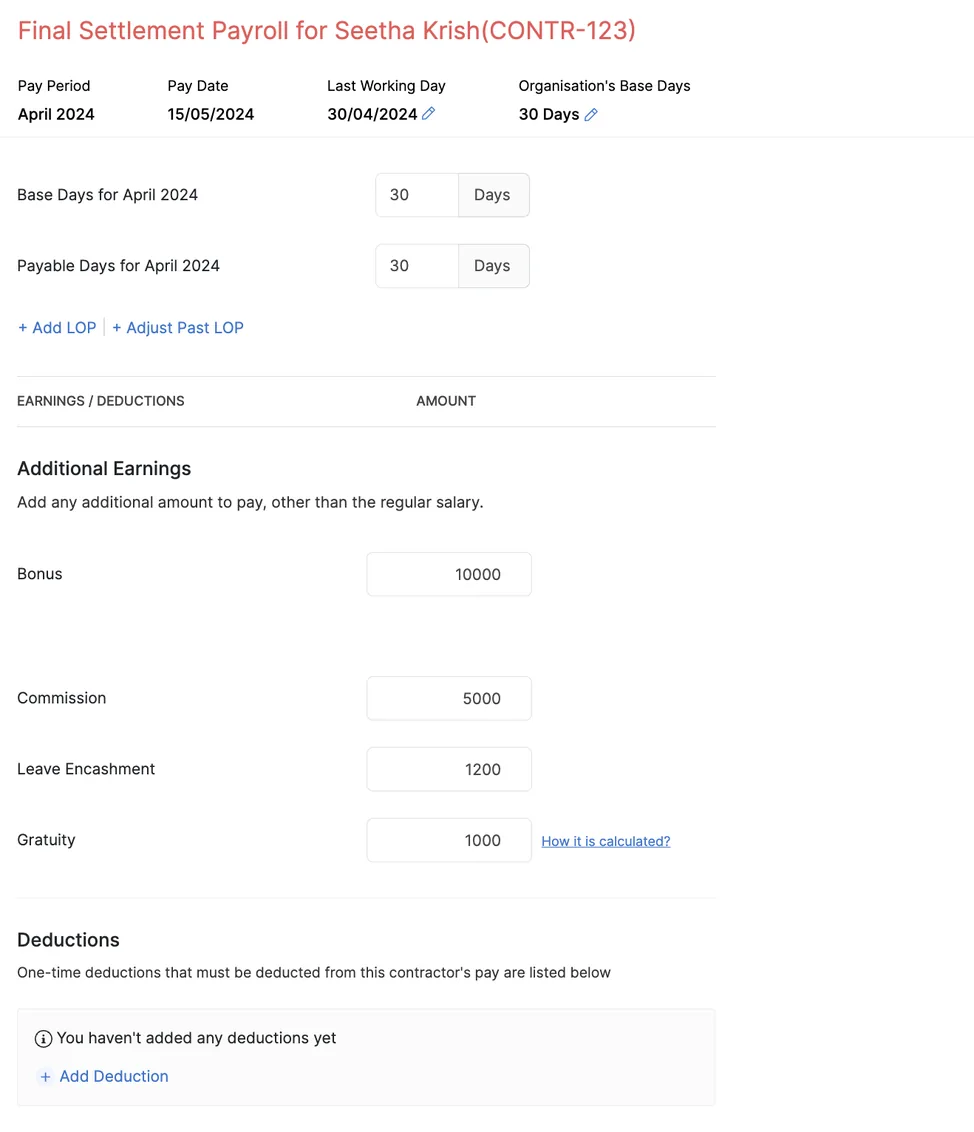
Add any additional earnings or deductions, marking the balance Payable if you owe them or Receivable if they owe you, and switch on Notice Pay if it applies.
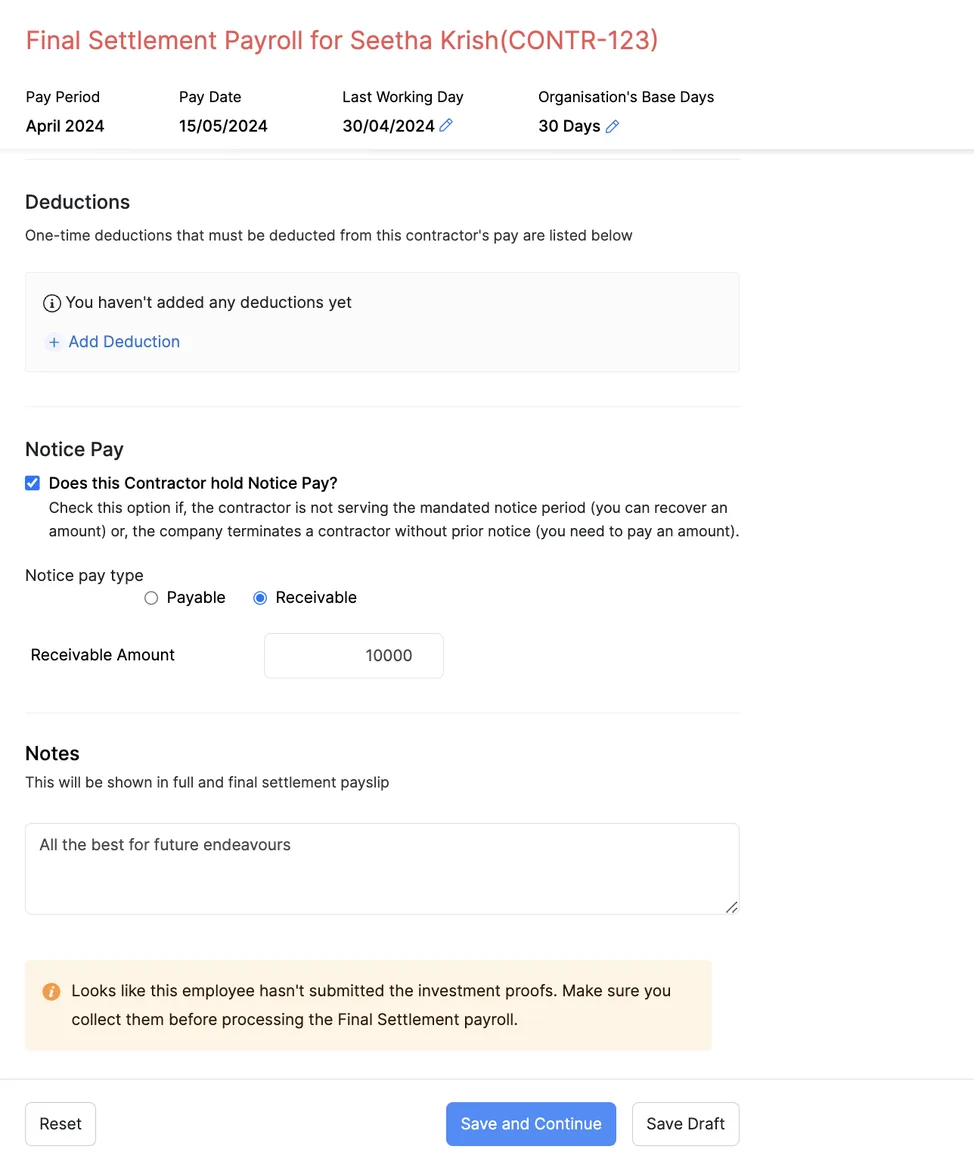
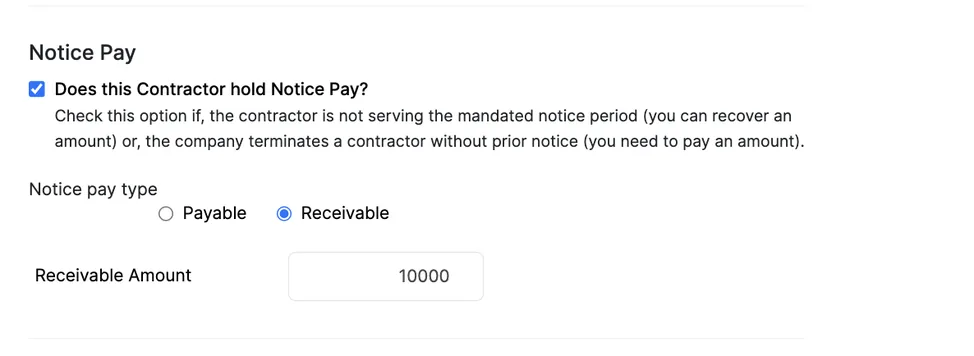
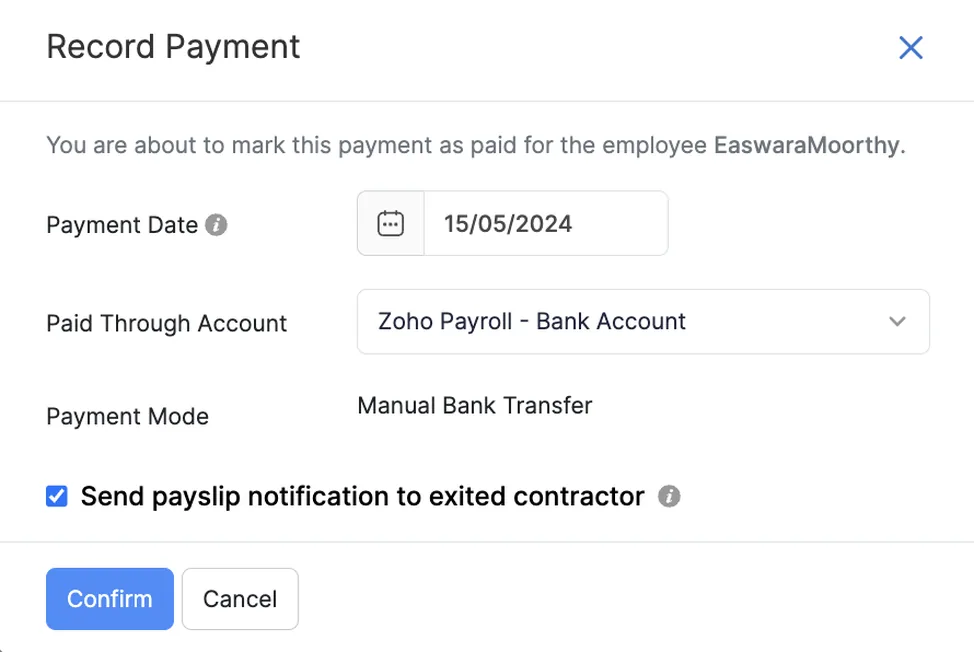
Then Save and Continue and Submit, or Submit and Approve if you hold approval rights. To release the money, go to Pay Runs → View Details and Pay → Record Payment, pick the date, and tick the payslip notification if you want it emailed.
12. Ending several at once
Either import them, or start each exit manually and let them collect into one payroll.

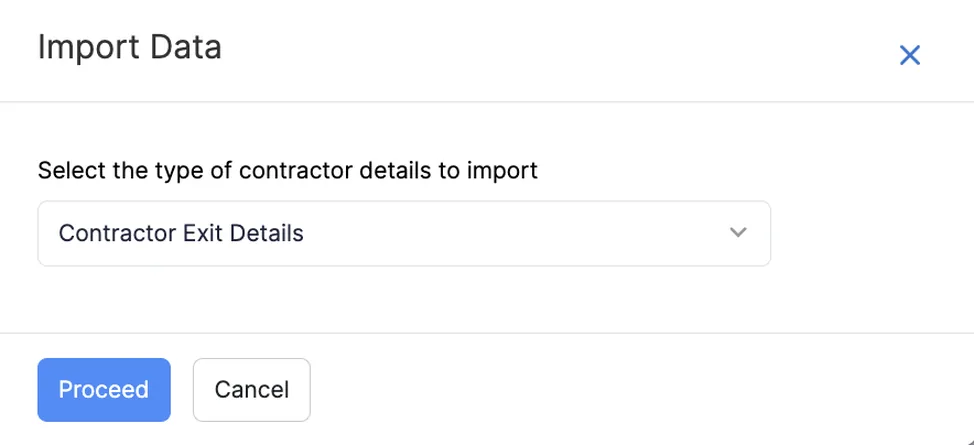
The manual route is to initiate each exit and choose pay as per pay schedule rather than a given date, which holds each one until the normal run.
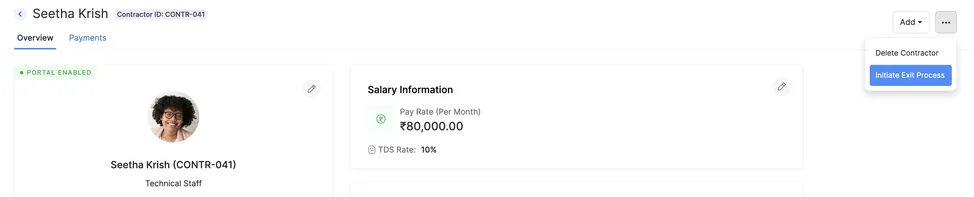
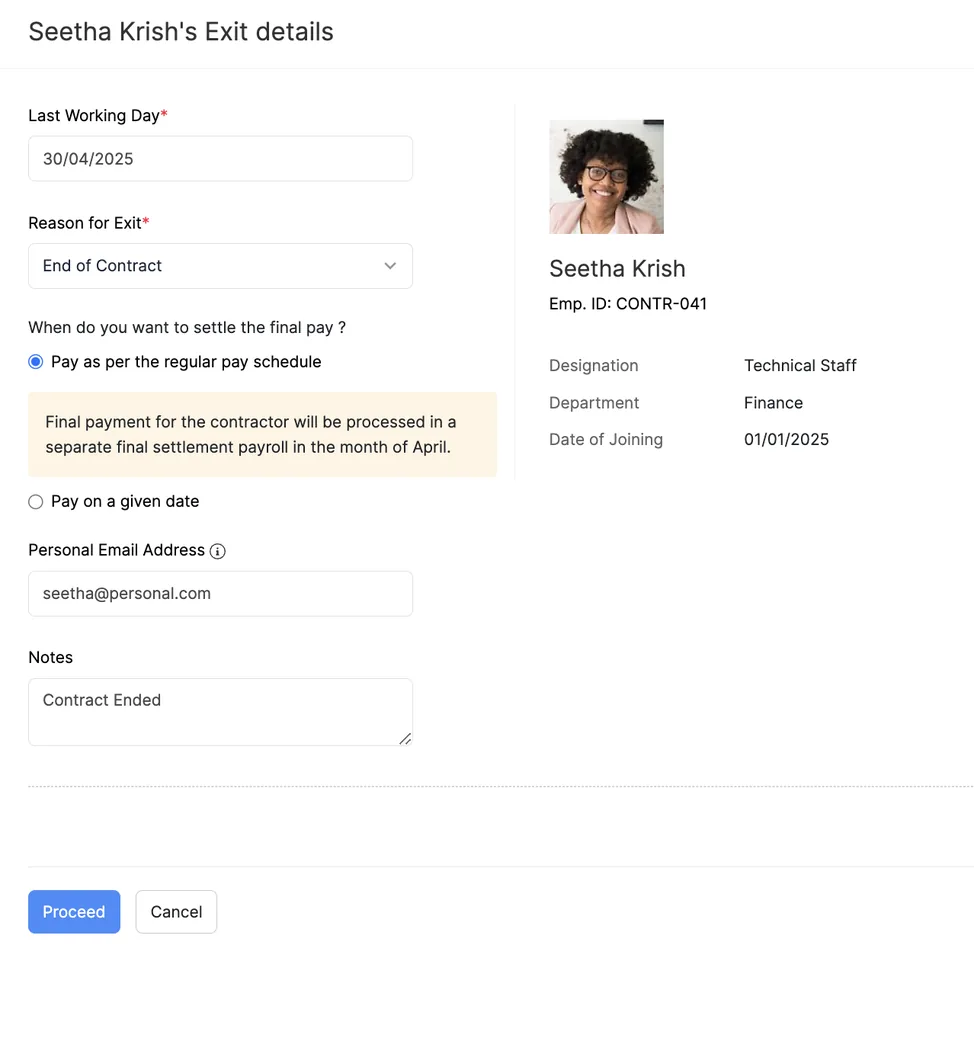
They then settle together in a single final payroll.
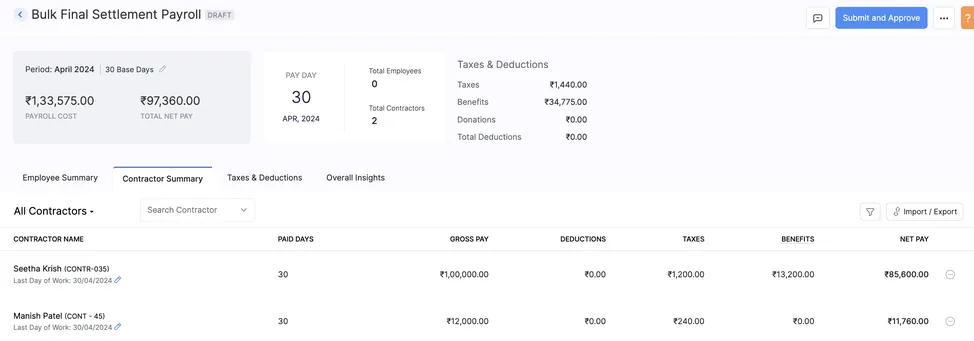
13. Exits that start in Zoho People
If Zoho People is where employee records are maintained, the exit can start there instead. Set the status to terminated or resigned and enter the exit date.
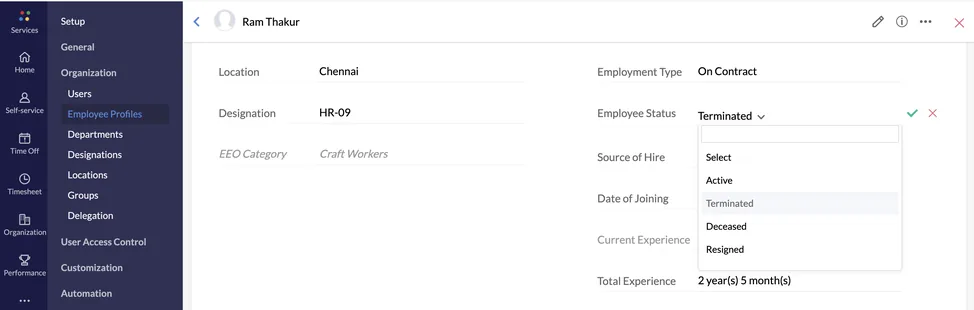
Then sync it across, and the exit arrives in Zoho Payroll as a to-do with the final settlement waiting to be processed.
14. Finding exited contractors, and undoing an exit
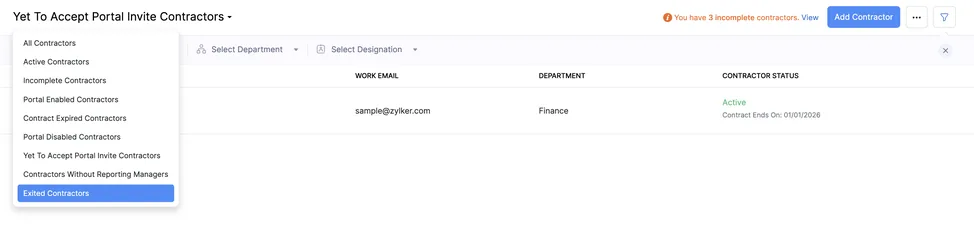
Exited contractors stay findable through the Contractors filter, either as a group or by why they left.
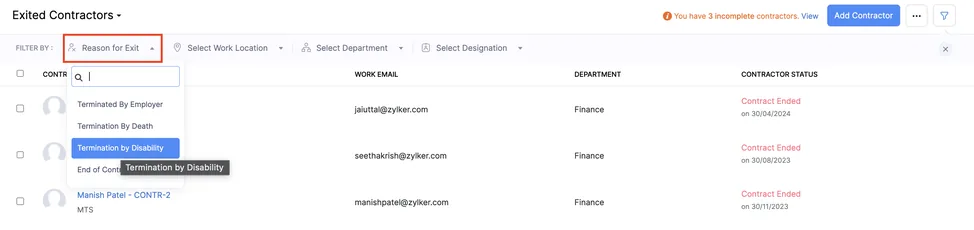
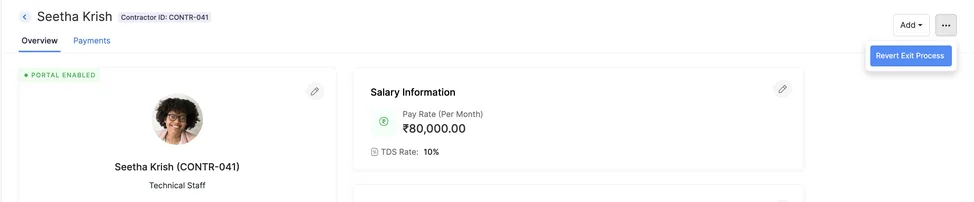
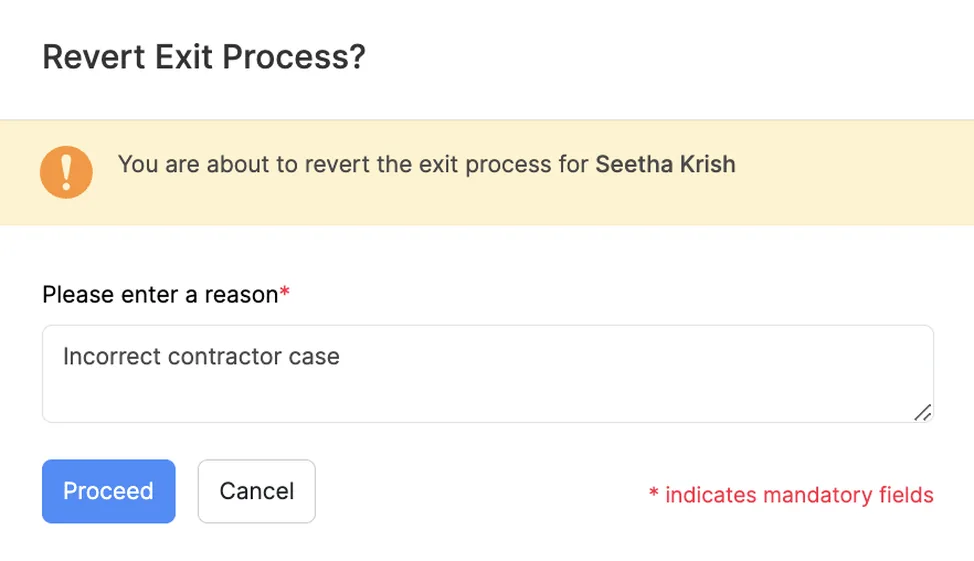
And an exit started by mistake can be undone, as long as the final settlement has not been processed. Give a reason, then re-enter the salary details; the rest populates itself.
One thing worth saying plainly
Where this sits in the wider setup
Zoho Payroll contractors are one module inside a larger setup. If you are configuring the organisation from scratch, our Zoho Payroll setup guide for India covers the company profile, statutory components, salary structures, the first pay run and a checklist. For the tax side, the TDS rate calculator and the Section 393 map are the two most useful companions to this page.
Zoho Payroll contractors FAQs
Do I need a paid plan for Zoho Payroll contractors?
Contractors are a newer module and availability depends on your plan, so check Zoho’s current pricing page against the plan you are on. There is a second reason the menu can be missing that catches people out: the module is switched off by default even where the plan includes it, so you have to enable it under Settings, Preferences, Employee and Contractors before anything appears in the sidebar.
What TDS rate applies to a contractor in Zoho Payroll?
Zoho offers three settings. No TDS, where what you pay stays within Rs 50,000 across the year. Technical Services at 2%, for managerial, consultancy and technical work. Professional Services at 10%, for medical, architectural, advertising, legal, engineering and other notified professions. Zoho’s own labels read Section 393, formerly 194J, reflecting the Income-tax Act 2025 renumbering that took effect on 1 April 2026. Which one applies is a question about the work itself, so settle it before the first payment rather than correcting a return later.
How is a contractor different from an employee in Zoho Payroll?
A contractor is paid one fixed Pay Rate each month rather than a salary structure assembled from earnings and deductions, and tax is handled by picking a TDS rate instead of running a full income-tax projection. They sit in their own module and have their own exit and final settlement flow. Whether somebody is genuinely a contractor rather than an employee is a question about the working arrangement, not a setting in the software.
Can I delete a contractor from Zoho Payroll?
Only while they have never appeared in a pay run, current or completed. Once a pay run has included them the record stays, and you close the engagement through the exit process instead. That is the correct behaviour, because deleting somebody who has been paid would take the payment history with them.
How do I settle several contractor exits together?
Two ways. Import Contractor Exit Details as a file, or start each exit manually and choose pay as per pay schedule rather than a given date, which holds each one until the normal run so they settle in a single payroll. If an exit was started by mistake, More then Revert Exit Process undoes it as long as the final settlement has not been processed.
Can a contractor exit start in Zoho People?
Yes. Set the employee status to terminated or resigned in Zoho People and enter the exit date, then sync. The contractor data syncs every 24 hours on its own, or immediately using Instant Sync, and the exit then appears in Zoho Payroll as a to-do to process the final settlement.
Sources
Screens on this page are Zoho’s own documentation captures, used with permission. Everything here was read from Zoho’s official pages: the Contractors overview, other contractor actions, contractor exits and the India pricing page.
Zoho changes this module regularly. Where your screen differs from a capture here, trust your screen and check the linked Zoho page.