

Most accounting practices run on three things at once: a group chat nobody scrolls back through, a spreadsheet somebody has to remember to open, and one person’s memory. It holds together until the month it does not, and what slips is never the interesting work. It is a bank reconciliation nobody owned, or a filing everybody assumed somebody else had done.
Task management for accountants has to fit how the work actually arrives. Almost nothing a practice does is genuinely new. It is the same statutory and close work coming round every week, month and quarter: GST returns, TDS filings, invoice reviews, bank reconciliations, the month end close. ReconScribe Tasks is a free module built for that rhythm, and this page walks through the whole of it with screenshots from a live account.
You can try it right now with sample data in the live Tasks demo. No signup, nothing to install. Or watch the whole thing being used below.
Watch the full walkthrough (11 minutes)
Recorded in a live account with sample data, not slides. Jump to the dashboard, creating a task, recurring work, complete, delay or skip, running it from Claude, or watch on YouTube with chapters.
See it in action with sample data, then run it on your own.
Why a general to-do app does not fit
Asana, Trello and a notes app are all good at one-off work. An accounting practice mostly does not have one-off work, and four things break immediately:
- The work repeats. If a monthly filing has to be retyped every month, somebody eventually does not retype it.
- The date you owe it is not the period it covers. A return for August is due in September. A tool with only a due date loses that distinction, and year end gets confusing.
- Not done and not applicable are different. A nil return is not a missed return, but most tools only offer done or not done.
- Somebody will ask why, months later. Without a reason attached to the task, the answer is a memory test.
The dashboard: six numbers and who is carrying what
The top of the page is six counters: Total tasks, Pending, Completed, Overdue, Due today and Due this week. Only one of those is an alarm.
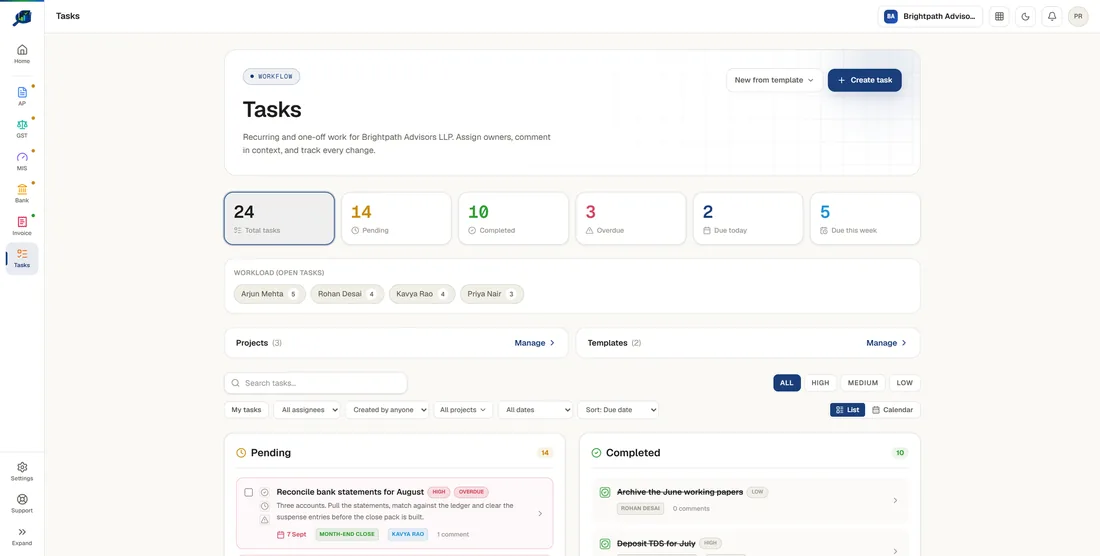
They are not just counters. Each one is a filter, so clicking Overdue narrows the list underneath to exactly that work.
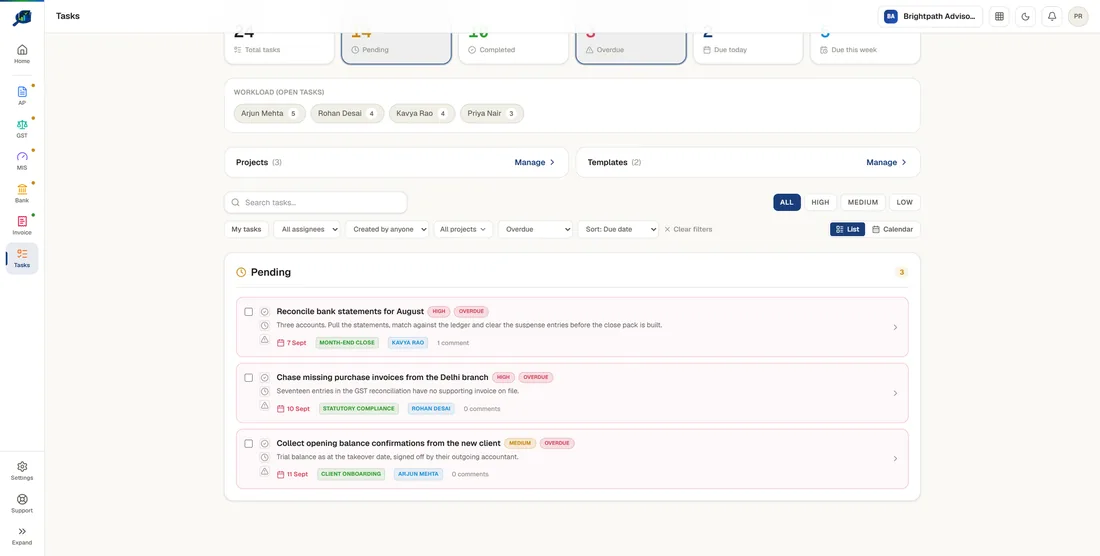
Underneath sits a workload strip counting open tasks per person. It is the fastest way to see that one person is carrying nine things and somebody else is carrying two, which is usually invisible until somebody misses a deadline.
Writing a task that actually gets done
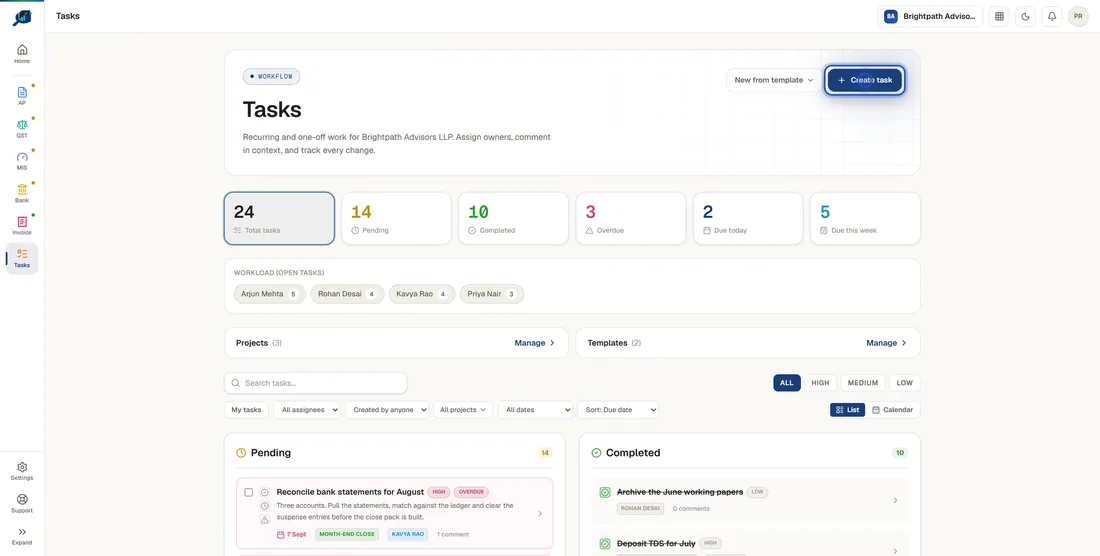
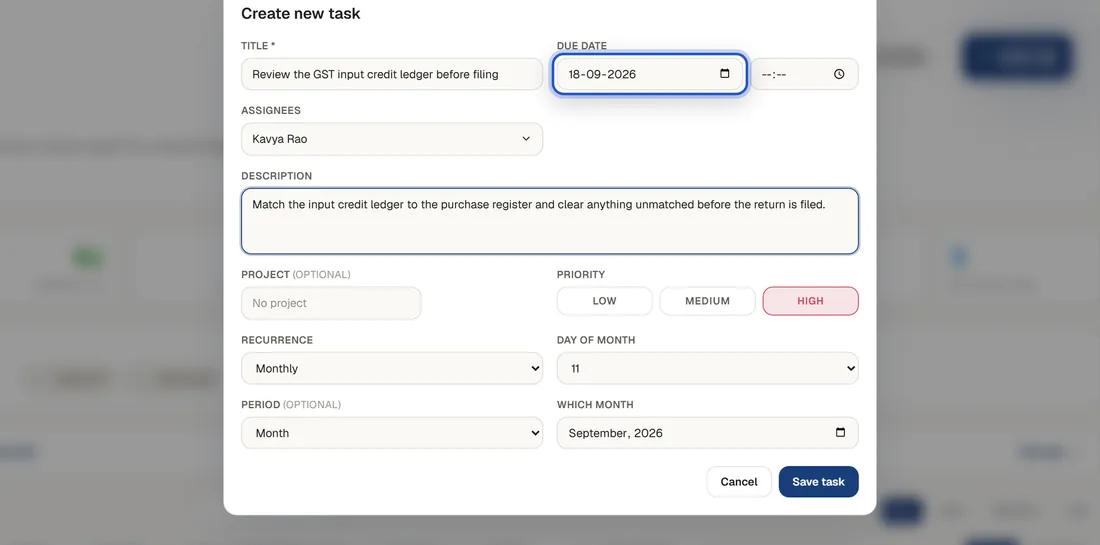
The form is short on purpose, but two fields decide whether the task gets done:
- The title. A verb and the thing it acts on, not a noun. Not “GST” but “File GSTR-3B for August”. A vague title is easy to leave alone.
- The description. What done looks like, which file to start from, where the output goes. This is what lets somebody else pick the task up.
Then assignees, a due date with an optional time, and a priority of high, medium or low. You can assign several people, but one owner beats three: shared ownership sounds collaborative and behaves like nobody is responsible.
Recurring work: set the filing up once
This is the part that pays for itself. A task can repeat daily, weekly, monthly, quarterly or yearly. Choose monthly and you get a day of the month; set it, and the task raises itself on that day, every month, owned and dated, without anybody retyping it.
Good candidates are the jobs that come back every month: GSTR-3B, the TDS deposit by the 7th, payroll inputs and month-end entries such as the prepaid expense schedule roll-forward. Our TDS due dates guide lists the statutory dates to set them against.
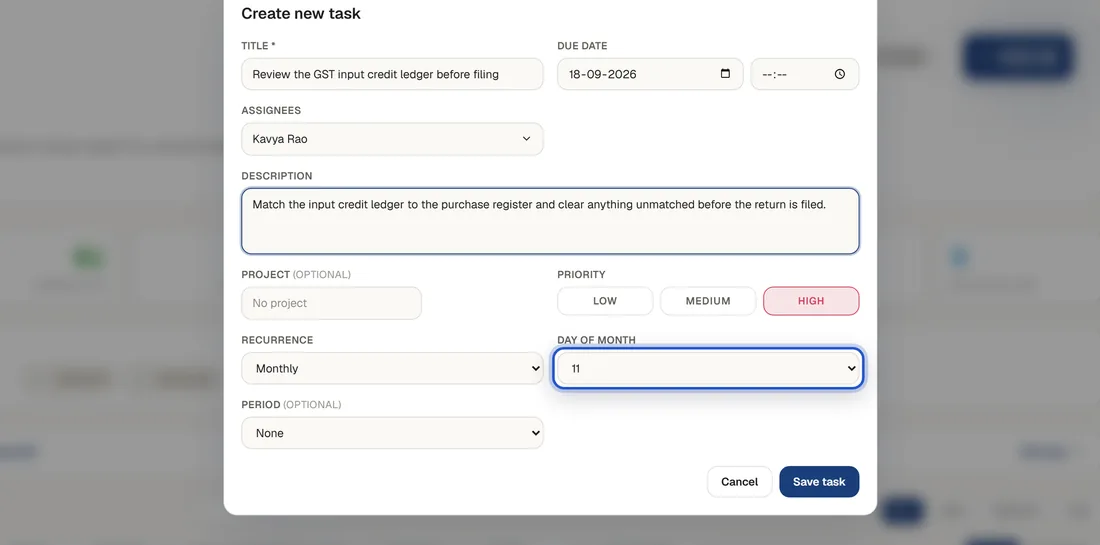
How the next one appears: completing a recurring task spawns the next instance rather than duplicating the old one. The history of what you just finished stays intact, and the new task arrives clean.
Period and due date are different things
This is the field most people skip, and the one that makes a task list still make sense in March. The Period is the month, quarter or financial year the work belongs to. The due date is when you owe it.
| Work | Period | Due date |
|---|---|---|
| GSTR-3B for August | August 2026 | 20 September 2026 |
| TDS payment for Q2 | Q2 2026-27 | 7 October 2026 |
| Statutory audit | FY 2026-27 | 30 September 2027 |
Keeping them separate is what lets you answer “what is still open for August?” months after August stopped being the current month. The period format matches the one the MIS module already uses, so the two line up if you use both.
Projects: grouping work into streams
Projects sit on top of everything else. Month end close. Statutory compliance. Client onboarding. Whatever your practice already calls them. Once tasks carry a project, the whole dashboard filters down to one stream of work.
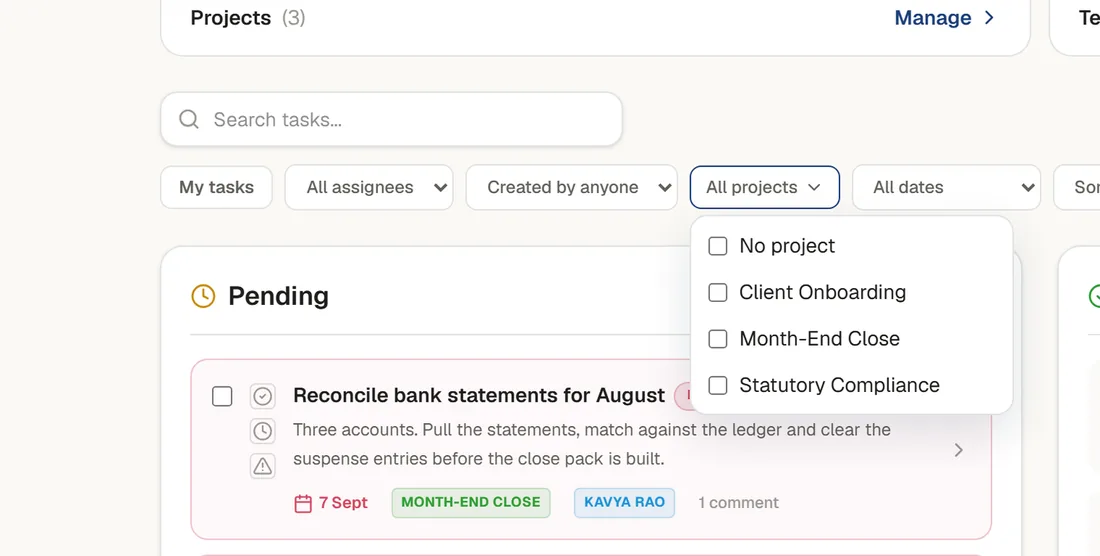
There are also templates, for a set of tasks you raise together. Build the close pack once, then create the whole set from the template each month instead of one task at a time.
Working a task: checklist, comments, files and history
Click any task and a detail panel opens. It opens read only, deliberately, so reading a task cannot accidentally change it. Everything sits in one block: due date, owner, recurrence, checklist progress, period.
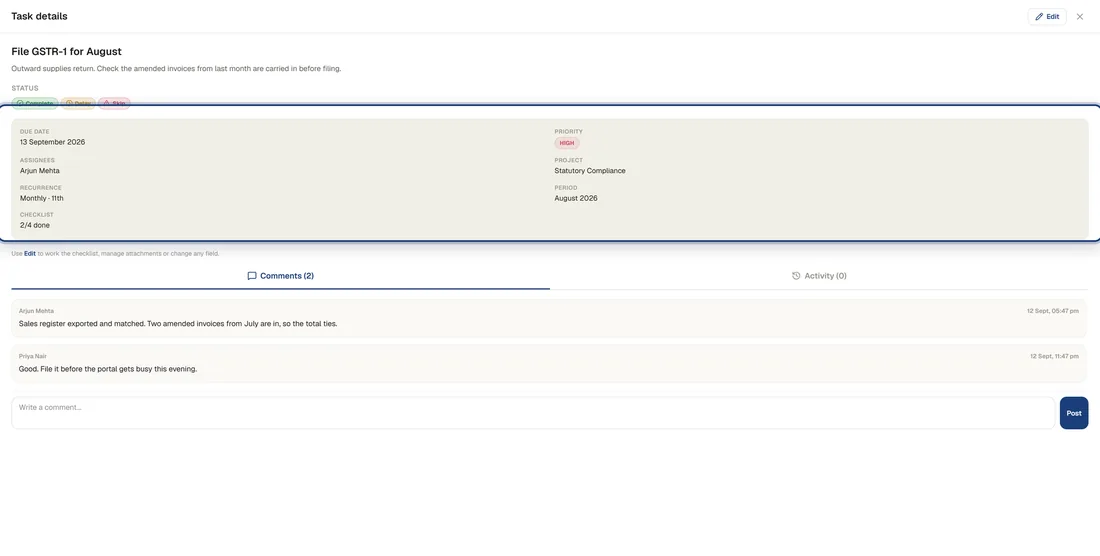
- Checklist. Worth using for anything with steps. A filing is rarely one action, and half-done is a real state.
- Comments. The conversation stays attached to the work instead of scrolling away in a chat app.
- Attachments. The challan, the working, the acknowledgement, on the task they belong to.
- Activity. Every change is recorded, so who moved a date and when is a fact rather than an argument.
Complete, delay or skip
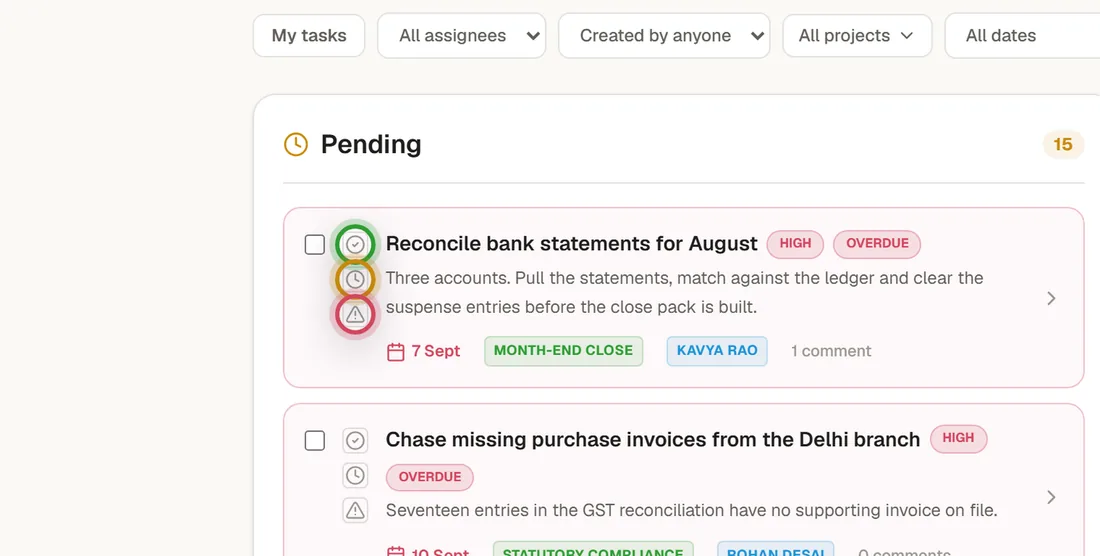
Every task carries three actions, and they mean three genuinely different things. Most task tools only offer the first.
| Action | What it means | What it asks for |
|---|---|---|
| Complete | The work was done. | An optional note on how it went. |
| Delay | It still has to happen, later. Moves this instance only; the series is unchanged. | A reason. |
| Skip | This instance genuinely did not apply. A nil return, a client who left. | A reason. |
The reason box is the quiet hero of the whole module. Three months from now, when somebody asks why the September filing is not there, “skipped, client deregistered in August” is an answer. A blank is not.
A completed task can also be reopened if it turns out it was not finished after all.
Finding anything
Search runs across titles and descriptions. Then filters, by assignee, by who created it, by project and by date, plus a My tasks switch, which is the one juniors live in. Sort by due date or priority.
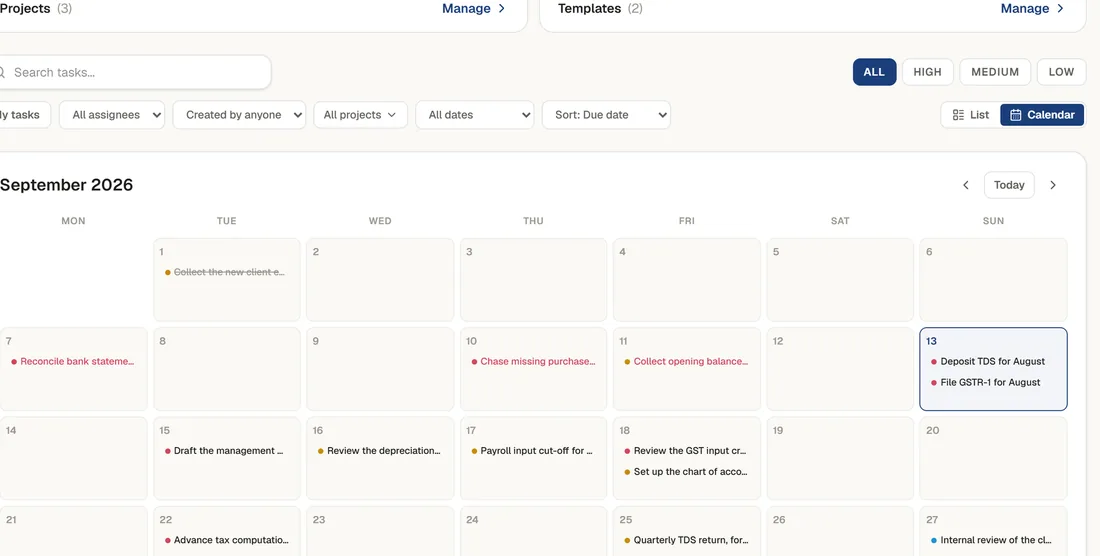
There is a calendar view as well, if you would rather see the month laid out than read a list. Same tasks, arranged by date.
Who sees what
The Tasks role sits separately from the normal company role. Somebody can be an ordinary member of the company and still have their task visibility limited to work they created or were assigned to. Managers and org admins always see everything.
The scope is honoured everywhere, not just in the list. In-app notifications carry the same visibility, so a task title does not leak to somebody who was not meant to see the task.
Reminders that chase people so you do not have to
Three triggers, each switchable, off by default per company:
- On assignment, immediately, so the owner knows it is theirs.
- A set number of days before the due date.
- Repeating while it stays overdue, every so many days.
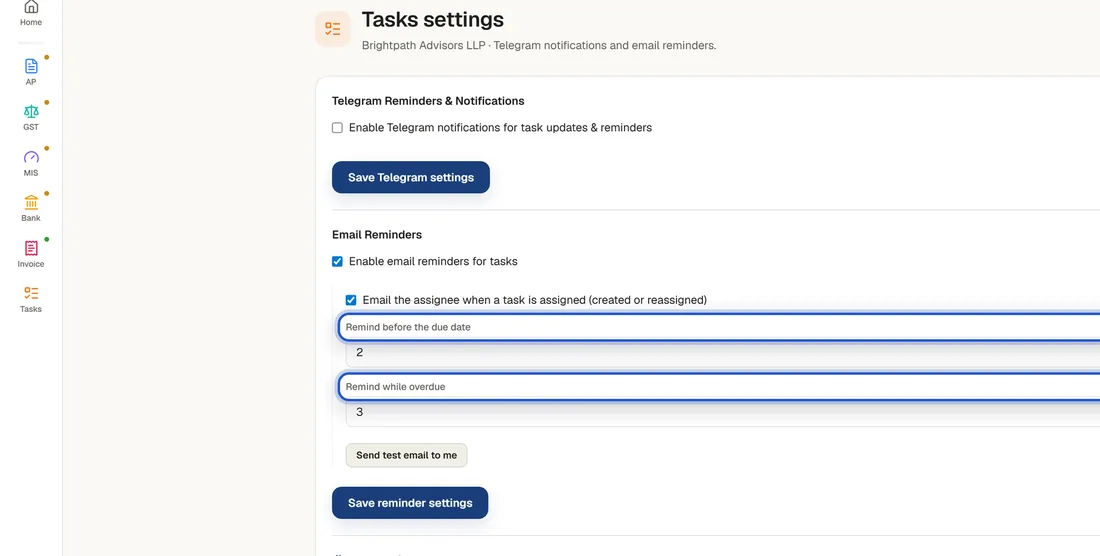
They go out by email and as an in-app notification, to the owner and the person who raised the task, once a day.
Run it from Claude, without opening the app
For a lot of teams this is the reason to use it at all. The Tasks settings carry a Claude connector address. Paste it into Claude once, sign in, and your tasks are available to it.
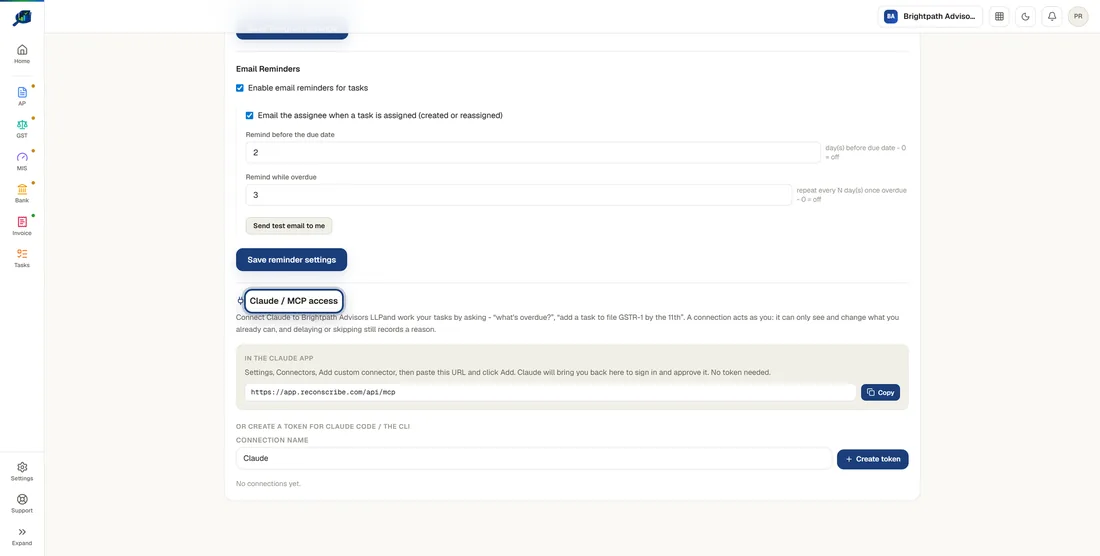
Then you can stop clicking. What is overdue? Add a task to file the GST return by the eleventh. Push the bank reconciliation to Friday, we are waiting on a statement. Creating, updating, assigning, completing, delaying, skipping, commenting, checklists, projects and templates are all available to it.
The guard rails hold, which is the first thing anybody asks. A connection acts strictly as you. It sees your companies and nobody else’s, and it cannot do anything you could not do yourself in the app. The Tasks role applies to it exactly as it applies to you.
The one that surprises people: hand it a compliance calendar as a spreadsheet and ask it to set the year up, and it will create the recurring tasks for you.
What it costs
Tasks is free. Create an account, add your company, and the module is there: recurring tasks, projects, templates, checklists, attachments, reminders and the Claude connector. The paid modules are the ones with real processing cost behind them, such as AP invoice extraction, GST reconciliation, bank statement conversion and MIS. You can use Tasks without ever touching those.
Try task management for accountants, free
Open the demo to see it with sample data, or start a free account and put your own month end into it. The fastest way to begin is to write down every recurring filing and close step you already do, and make each one a recurring task with an owner.
See it in action with sample data, then run it on your own.
Task management for accountants: FAQs
Is ReconScribe Tasks really free?
Yes. Tasks is the free module. You create a free account, add your company, and the module is available with recurring tasks, projects, templates, checklists, attachments, reminders and the Claude connector. The paid modules are the ones with a processing cost behind them, such as AP invoice extraction, GST reconciliation, bank statement conversion and MIS. You can use Tasks without ever touching those.
What is the difference between the due date and the Period?
The due date is when the work has to be finished. The Period is the month, quarter or financial year the work belongs to. They are usually different and conflating them is what makes a task list confusing at year end. A GST return for August is Period August, due 11 September. When a recurring task raises its next instance, the period advances by the number of period boundaries actually crossed, so a daily task carrying a month period does not jump a month every time it is completed.
What happens to a recurring task when I delay it?
A delay moves that instance only. The series schedule is untouched. Push a monthly reconciliation from the 7th to the 9th because a bank statement is late, and next month it is still due on the 7th. That is deliberate: the alternative, where one late month quietly reschedules every future month, is how task lists drift. Editing the due date directly, without a delay reason, does re-anchor the series, so the two actions mean different things.
What is the difference between completing, delaying and skipping?
Complete means the work was done. Delay means it still has to happen, just later, and it asks for a reason. Skip means this instance genuinely did not apply, a nil return or a client who left mid-year, and it also asks for a reason. Three months later, when somebody asks why the September filing is missing, the difference between skipped with a reason and silently never done is the whole answer.
Can juniors see only their own work?
Yes. The Tasks role sits separately from the normal company role, so somebody can be a regular member of the company and still have their task visibility limited to work they created or were assigned. Managers and org admins always see everything. In-app notifications respect the same scope, so a task title does not leak to somebody outside its visibility.
Can I run it from Claude instead of opening the app?
Yes. The Tasks settings carry a Claude connector address. Paste it into Claude once, sign in, and you can ask for what is overdue, create tasks, reassign them, complete or delay them, add comments and checklist items, and work with projects and templates. The connection acts strictly as you, with your permissions and your company scope, so it cannot see or change anything you could not see or change yourself.
Do reminders actually chase people?
Once you switch them on, yes. There are three triggers: when a task is assigned, a set number of days before it is due, and a repeat while it stays overdue. They send by email and as an in-app notification, to the owner and the person who created the task. They are off by default, per company, so nothing goes out until you decide it should.
Does it work for a practice with several client companies?
Yes. Everything is scoped to a company, and you can hold more than one company under the same account and switch between them. Tasks, projects, templates and members belong to the company they were created in, so one client’s work never appears in another’s list.
Related: Accounts payable automation · GST invoice generator · Zoho Payroll setup guide