
Your bank balance can be right while your books are wrong. A small bank charge, a payment that cleared two days later, or one receipt entered twice can leave you checking the same spreadsheet long after the rest of the month is closed.
This bank reconciliation template brings your bank statement, books, outstanding items and proposed adjustments into one Excel workbook. The aim is not simply to make two totals equal. It is to explain the difference, correct the entries that need correcting, and leave a clear record for the person reviewing your work.
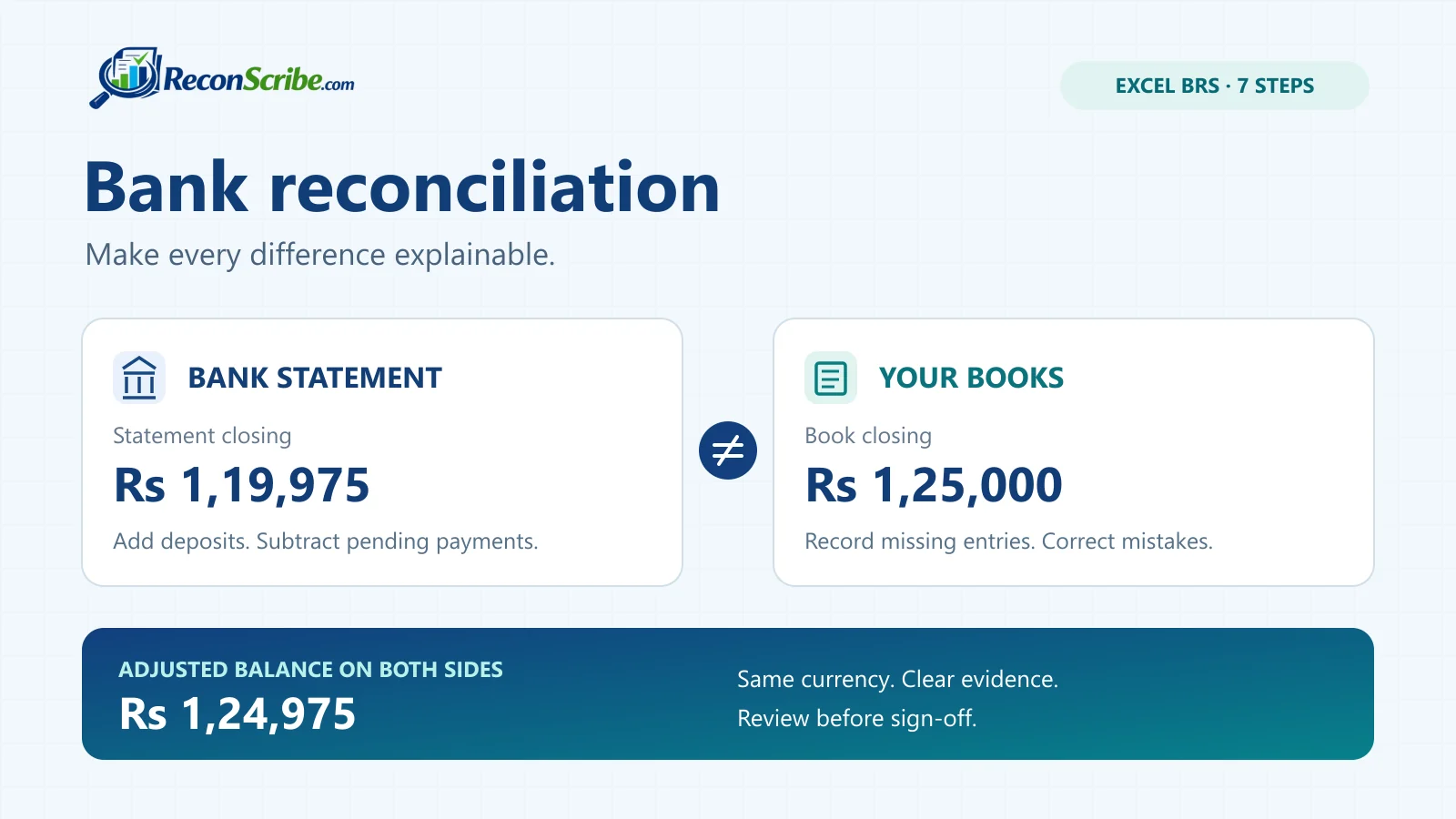
What is bank reconciliation, in plain English?
Bank reconciliation compares the transactions and balance in your bank account with the bank ledger in your accounting records. In India, the resulting working statement is usually called a bank reconciliation statement, or BRS. You will also see cash book, bank book, passbook balance and balance as per books used in this context.
Outside India, deposits in transit and outstanding checks describe the same everyday timing differences as deposits not yet credited and cheques not yet presented. The wording changes. The underlying exercise does not.
Imagine you record a supplier payment on Friday, but the bank processes it on Monday. Both records can be correct for their respective dates. Now imagine the bank deducts a service charge that never reached your books. That is different: your books need an entry.
The useful distinction is timing versus correction. A genuine timing item belongs on the reconciliation. A missing or incorrect book entry needs to be fixed in the books.
What is inside the bank reconciliation template?
The workbook keeps the two source lists separate. You paste the statement into Bank Statement and your cash or bank ledger into Books, then work through the results. You do not need to rewrite your accounting software’s export to look exactly like your bank’s export before starting.
| Worksheet | What you use it for |
|---|---|
| Start Here | The input guide, status legend and recommended order of work. |
| Settings | Account details, period, currency label, decimal precision, openings, independent closing checks and matching settings. |
| Bank Statement | The bank’s dated transactions, references, receipts, payments and optional running balances. |
| Books | The matching bank ledger from your books, including separately identified brought-forward items. |
| Reconciliation | The bank-side and book-side balance bridges, a classic BRS view and review checks. |
| Outstanding Items | Items still awaiting clearance and the working list to review for the next period. |
| Adjusting Entries | Proposed debits and credits for bank-only items and approved corrections. Review these before posting. |
These are the seven visible worksheets. A separate hidden Engine worksheet contains the calculations. The file is an .xlsx workbook without VBA macros; it does not log in to your bank, fetch transactions, or post journals to your accounting system.
Bank reconciliation template video walkthrough
Prefer to watch first? This 20 minute walkthrough fills in a full sample month with the bank reconciliation template in Excel: settings, pasting the bank statement and books, approving matches with Y, N and E, both balance bridges, the five journal entries, sign-off and carrying open items into next month.
The video uses the same sample month that ships inside the free download, so you can follow it screen by screen.
How to use the bank reconciliation template in 7 steps
Every screenshot in this section is the bank reconciliation template itself, open in Excel for Windows, with the sample month that ships inside it: Sample Trading Co., September 2026, in USD. Your own month works the same way. Tap any screenshot to see it full size.
1. Open the bank reconciliation template and read Start Here
The first sheet is a one-page guide: the order of work, what each colour means, and what each status in the result columns means. Blue cells are inputs. White cells are formulas you leave alone.
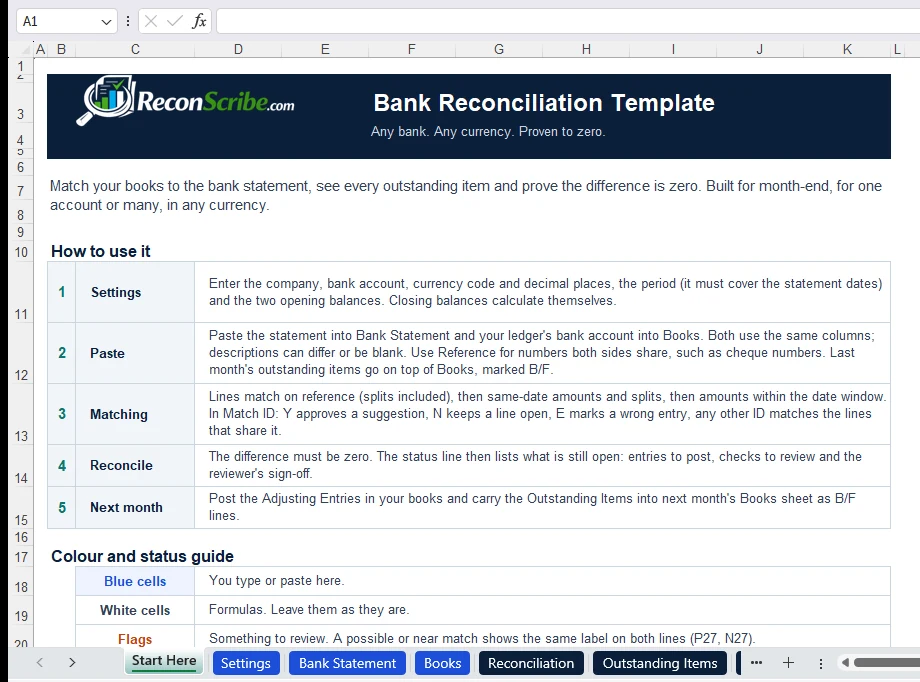
Before you send a finished file to a client you can hide Start Here (right-click the tab, then Hide). Keep the sheet in the workbook rather than deleting it: the status labels the other sheets read live there.
2. Fill in Settings
Settings drives every other sheet. Work down the blue cells in order.
- About this reconciliation: company, bank, the account name with only its last four digits, the name of the bank account in your books, the currency code and the decimal places. Use 2 for most currencies, 0 for JPY or KRW and 3 for KWD, BHD or OMR.
- Period start and Period end: the whole reconciliation month. For October, use 1 October to 31 October 2026, not the last day with activity. The note beside Period start shows the dates your pasted statement actually covers, and Period end turns amber if the statement runs past it.
- Date order: set it separately for the statement and the books, because 05/10/2026 can mean 5 October or 10 May. Auto reads every date that cannot be misread and flags the ones that can, such as 05/09/2026. Times of day are ignored.
- Show dates as only changes how dates look. Matching never depends on it.
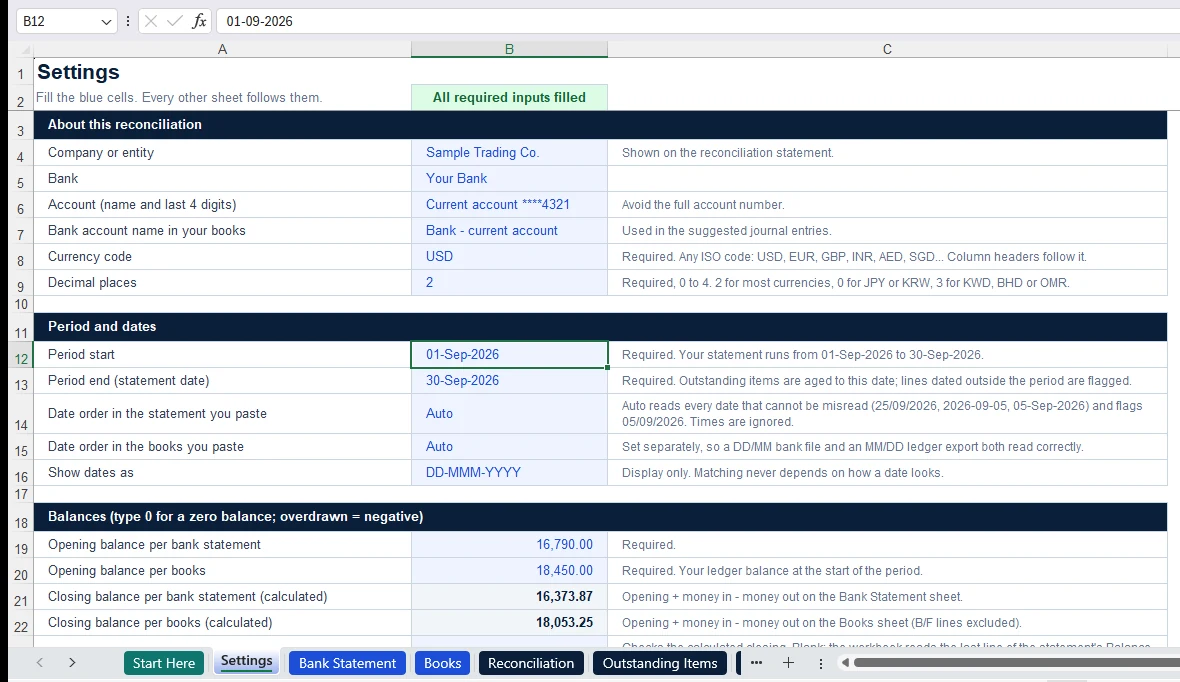
Then the balances. Type the two openings: the opening balance on the bank statement and the opening balance of the bank account in your ledger, for the same day. Use a negative figure for an overdraft. The two closings calculate themselves from the lines you paste. To check them, type the closing printed on the statement and your ledger’s closing balance; if you leave those blank, the workbook reads the last line of each Balance column instead.
The bank opening and the book opening do not always match. A cheque recorded in September that clears in October explains a difference. Our practice pack starts the October statement at 121,050 with a book opening of 114,850, because a 6,200 payment was recorded before October but had not cleared. The difference has a reason. Do not overwrite an opening to make the month balance.
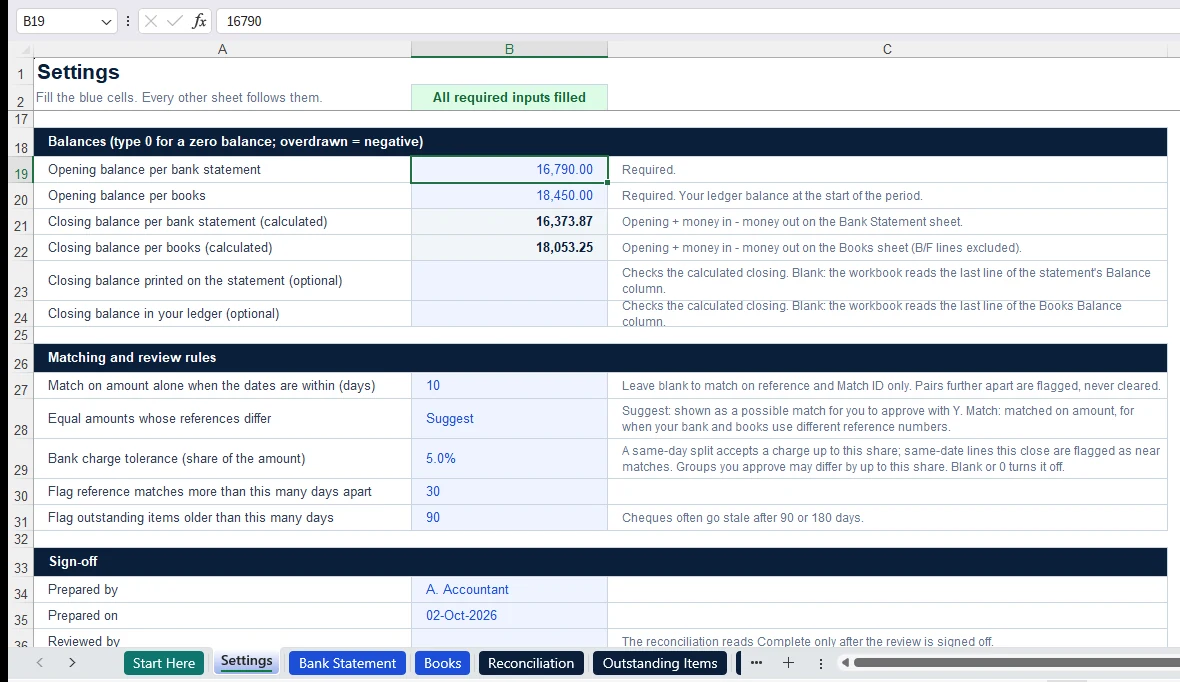
The matching rules can usually stay as they are. Equal amounts match on their own only when the dates are within 10 days. With the default Suggest setting, equal amounts whose references differ are suggested for your review, not cleared automatically. Choose Match only when your bank and books use different reference numbering, and keep Suggest whenever an equal amount could belong to a different customer or payment. A bank charge of up to 5% is accepted in a same-day split, and outstanding items are flagged after 90 days.
3. Paste the bank statement and your books
Export the statement for the full period and the ledger for the same bank account from your accounting system. A CSV or Excel export is better than retyping a PDF. Keep the original exports unchanged in a separate folder.
- Paste values into the blue columns, oldest line first: date, description, reference, money in, money out and, if you have it, the running balance. Leave the white result columns alone.
- Use either Money in and Money out, or one signed amount in column G, with receipts positive and payments negative. Do not fill both for the same line.
- Map the movement of cash, not the column labels. A credit on a bank statement is money into your account, while your ledger may show the same receipt as a debit.
- Use Reference for numbers both sides share, such as cheque numbers or bank transaction IDs, and keep them as text so leading zeroes survive. Leave it blank if your books only carry their own voucher numbers.
- Remove repeated headings, subtotals and opening or closing balance rows. They are not transactions.
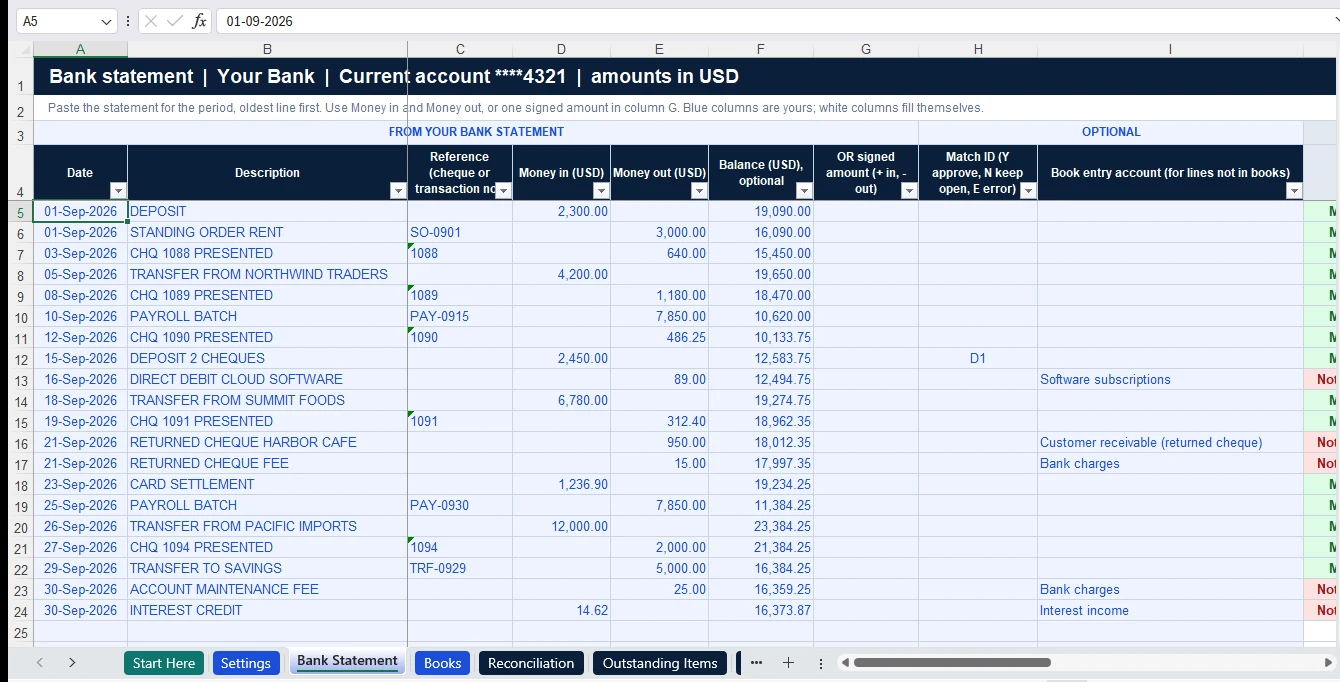
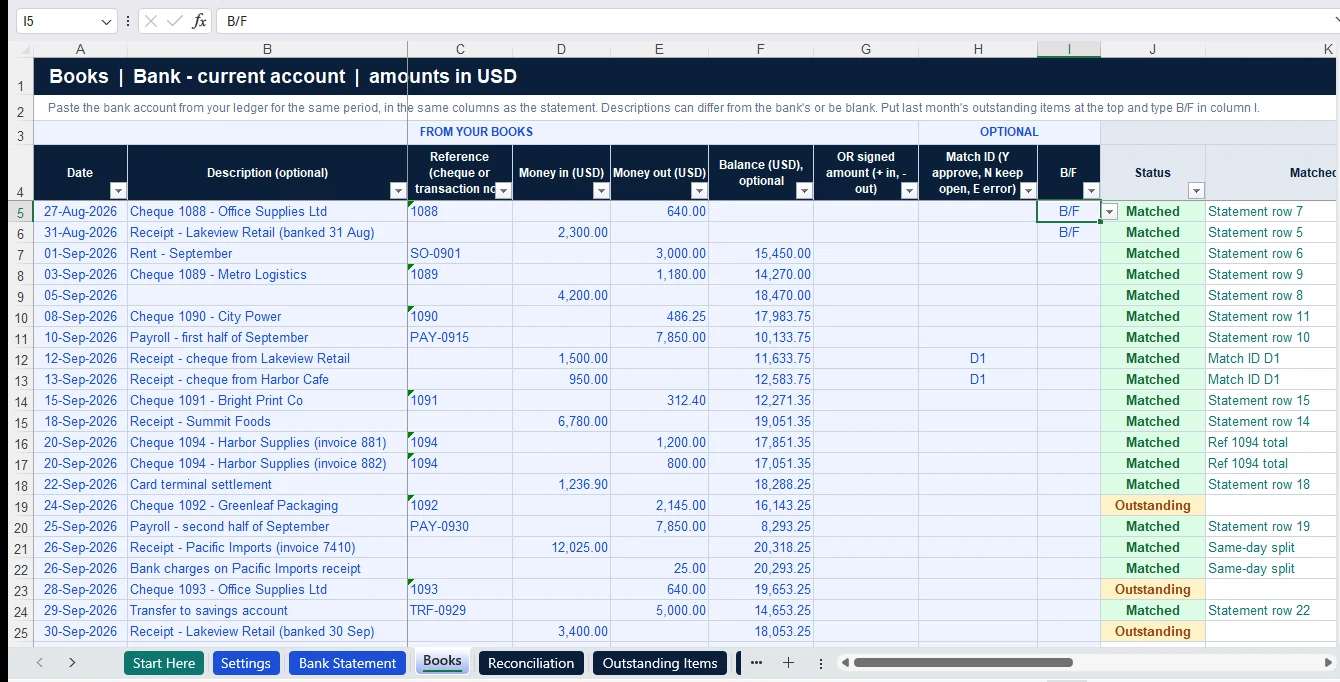
Paste the Books sheet the same way. Descriptions can differ from the bank’s or be blank: matching never reads them. Put last month’s outstanding items at the top and type B/F in column I. They are already in your book opening, so the workbook leaves them out of the book closing while still matching them against this month’s statement.
4. Read the result on every line
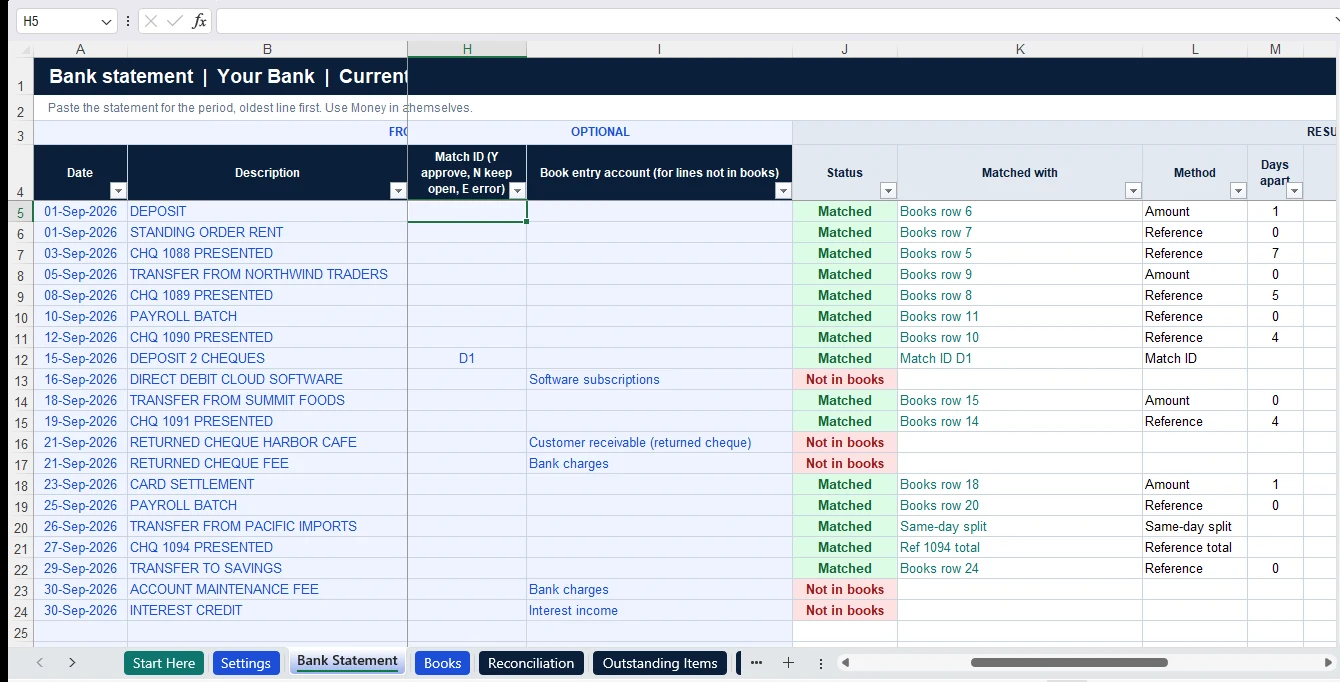
As soon as both sides are pasted, every line gets a result. Scroll right: Date and Description stay frozen on the left.
- Status: Matched, Outstanding (in your books, not yet on the statement), Not in books (on the statement, not yet in your books) or Error (a line you marked as a wrong entry).
- Matched with: the row it matched, as a link you can click, or the kind of group it belongs to.
- Method: how it matched. Lines match on reference first, then on a reference total when one side splits a cheque, then on the same amount on the same date, then as a same-day split (a gross receipt and a fee against one net credit), and last on the same amount within the date window.
- Days apart and Flags: the gap between the two dates, and anything worth a second look.
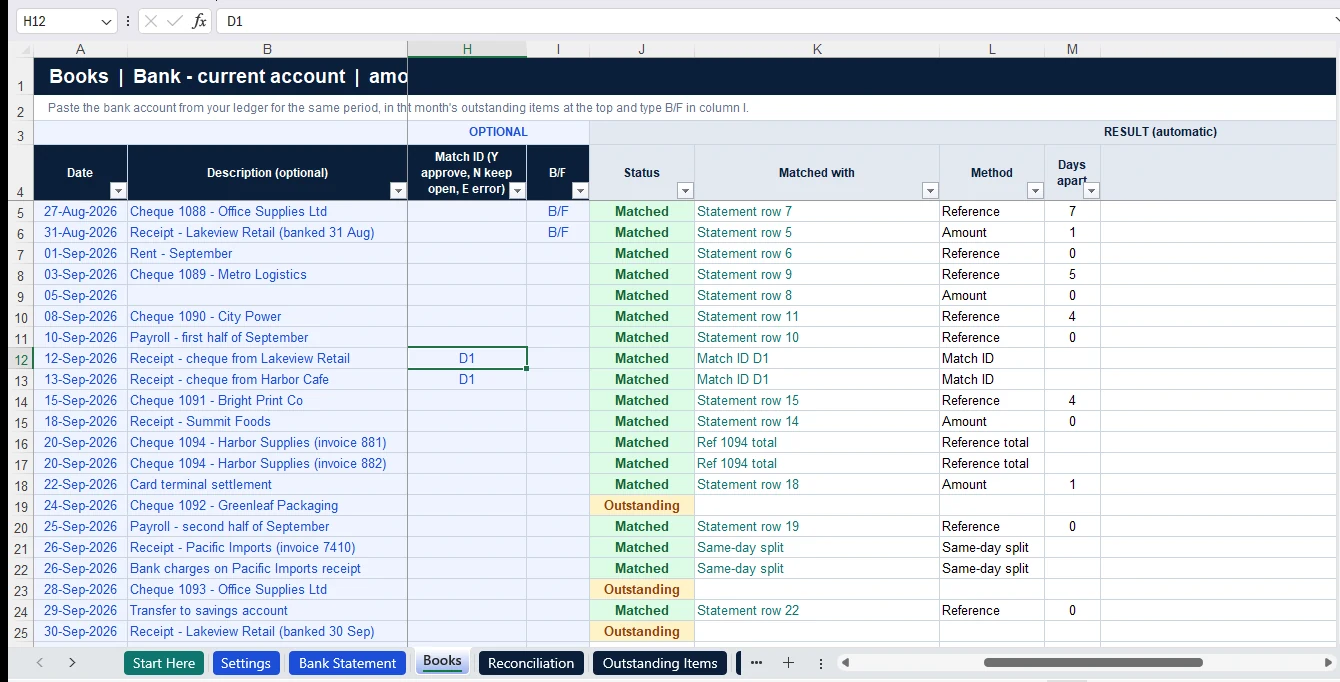
Same amount does not mean same transaction: two customers can both pay 8,100 on the same day. That is why equal amounts far apart, or with different references, are only suggested.
5. Approve, keep open or correct with Match ID
Column H is where you decide. A suggestion shows the same label on both lines: P plus the statement row for a possible match (the same amount, but outside the date window or with different references), and N plus the statement row for a near match (the same date, with amounts within the charge tolerance).
- Y on either line approves the suggestion. Both lines turn Matched, with the method Approved.
- Y on the lines of one date approves them as a group. Take a receipt booked gross at 12,000 with a fee of 25, against a bank credit of 11,985: type Y on all three, the group is approved, and a difference of 10.00 goes to Adjusting Entries because the bank actually took 15.
- N keeps a line open and out of every automatic match. Use it when a match is wrong, or to confirm that an old item really is still outstanding.
- E marks a wrong entry. A Books line is reversed in Adjusting Entries; a statement line is treated as a bank error and carried forward until the bank corrects it.
- Any other text, such as B12, is a manual group. Lines sharing it match when they net to the same total, or to within the charge tolerance, and any difference is posted for you.
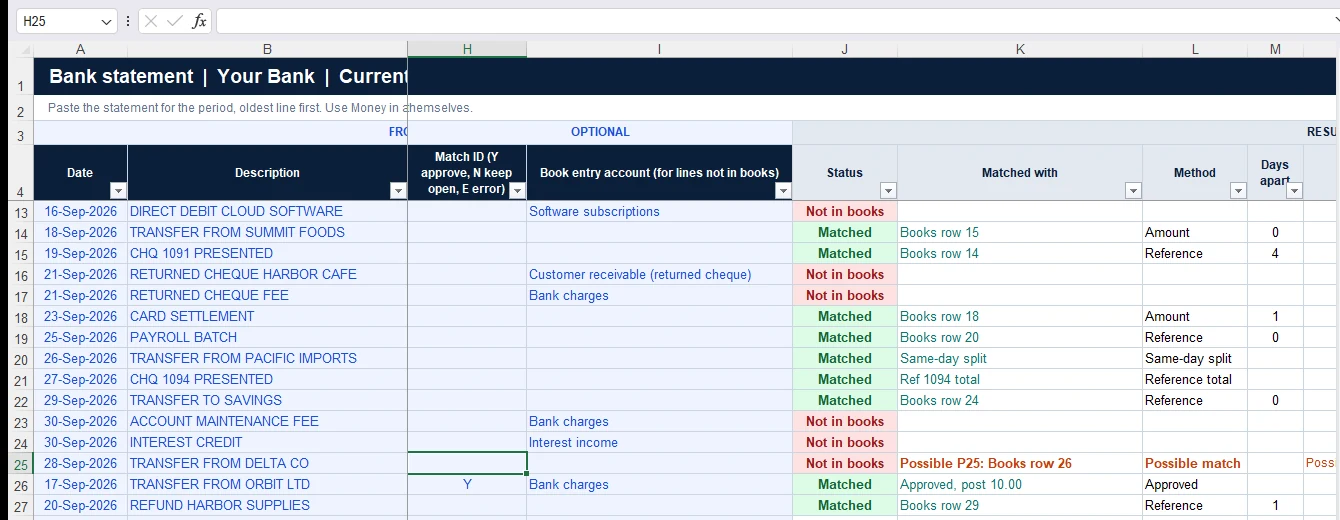
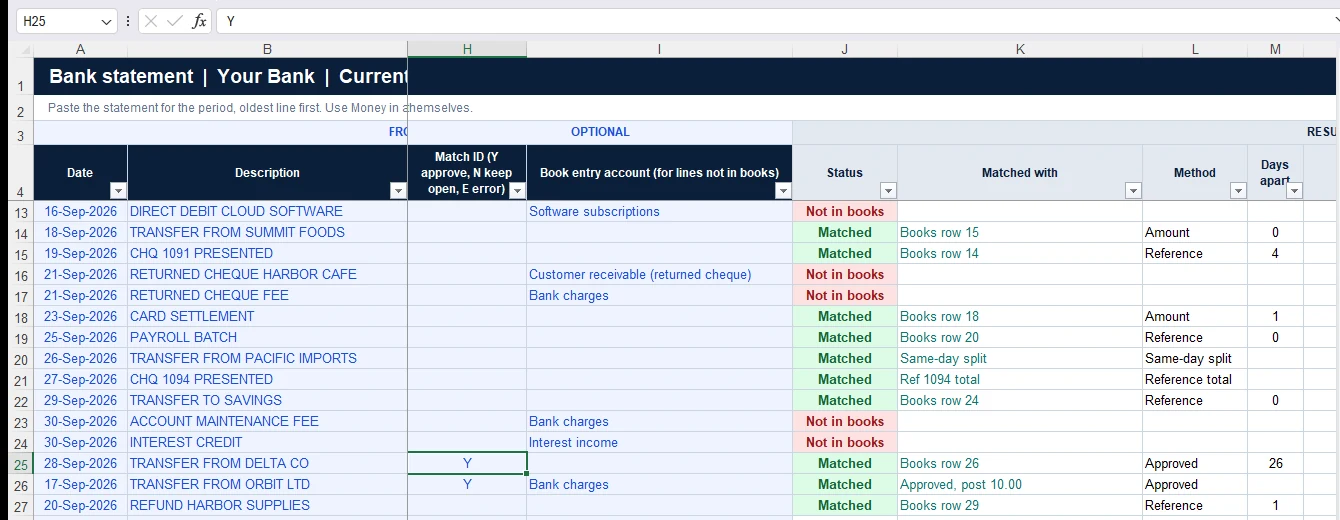
The workbook also catches entries that look wrong. A second line with the same reference and amount as a matched line is flagged as a possible duplicate, and a line that reverses another (same reference, opposite amount) is flagged so you can record the return.
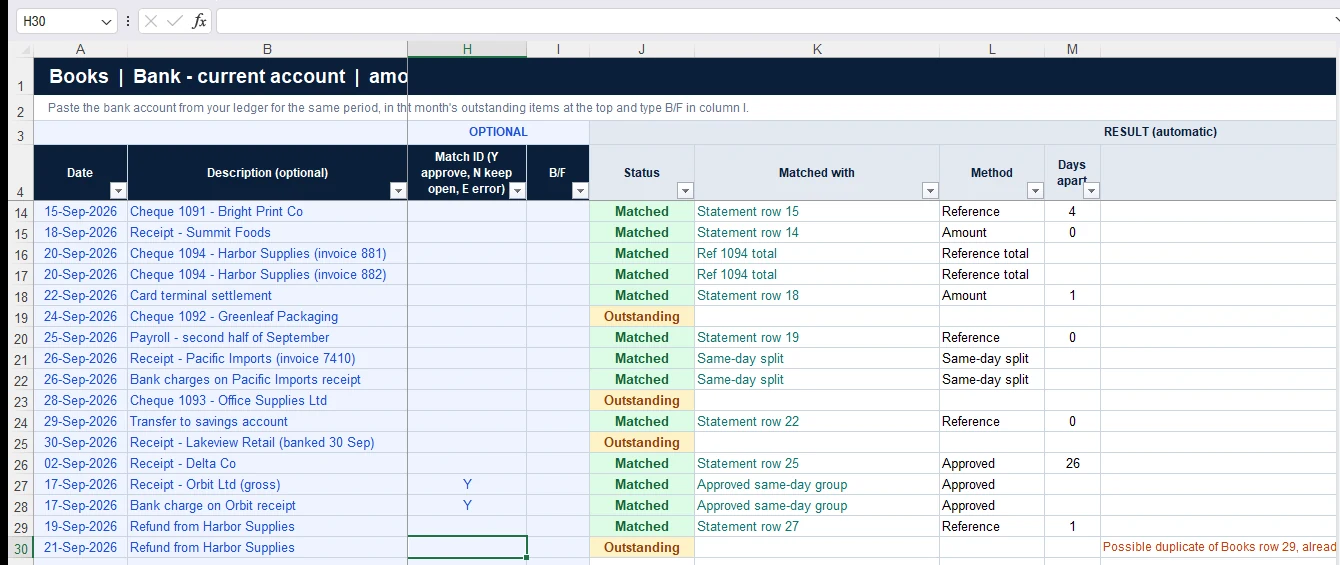
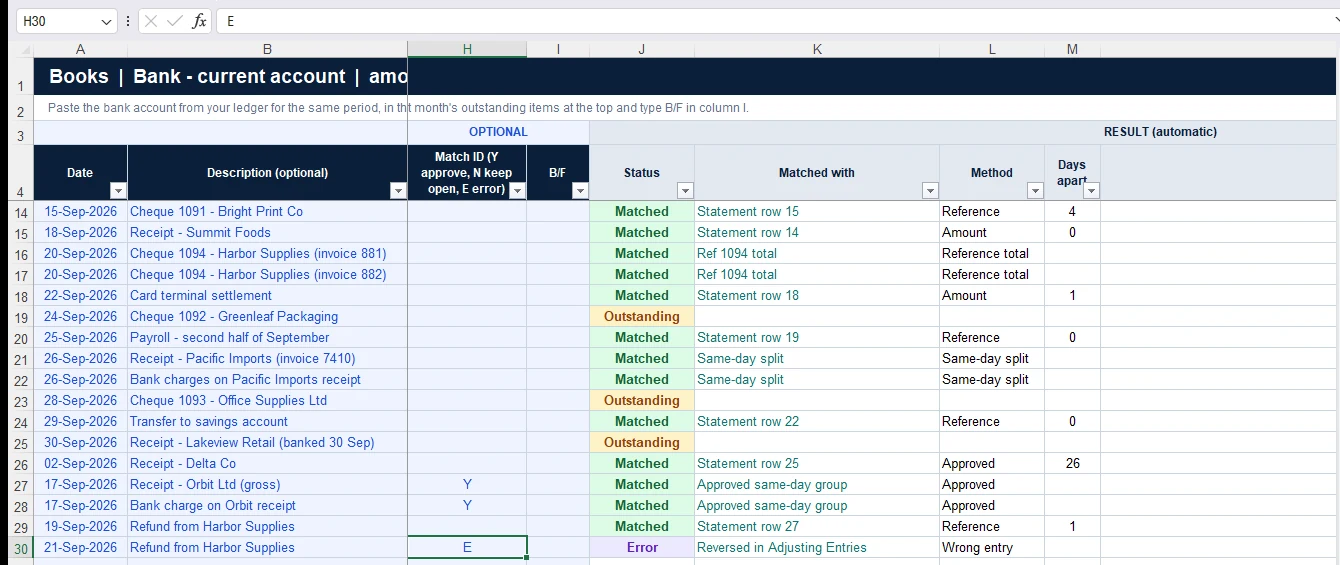
Approval is your judgement, made from the remittance, the settlement report or the cheque details. A date window or a fee tolerance only finds candidates worth checking. Do not approve a whole day of unrelated items just because the net total agrees.
6. Check the reconciliation and post the entries
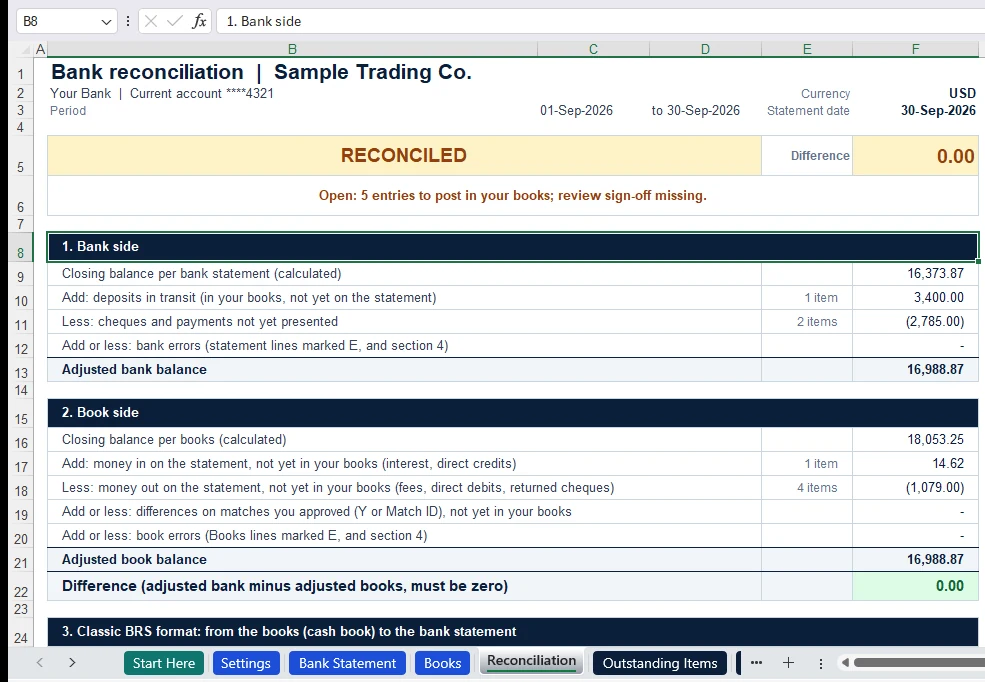
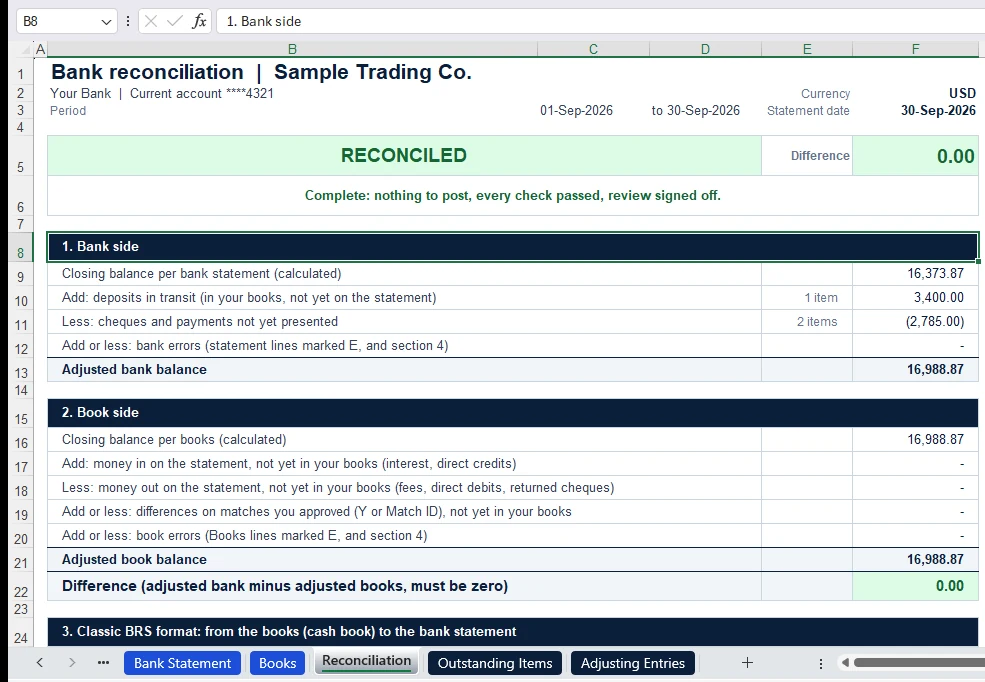
The Reconciliation sheet of the bank reconciliation template, shown near the top of this guide, proves the difference. The bank side adjusts the statement for deposits in transit and payments not yet presented. The book side adjusts your books for items only the bank knows about, for approved differences and for wrong entries. The difference must be zero. Below it you get the classic BRS format and the checks.
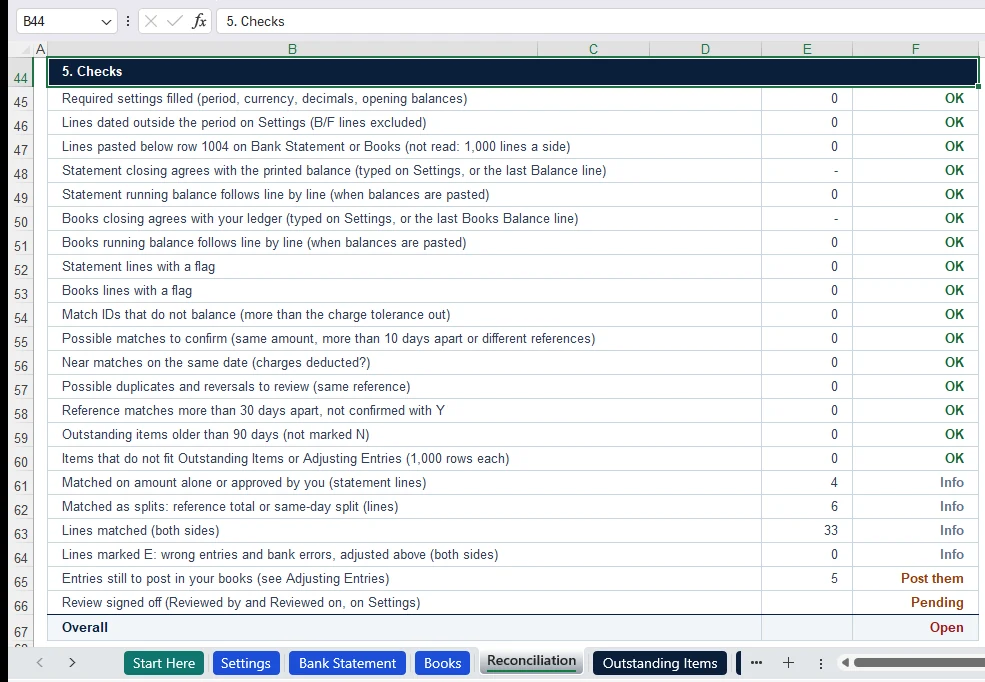
Then open Adjusting Entries. It lists every entry your books still need: statement lines not yet in your books (with the account you chose in the Bank Statement’s column I), the differences on matches you approved, and the reversals of Books lines you marked E. Each entry has a date, an amount, an account, a debit and a credit.
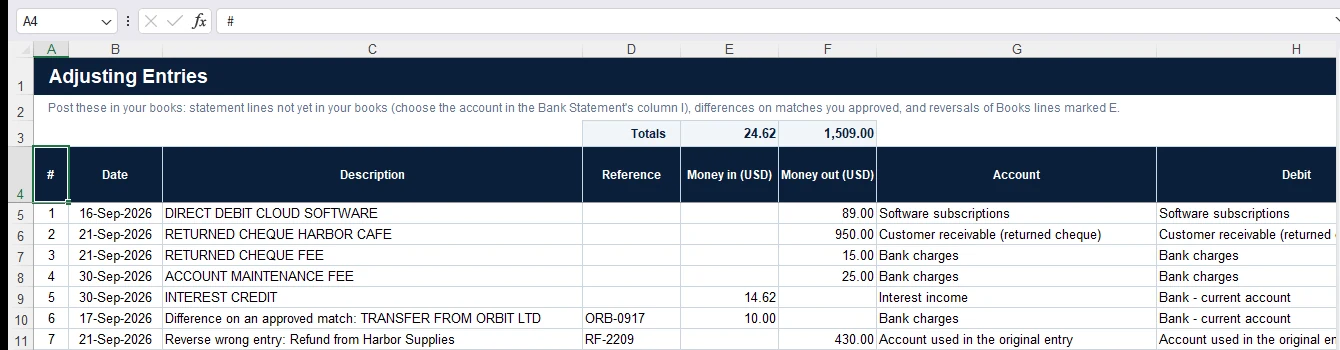
- Check the amount, direction, account and supporting document of each entry, and replace a suggested account with the right one from your chart of accounts.
- Post the entries in your accounting software.
- Export the ledger again and paste it into Books. The posted entries now match their statement lines, and Entries still to post drops to zero.
7. Sign off and carry forward
The banner reads RECONCILED as soon as the difference is zero, but the status line keeps listing what is still open: lines outside the period, entries to post, checks to review, unchecked closings and the reviewer’s sign-off. Once a reviewer fills Reviewed by and Reviewed on, and nothing else is open, the banner turns green and Overall reads Complete.
For next month, open Outstanding Items. It lists the deposits in transit and payments not yet presented, plus any bank errors still to be corrected. Copy columns B to J and paste them as values at the top of next month’s Books: they land in the same columns, already marked B/F.
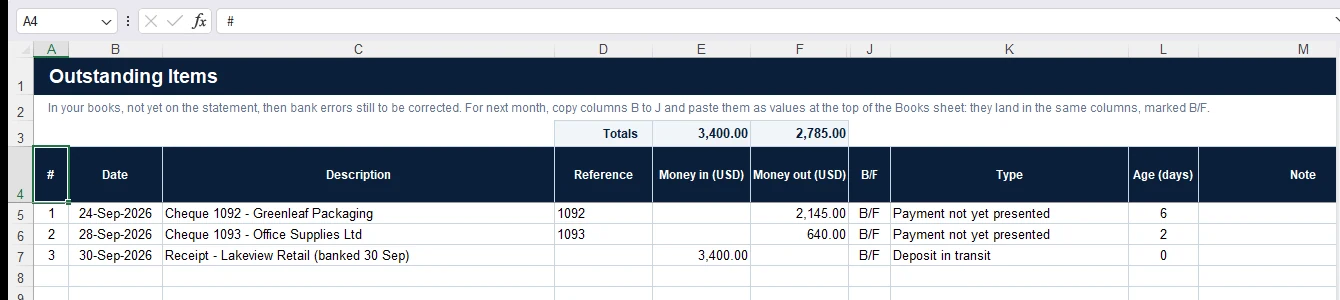
Save the finished bank reconciliation template with the account and the period in its name, and keep the statement, the ledger, the approved journals and your notes beside it. If someone else can understand why an item is still outstanding without asking you, the working paper is doing its job.
The bank reconciliation formula, without the sign confusion
For an ordinary positive bank balance, the two-sided approach is:
The two adjusted balances should agree after every difference is explained. A genuine bank error is adjusted on the reconciliation while you follow up with the bank; it is not automatically a valid expense or income item in your books.
The classic BRS can instead start with the unadjusted cash book and work towards the statement balance. That view includes the book corrections in its bridge. Once a correction has actually been posted and is included in the starting book balance, do not deduct or add it for a second time.
Bank reconciliation statement example in INR
Take a fictional business closing October. Its bank statement shows Rs 1,19,975, but its books show Rs 1,25,000. The review finds three items:
- A customer deposit of Rs 8,000 was recorded in the books and deposited before month-end, but has not yet been credited by the bank.
- A supplier cheque of Rs 3,000 was recorded in the books but has not yet been presented.
- The bank charged Rs 25, which is missing from the books.
| Bank side | Amount (Rs) |
|---|---|
| Statement closing | 1,19,975 |
| Add deposit in transit | 8,000 |
| Less unpresented cheque | (3,000) |
| Adjusted bank balance | 1,24,975 |
| Book side | Amount (Rs) |
|---|---|
| Book closing before the fee entry | 1,25,000 |
| Less unrecorded bank charge | (25) |
| Adjusted book balance | 1,24,975 |
The required book entry is Debit Bank Charges Rs 25, Credit Bank Rs 25. The deposit and cheque stay on the outstanding list until they clear. Neither needs to be entered again merely because it is still absent from the statement.
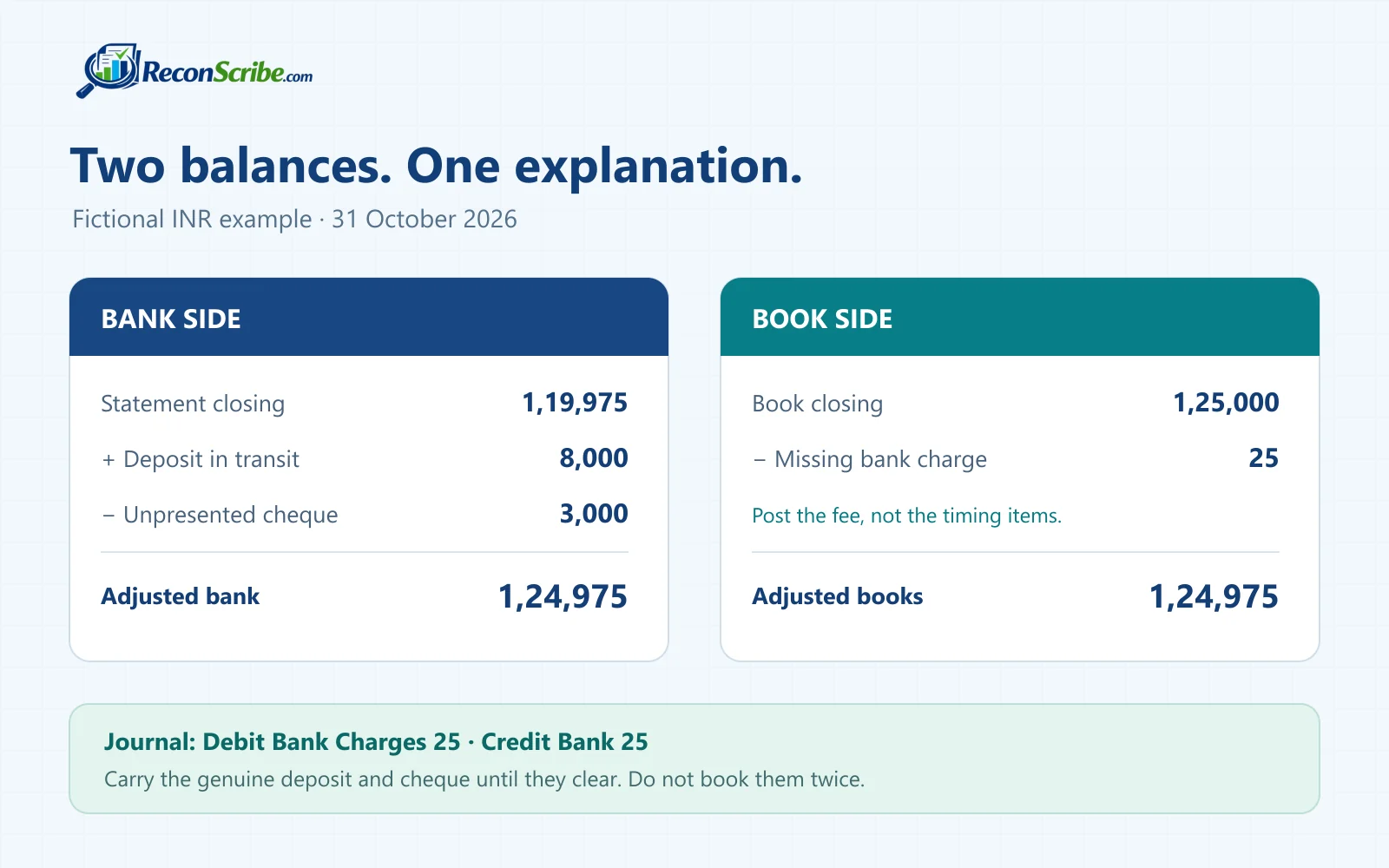
In the classic BRS format starting from the unadjusted cash book, the same example is: Rs 1,25,000 + Rs 3,000 − Rs 8,000 − Rs 25 = Rs 1,19,975 as per bank statement. After posting the fee, start at Rs 1,24,975 and leave the Rs 25 out of that bridge.
A USD example, and what “any currency” actually means
Suppose a separate USD account shows $14,750 at the bank and $14,620 in the books. There is a $450 deposit in transit, a $600 outstanding cheque, $30 of bank interest not recorded in the books, and a $50 service fee not recorded in the books.
- Adjusted bank: $14,750 + $450 − $600 = $14,600.
- Adjusted books: $14,620 + $30 − $50 = $14,600.
The process works the same way whether the account is in INR, USD, GBP, EUR, AED or another currency. Set the currency label and the appropriate decimal precision, then use one bank account in one currency per working file. The earlier INR example and this USD example are separate reconciliations, not numbers to combine.
Changing the label does not convert money. If your accounting ledger is exported in a home currency while the statement is in an account currency, obtain a comparable account-currency ledger first. Foreign exchange translation and revaluation are separate accounting work; this template is not an FX conversion or consolidation model.
For an overdraft, keep the signed amounts consistent. A bank closing of −5,000 less a supported outstanding payment of 400 gives an adjusted bank balance of −5,400. Do not change a debit overdraft into positive cash merely because the statement prints a positive magnitude next to “DR”.
Gross receipts, net settlements and bank charges
This is where a simple amount lookup often becomes frustrating. The bank may show one net receipt while the books show a gross receipt and a separate charge. Sometimes the bank shows both lines while the books show only the net amount.
Start with the settlement arithmetic and the supporting document:
| Bank shows | Books show | What the figures tell you |
|---|---|---|
| 11,975 received | 12,000 received and 25 charged | 12,000 − 25 = 11,975. The cash amounts agree if these lines belong to the same settlement. |
| 12,000 received | 12,025 received and 25 charged | 12,025 − 25 = 12,000. A valid gross-to-net grouping when the remittance supports 12,025. |
| 12,000 received and a separate 25 debit | One net receipt of 11,975 | The cash movement agrees. Check whether the gross receipt and fee need to be separately classified in the books. |
| 11,985 received | 12,000 received and 25 charged | These do not agree. The books net to 11,975, leaving a difference of 10. |
11,985 plus 25 is 12,010, not 12,000. If the documented gross receipt is 12,000 and the actual net credit is 11,985, the deduction is 15. Where the books incorrectly recorded a fee of 25, the correction is Debit Bank 10, Credit Bank Charges 10, assuming the original fee was recorded in Bank Charges.
Do not change the charge to 15 solely to make the totals agree. Confirm the gross amount and deduction from the bank advice or settlement report. A difference could instead be tax withheld, another deduction, an allocation mistake or an unrelated transaction.
The same caution applies to a double fee. If you recorded a net receipt of 6,990 and then deducted another 10, your books show 6,980. You may have counted the same deduction twice. Correct the original recording from the settlement details; do not describe the second deduction as an outstanding payment.
Different dates, batch receipts and brought-forward items
A book date and bank date can legitimately differ
A receipt recorded on 7 October and credited by the bank on 9 October can be the same transaction. Check the reference, payer and remittance. A payment with a matching reference but a 19-day gap deserves more investigation than a routine two-day clearance difference.
If a supported deposit recorded on 31 October clears on 2 November, it stays outstanding in the October reconciliation. Record the November clearance against the original item. Do not book a second customer receipt in November.
One bank receipt can settle several book entries
Books may show 9,000 on 21 October and 6,500 on 22 October, while the bank shows one settlement of 15,500 on 23 October. A shared Match ID can group the related entries after you confirm the batch report. The grouping explains the transaction; it does not create another 15,500 receipt.
A previous-month cheque is not this month’s expense again
For the 6,200 cheque already included in September’s books, October’s book opening already reflects the payment. Bring the item into the working list using the workbook’s B/F treatment, so it can be matched when the bank clears it without counting it as a fresh October book payment.
Carry an item forward only while it genuinely remains outstanding. Keep its original reference, date and explanation. If you stop recognising an old cheque, do it through your organisation’s accounting process and the applicable rules, not by quietly deleting the reconciliation line.
Which differences need a journal, and which do not?
| Item | Normal treatment after checking the evidence |
|---|---|
| Bank fee missing from books | Post the fee. Usually debit the relevant expense and credit Bank, with any applicable tax treatment reviewed separately. |
| Bank interest missing from books | Post the interest. Usually debit Bank and credit the relevant income account. |
| Customer receipt at the bank, absent from books | Identify and record the receipt against the correct customer, invoice or other account. A bank credit is not automatically new revenue. |
| Direct debit or standing instruction absent from books | Identify the payment and post it to the correct expense, payable or other account. |
| Deposit in transit | Carry it on the bank-side reconciliation and check subsequent clearance. Do not duplicate the receipt already recorded. |
| Unpresented cheque or pending payment | Carry it on the bank-side reconciliation while valid. Do not duplicate the payment already recorded. |
| Duplicate receipt in books | Reverse the extra book entry using the original accounts. Keep the valid receipt. |
| Supplier transfer returned by the bank | If the original entry debited Supplier Payable and credited Bank, the return normally debits Bank and credits Supplier Payable. |
| Customer cheque dishonoured | If the original entry cleared Customer Receivable, normally restore that receivable and credit Bank. Treat any additional return fee separately. |
| Confirmed bank error | Follow up with the bank and track the correction separately. Do not invent an expense or income entry for the bank’s mistake. |
Always follow the original posting and the nature of the transaction. A returned payment, for example, does not reverse an expense if the original entry simply settled an existing payable.
If your supplier records are the part that needs cleaning up, our accounts payable Excel template helps organise invoices and unpaid balances. Use the bank reconciliation to confirm the actual cash movement, not to replace the invoice register.
Why a zero difference is not enough
Two wrong entries can cancel each other. So can an incorrect match between unrelated receipts. A reconciliation is stronger when it answers three questions: Are the source balances complete? Does each match belong together? Has every remaining item been explained?
- Agree the openings to the prior period’s records, including its outstanding items.
- Check both closings to independent source balances.
- Investigate duplicate references, repeated amounts and unusual date gaps.
- Keep the evidence for every approved split, fee difference and manual match.
- Tie the number and total of output items back to the reconciliation. A summary alone is not a complete carry-forward list.
- Confirm that every required journal was approved and actually posted.
- Review old outstanding items and investigate those that no longer have a credible explanation.
- Record who prepared and reviewed the file, with the dates of their work.
ICAI’s guidance on auditing cash and bank balances identifies segregation of duties, bank reconciliations and unusually old outstanding items as relevant review areas. It is a useful reference for why these checks matter, not an endorsement of this workbook.
A practical monthly routine
For a low-volume account, reconcile at least as part of each month-end close. A busy account or a business closely watching cash may need more frequent work. The right frequency depends on the transaction volume, risk and your internal controls.
- Keep a completed copy. Do not overwrite last month’s signed-off working paper.
- Roll the period forward. Use the new source openings and bring forward only the genuine items still awaiting clearance.
- Replace current-period inputs. Do not leave the previous month’s transactions in the new month.
- Clear old items against new bank activity. Investigate anything that should have cleared but has not.
- Review new differences and post corrections. Then refresh the book figures and finish the review.
A bank payment date is not necessarily the date an expense should hit the profit and loss statement. For annual insurance or subscriptions, our prepaid expense schedule handles the monthly expense allocation after the cash payment has been recorded.
Excel compatibility, privacy and scope
The released workbook was recalculated and tested in Windows desktop Excel 16.0. That does not establish compatibility with every older Excel release, Excel for Mac, Excel for the web, Google Sheets or LibreOffice. Use desktop Excel for the checked workflow; verify another application separately before relying on its results.
The current workbook supports 1,000 transaction rows per side and 1,000 displayed rows per output list. Lines pasted below the supported rows are counted and flagged, not silently ignored. References and manual Match IDs have a supported limit of 100 characters. A longer reference is flagged and never used to match on amount alone: a possible partner is only suggested, for your Y or N. A longer Match ID never joins a group. If a capacity or identifier warning appears, resolve it before signing off. A list with more items than it can display is incomplete, even when the balance difference is zero.
The workbook works from the values you paste. It is not a bank-feed connection, an automatic PDF statement reader, a currency converter, or an automatic journal-posting integration. It does not determine GST, VAT, sales tax or withholding treatment for your adjustments.
Keep confidential bank and ledger data in your organisation’s approved storage. The worksheet layout and protected formula cells are not a substitute for file encryption, permissions or your retention policy. Do not send a populated file to a public upload service unless your organisation permits it.
Use the template as a working paper, not as an audit opinion. Review source completeness, unusual transactions, proposed journals and carry-forward lists. All figures and businesses in this guide are fictional examples. The final treatment of an item depends on its documents, your accounting policy and the rules that apply to your organisation.
Bank reconciliation template FAQs
What is a bank reconciliation template?
Is BRS the same as bank reconciliation?
Can I use the template outside India?
Can I combine several bank accounts in one reconciliation?
Why do my opening bank and book balances differ?
How do I reconcile 12,000 received with a separate 25 fee?
Can 11,985 received plus a 25 fee represent a gross receipt of 12,000?
Do the bank and book dates have to be identical?
Should I post another entry for a deposit in transit?
Can I match two transactions just because the amounts agree?
Does the workbook post journals to Tally, Zoho Books or QuickBooks?
Does a zero reconciliation difference mean the month is complete?
Does the template work in Google Sheets or every version of Excel?
Should bank charges be treated as an outstanding cheque?
Sources and further reading
- ICAI: Guidance Note on Audit of Cash and Bank Balances The Institute’s overview of control and review areas. This is established guidance, not a new 2026 notification.
- Microsoft: Set a locale or region for data in Power Query Date and number interpretation when preparing imported data.
- Microsoft: Text Import Wizard Delimiters, reference columns as text and date-order choices for the legacy import workflow.